
Build your apps your way: Dave, a visual editor and blocks
Every part of an application is now yours to change: Dave in every Change-it box, + Page with a live preview, a visual editor that also works on AI pages, a block page builder, and automations with Flow Studio and Dave side by side.
Applications in Flexlists are multi-page apps on top of your lists, with their own link and login. Until now you described an app and Dave built it. That is still the fastest way to start, but building the rest of it was a black box. This week every part of an application became something you can see, change and fine-tune: with Dave, by hand, or both.
One Dave, everywhere
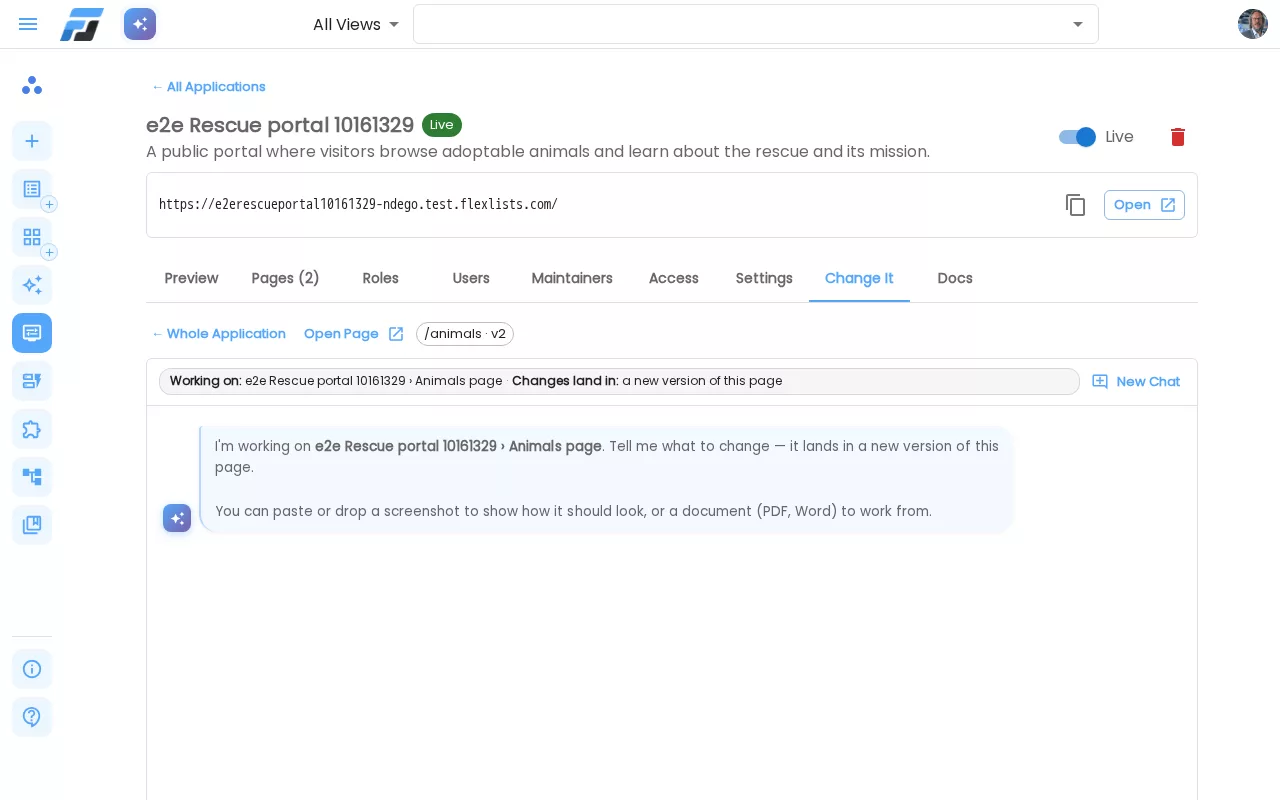
Every "Change it" box in Flexlists is now the same Dave chat: on an application, on a single page, on a form and its look, on an automation and in the view template builder. At the top of the chat a chip says what Dave is working on and where the change lands, for example Working on: Rescue portal › Animals page · Changes land in: a draft of this page. Dave only changes what you see in that chip.
You can also paste or drop a screenshot to show how something should look, or upload a PDF or Word document for Dave to work from. Pasted images show as thumbnails; click one to see it large.
+ Page, with a live preview next to the chat
The new + Page button adds a page in four ways: a Dave page (describe it), a List view (a table of one of your lists), a Form, or a Blank page you build yourself.
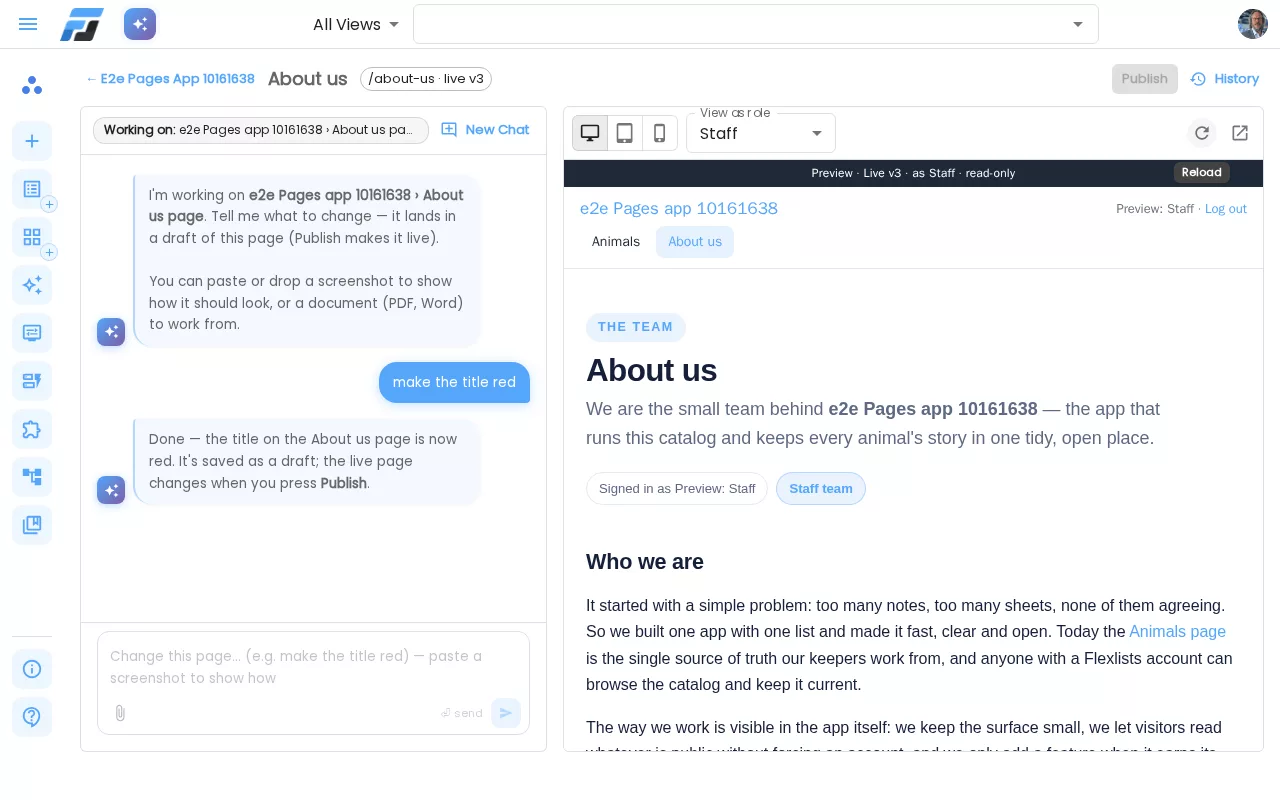
Every page now has a workspace: Dave on the left, the page itself on the right, exactly as your users see it. Switch between desktop, tablet and phone width, and use View as role to see the page as a Member, Staff or a visitor, with their real rights. The preview never changes your data.
Changes are drafts. The live app keeps showing the published version until you press Publish. History lists every version (who, when, what was asked), and Restore brings an old one back as a new draft.
Edit any page visually, also the ones Dave made
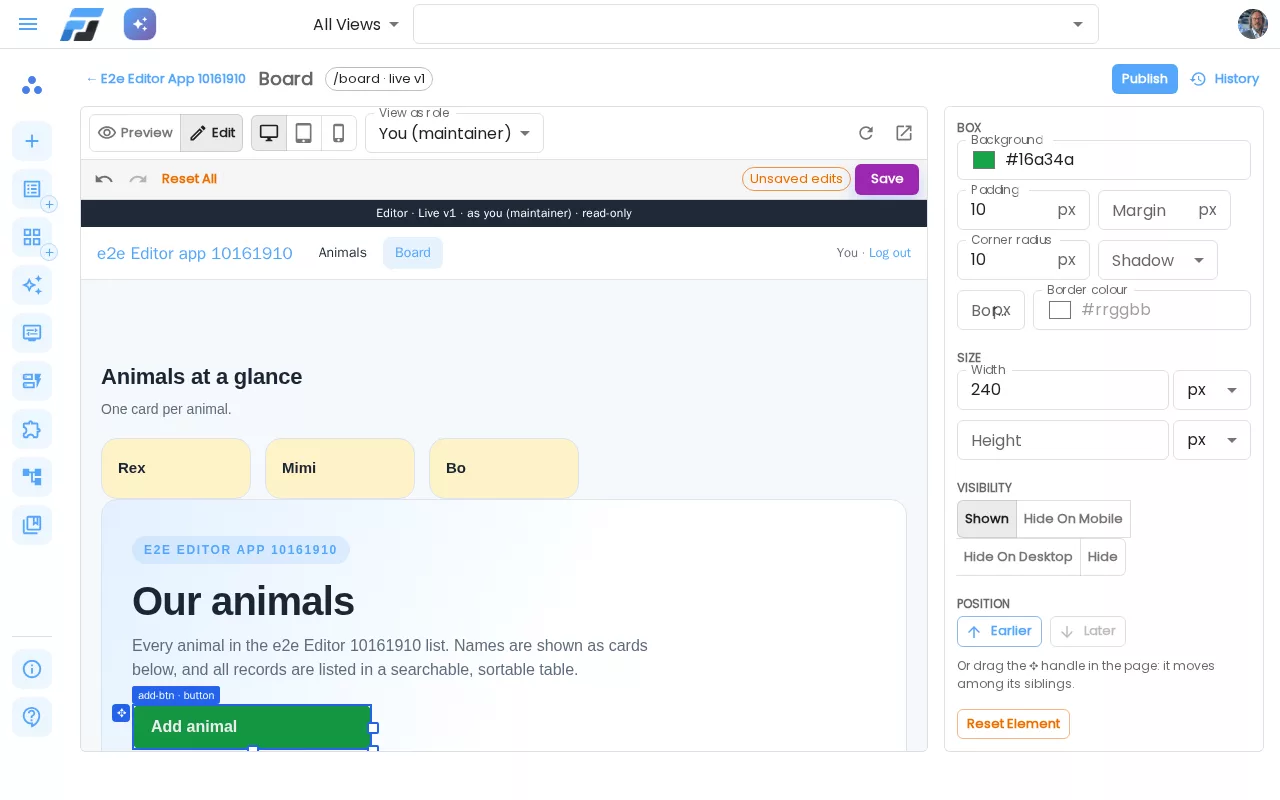
Press Edit in the workspace and click anything on the page. The Inspector changes colours, fonts, spacing, corners, borders and size. Drag the handle to resize a button, drag a section to move it up or down, double-click a heading to change its text, and hide something only on phones. Undo and redo work as you expect.
This works on pages Dave wrote too. Your visual changes are stored on top of the page, so when you later ask Dave for something new ("add a phone column"), your colours, sizes and texts stay.
Build a page from blocks, no AI needed
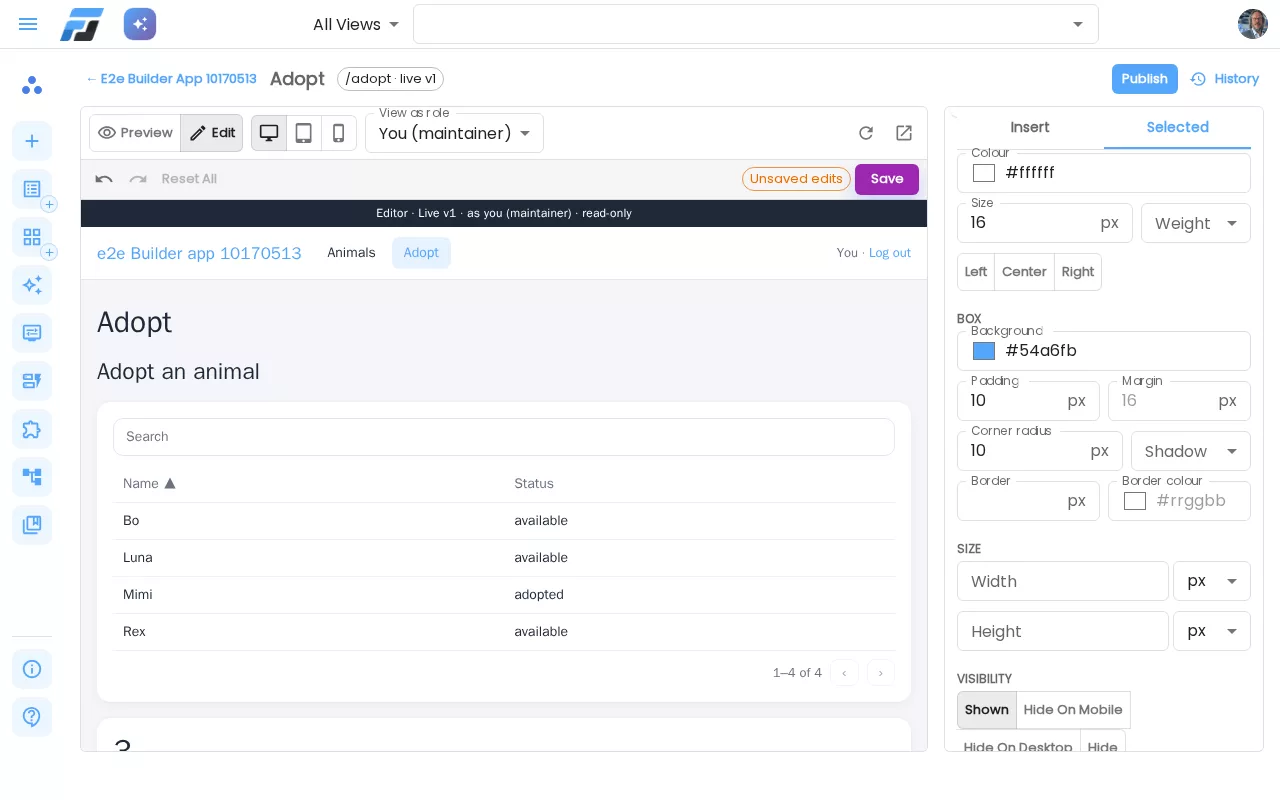
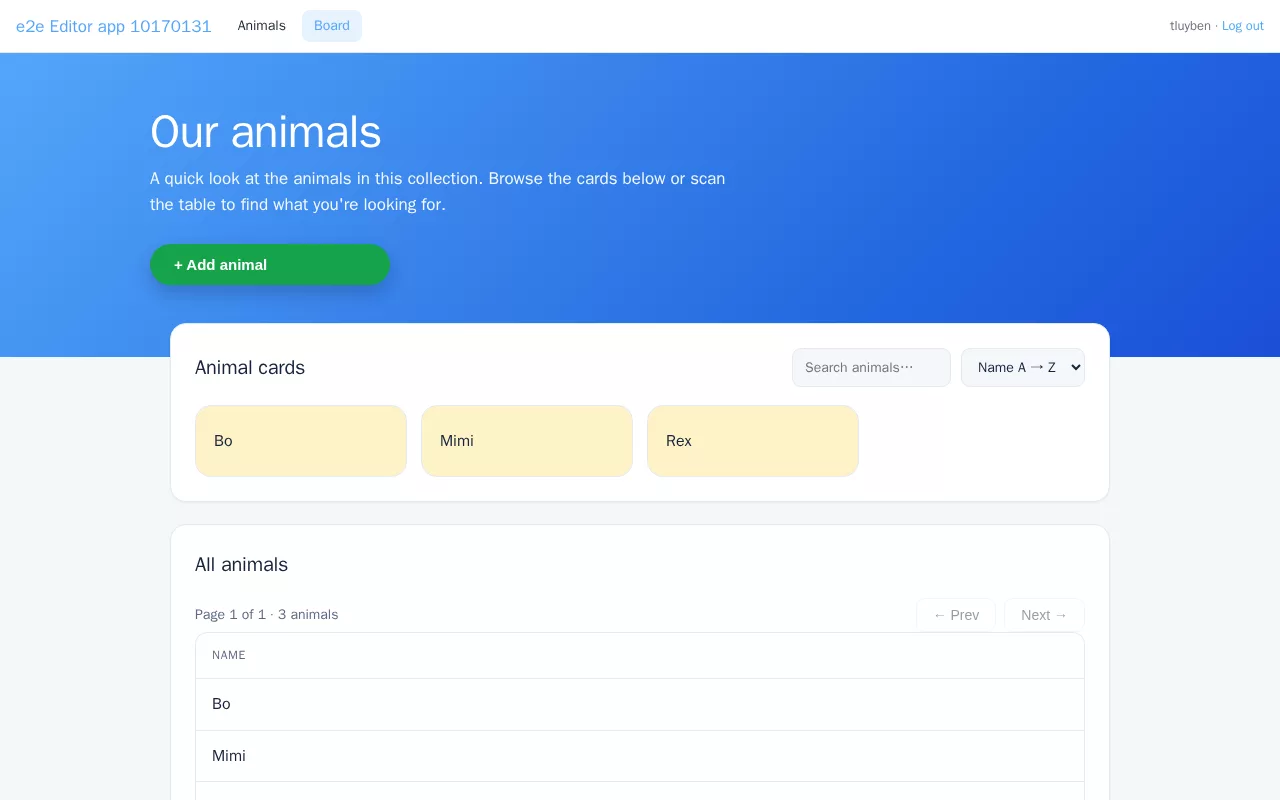
For people who prefer to build by hand, the Insert panel adds blocks to any page:
- Content: headings, text, images, buttons, columns, cards, dividers and videos.
- Data: a table of a list (with search, sorting and paging), a record card, a KPI (count or sum with a filter), a chart, a form, and a button that runs a workflow.
Blocks follow the rights of whoever looks at the page: a Member without add rights doesn't get an add button, and the server checks every request. Dave knows the blocks as well: ask "add the photo column to the animals table" and he changes that block, nothing else.
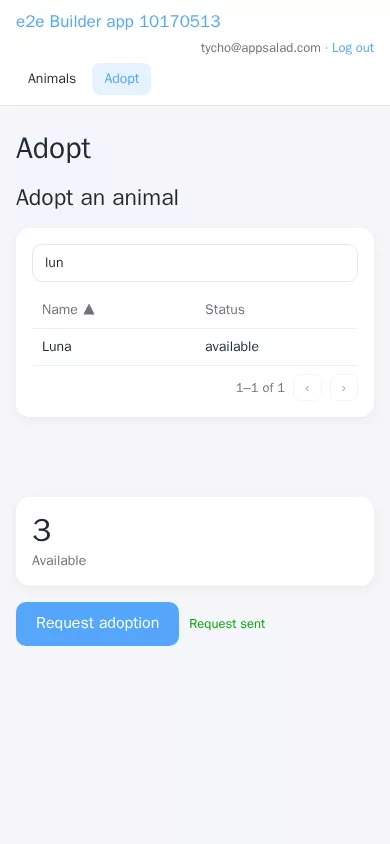
Automations: the visual flow and Dave side by side
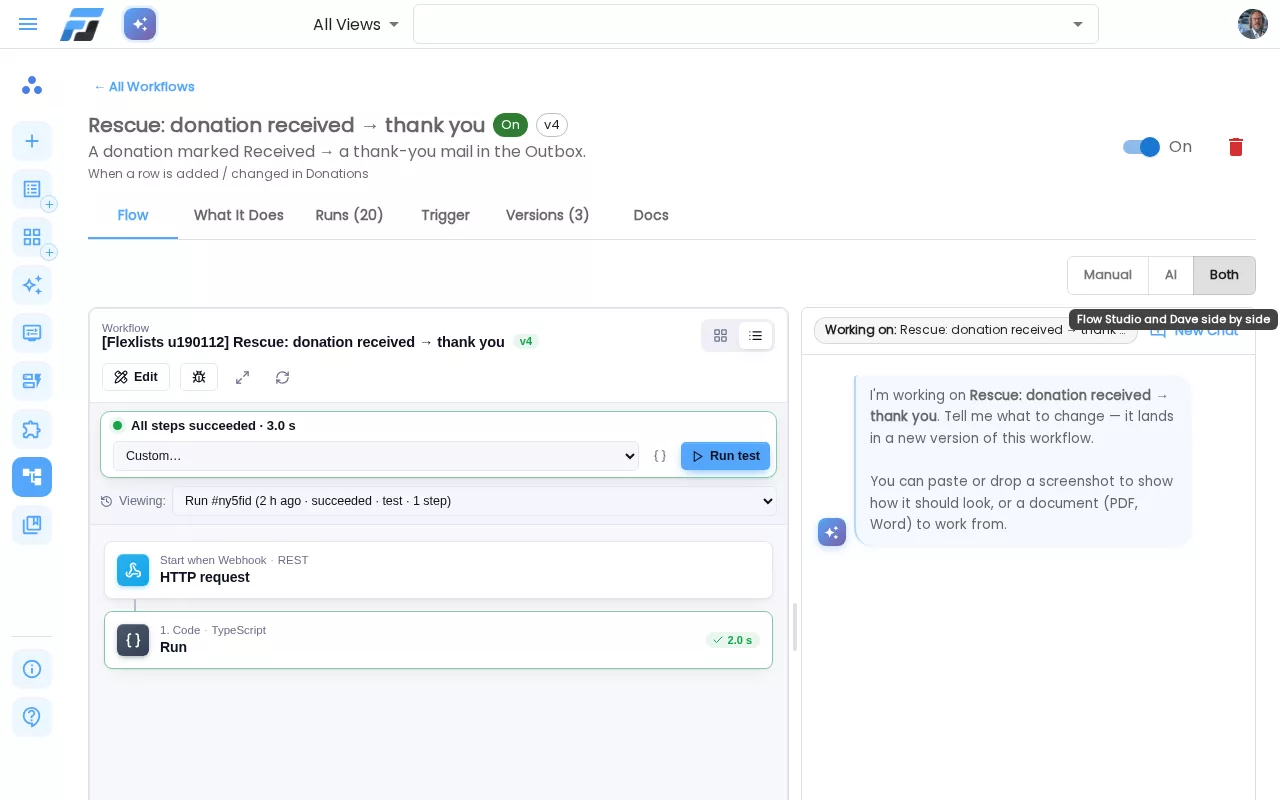
Automations show the visual Flow Studio and the Dave chat together. A switch at the top picks Manual (the studio full width), AI (Dave, with a preview of the flow) or Both. When Dave changes the workflow, the studio shows the new version. When you change something in the studio, Dave continues from your version.
Safer changes
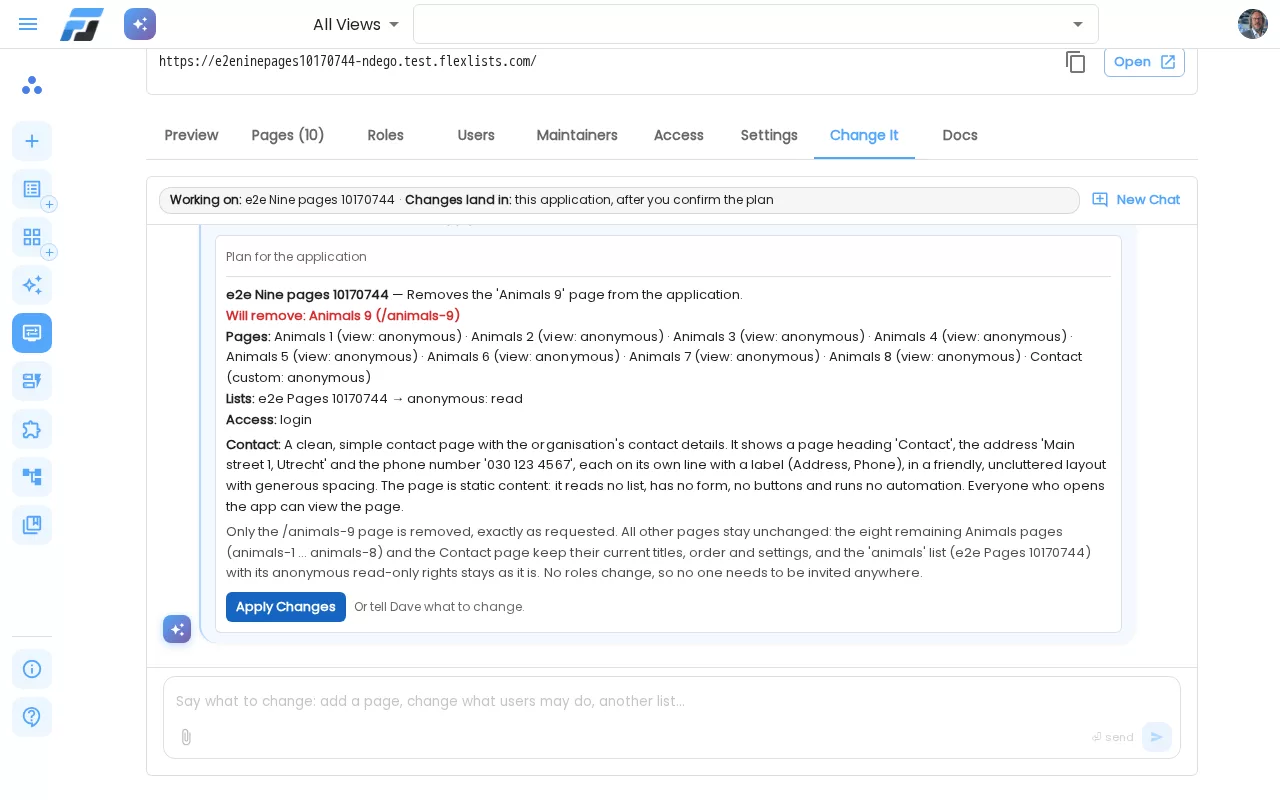
- Whole-app changes keep your pages. When you ask Dave to change the whole application, every page he doesn't mention stays exactly as it is, including your visual edits and its history. A page is only removed when you ask for it; the plan shows it in red and asks once more.
- Read access is your choice. A new List view page offers to give its roles read access to the list, and you can untick that, undo it right after, or take it away later. Access you take away by hand is never added back automatically.
- More reliable page building. Dave now recovers from a dropped connection, finishes long pages that used to get cut off, and a page that still fails shows a clear reason and a Try again button.
Try it
Open Applications, pick an app (or make one), and click + Page. Everything above is live on flexlists.com today.