
Design your own forms: drag, drop and style
Next to the AI form builder there is now a drag-and-drop designer: use fields from your lists and connected lists, add your own pictures, videos and text, and pick colours and fonts — what you see is what your visitors get.
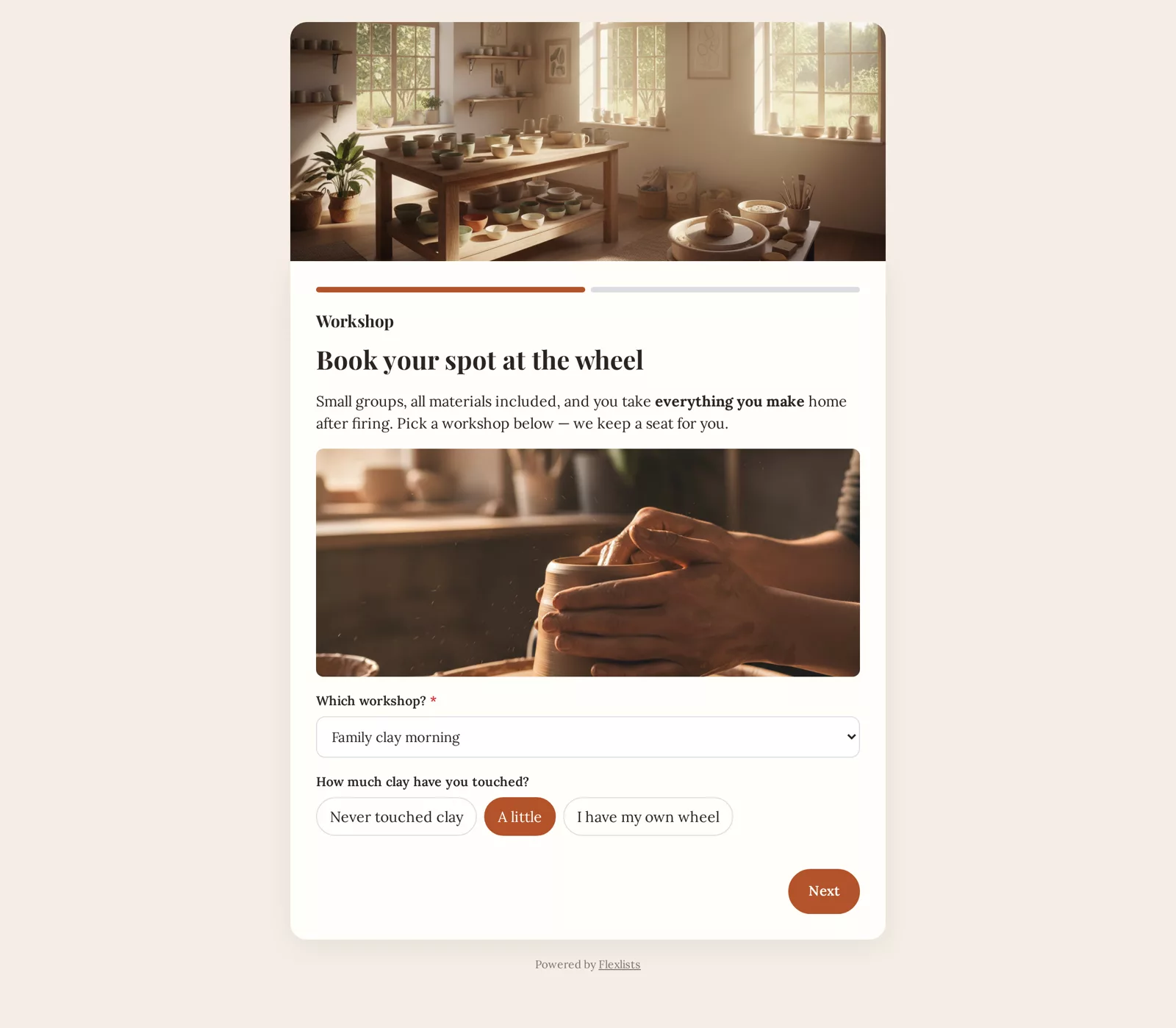
Forms in Flexlists used to have one way in: you described the form, and the AI built it. That still works, and it is still the fastest way to start. Today we add a second way: the form designer. Drag fields from your lists onto a page, add your own pictures, videos and text, choose colours and fonts, and see exactly what your visitors will see while you build it.
Two ways to make a form
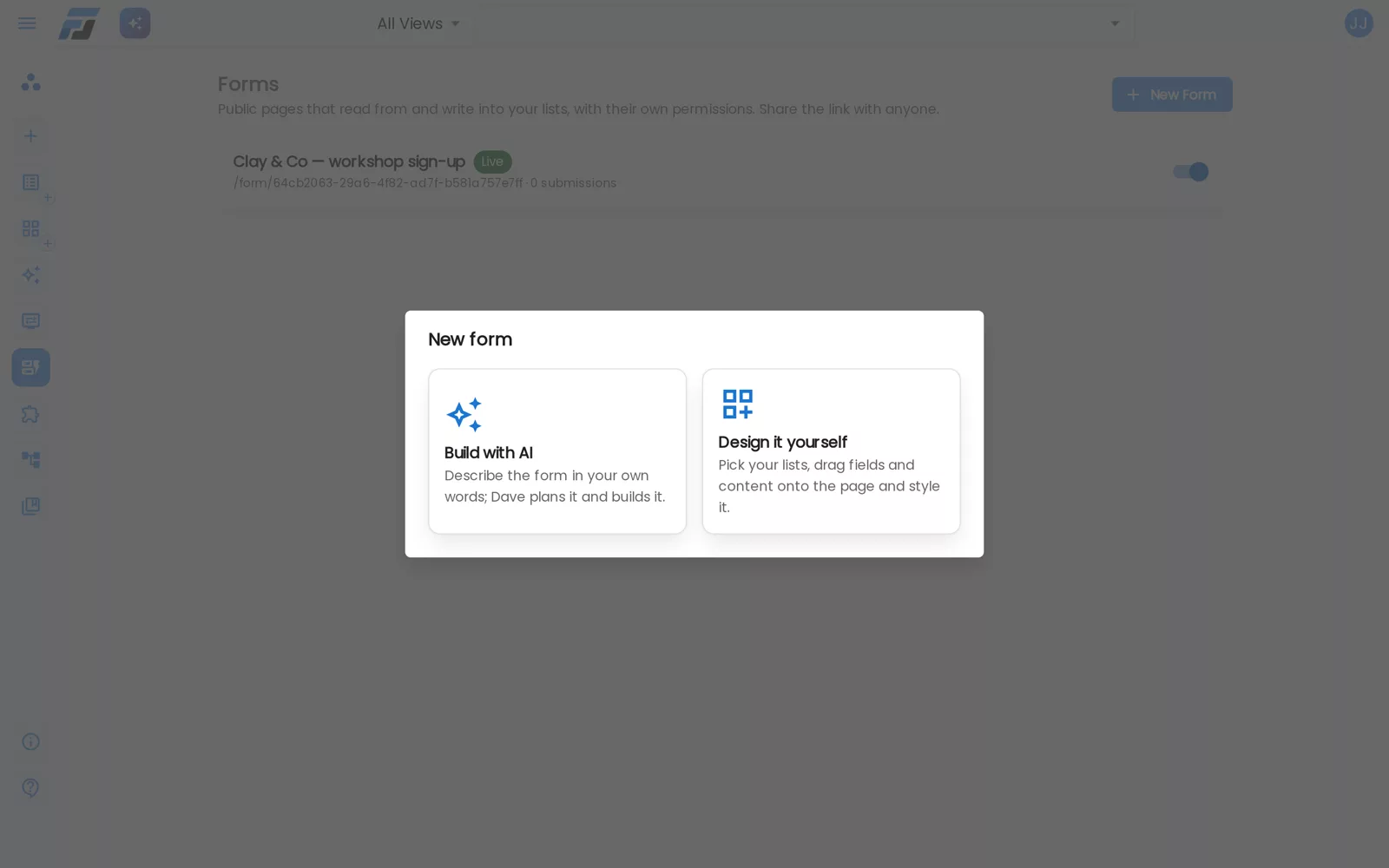
Go to Forms and click New form. You now get two choices:
- Build with AI. Describe the form in your own words. Dave asks a question if something is unclear, then plans and builds it, including any new lists it needs.
- Design it yourself. Opens the designer on an empty page.
You don't have to pick one for good. Every form, including one the AI built, has a Design tab. Let the AI make a first version, then fine-tune it by hand. Or design the form yourself and later ask the AI to change it ("add a step for dietary wishes"). It keeps your design, colours and pictures.
Your lists, and the lists connected to them
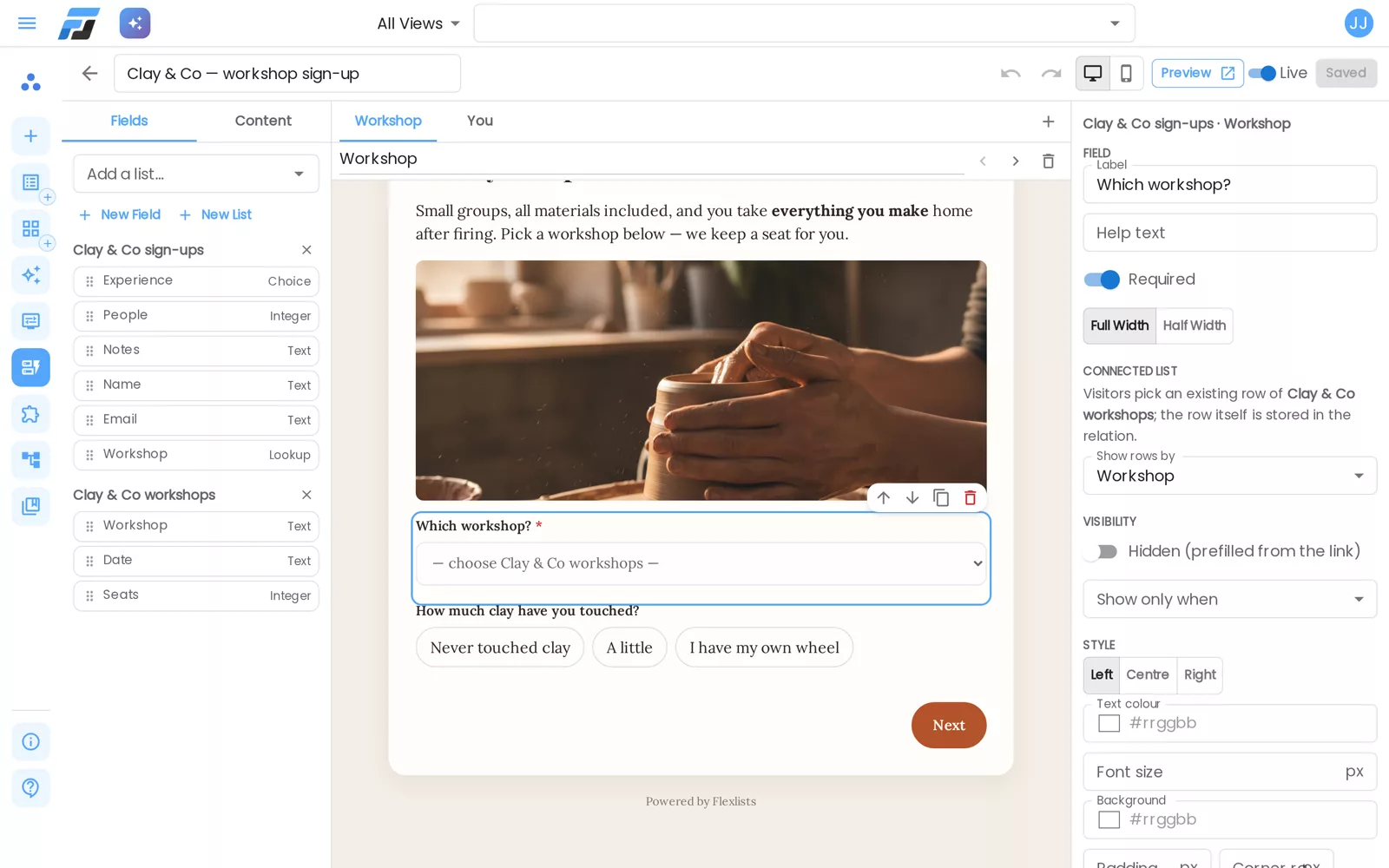
On the left, pick one or more lists. Their fields appear below, ready to drag onto the page. Lists that are connected through a Lookup, Sublist or Many-to-many field show up too. In the example, a sign-up form for a pottery studio uses two lists: Workshops and Sign-ups. The sign-up's Workshop field is a Lookup to the workshops list. On the form, that becomes a dropdown of the real workshops, and the visitor's choice is saved as a real link to that row, not as a copy of its name.
Need a field that doesn't exist yet? Click New field, give it a name and a type (text, number, date, choice, image, file…), and it is added to the list when you save. New list makes a new list for the answers.
Click any block to change it on the right: label, help text, required, full or half width, how a choice is shown (dropdown, radio buttons or buttons), a default value, or show only when another answer is filled in or has a certain value. A field can also be hidden and filled from the link, for example ?source=newsletter.
Pictures, videos and text
The Content tab has everything that isn't a question:
- Headings and text, with bold, italics, links, lists and colours.
- Images: upload your own, up to 10 MB.
- Videos: upload an MP4 or WebM, up to 200 MB, or paste a YouTube or Vimeo link. YouTube videos are embedded without tracking cookies.
- Columns (two or three), dividers, spacers and buttons.
- Page breaks: every break starts a new step, with a progress bar on top.
- Repeating groups: let visitors add several rows at once, for example one per family member, saved in a connected list.
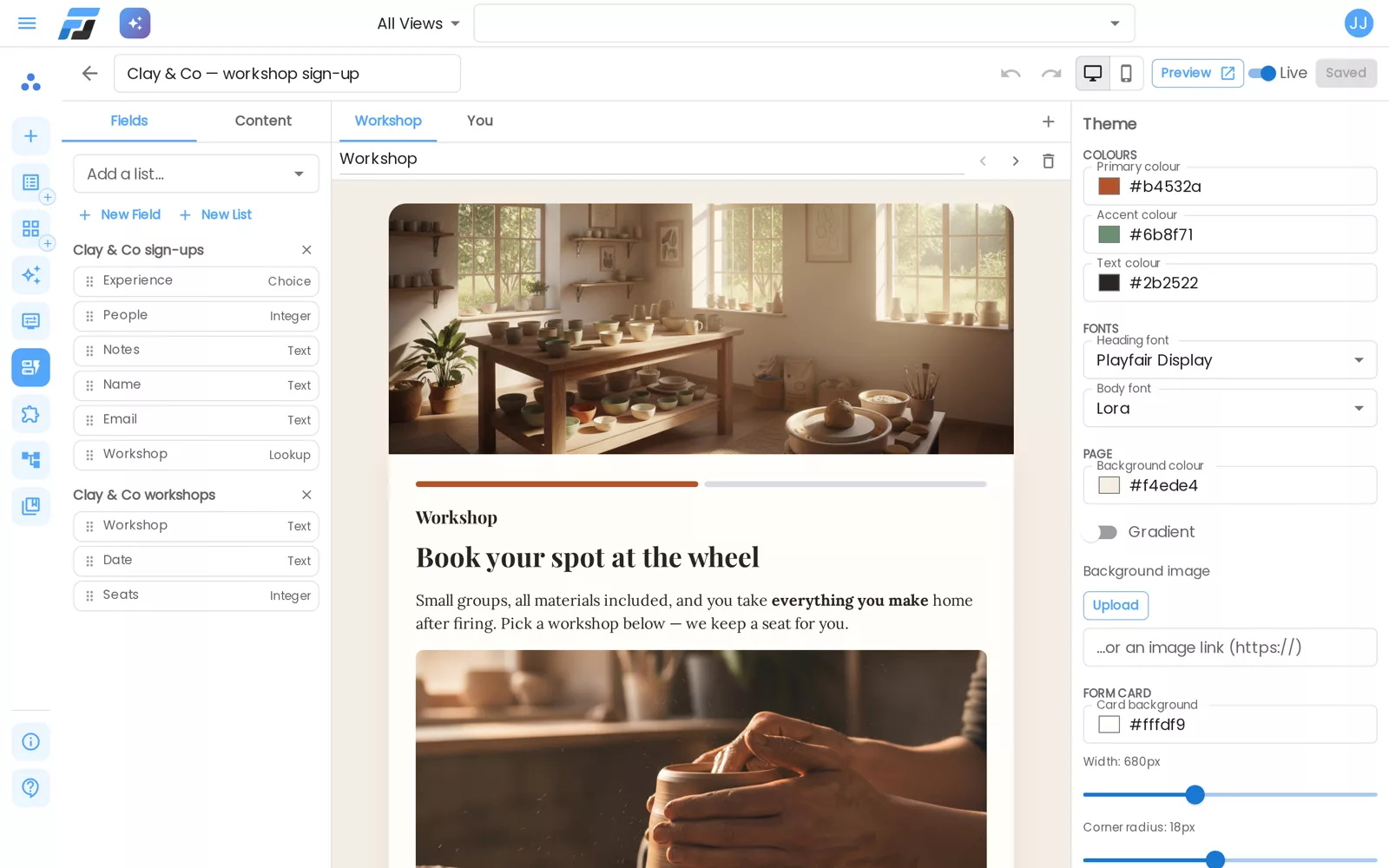
Click an empty spot on the page and the right side shows the theme: main, accent and text colours, a heading font and a body font (21 Google Fonts, plus the usual system fonts), the page background (colour, gradient or picture), the form card (width, rounded corners, shadow), how inputs and buttons look, a logo and a cover image. Switch the preview between desktop and phone width at the top, and use undo and redo freely.
What your visitors see
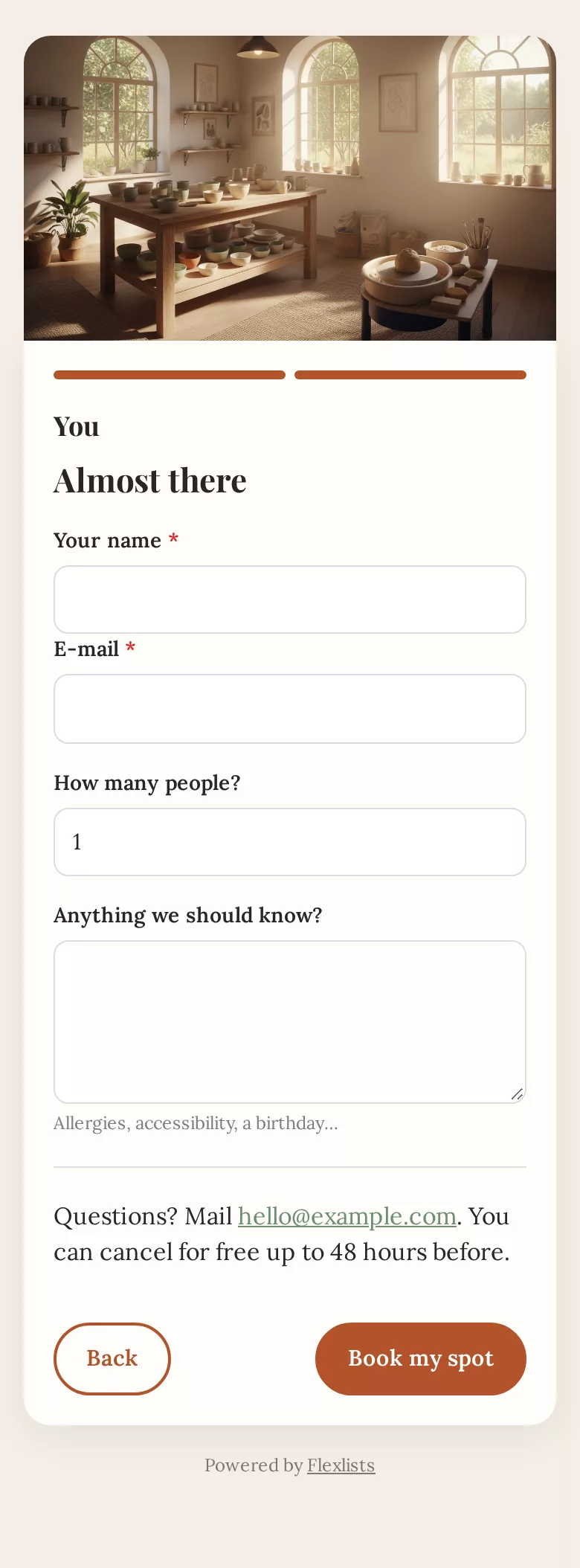
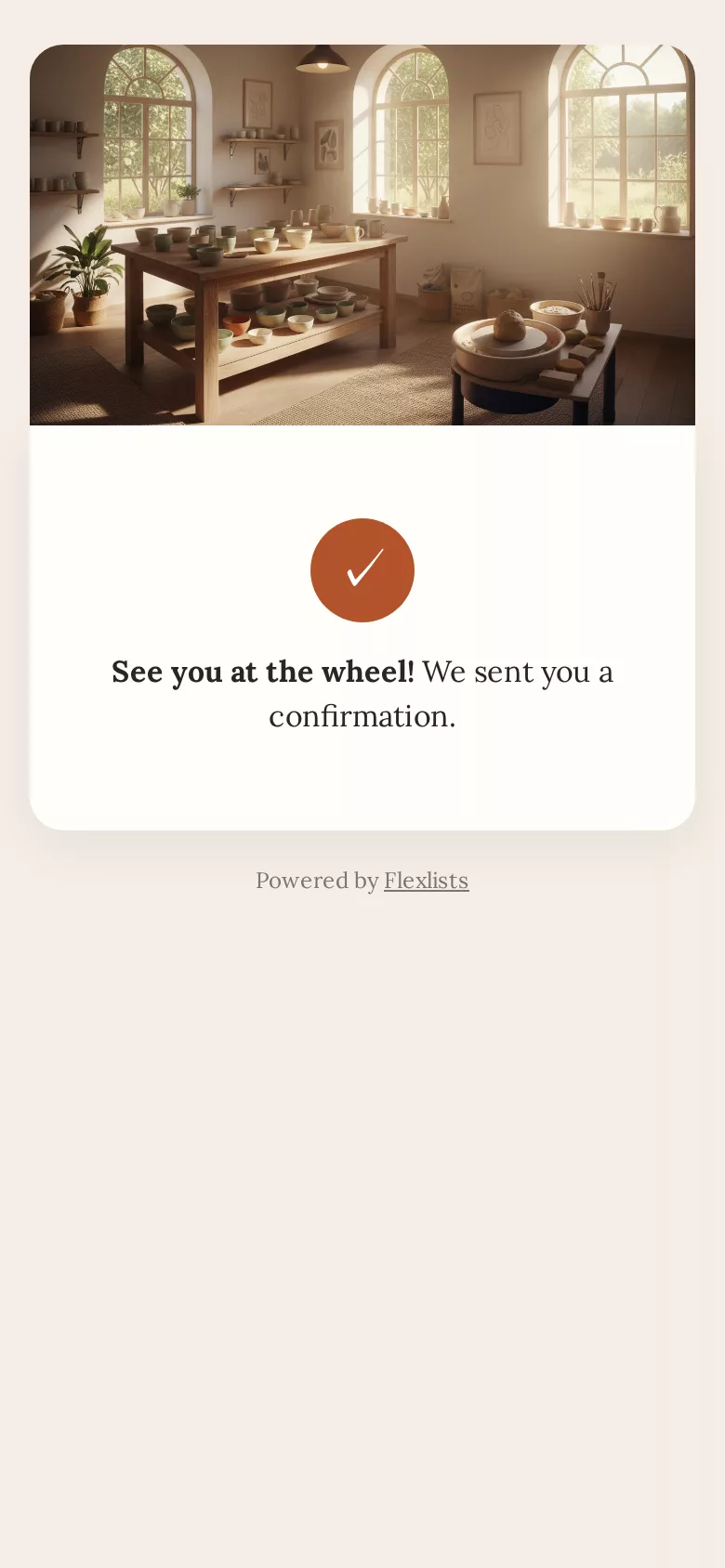
The public page looks exactly like the designer, because both are drawn by the same code. It loads only the fonts you use, works on any phone, and you can embed it on your website. Columns stack on small screens. Required fields and e-mail addresses are checked before the next step.
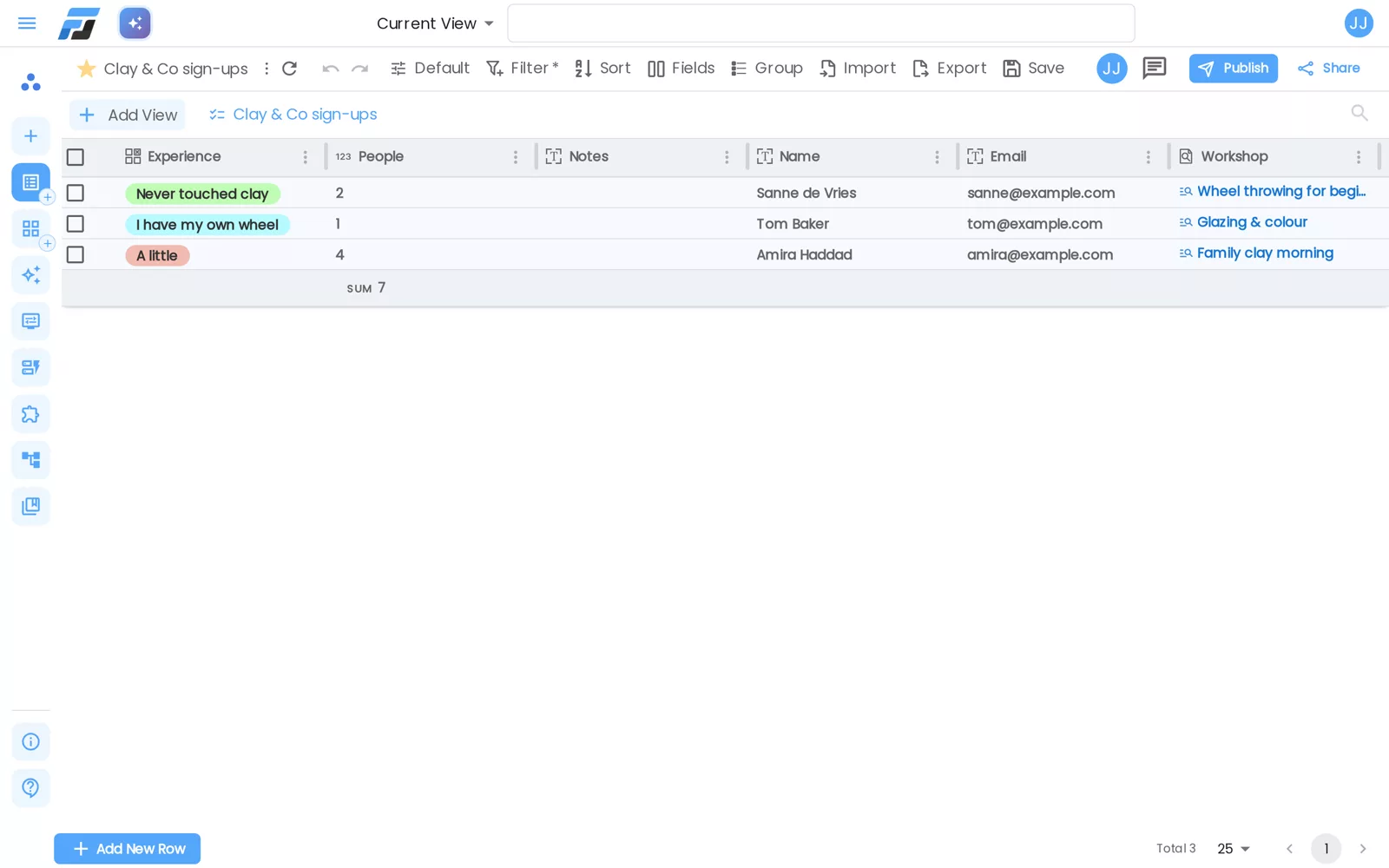
Every answer lands as a new row in your list, with links to connected rows filled in. The form's Submissions tab shows each submission and the rows it made. Uploaded pictures and videos are stored encrypted, like every other file in Flexlists.
Try it
Open Forms → New form → Design it yourself, pick a list, and drag your first field onto the page. Prefer to talk? Build with AI is right next to it, and you can switch between the two whenever you like.