
Change values right in the list — and see when there is something new
Flip switches, type and pick values without opening a row, and a small red dot tells you when others added rows.
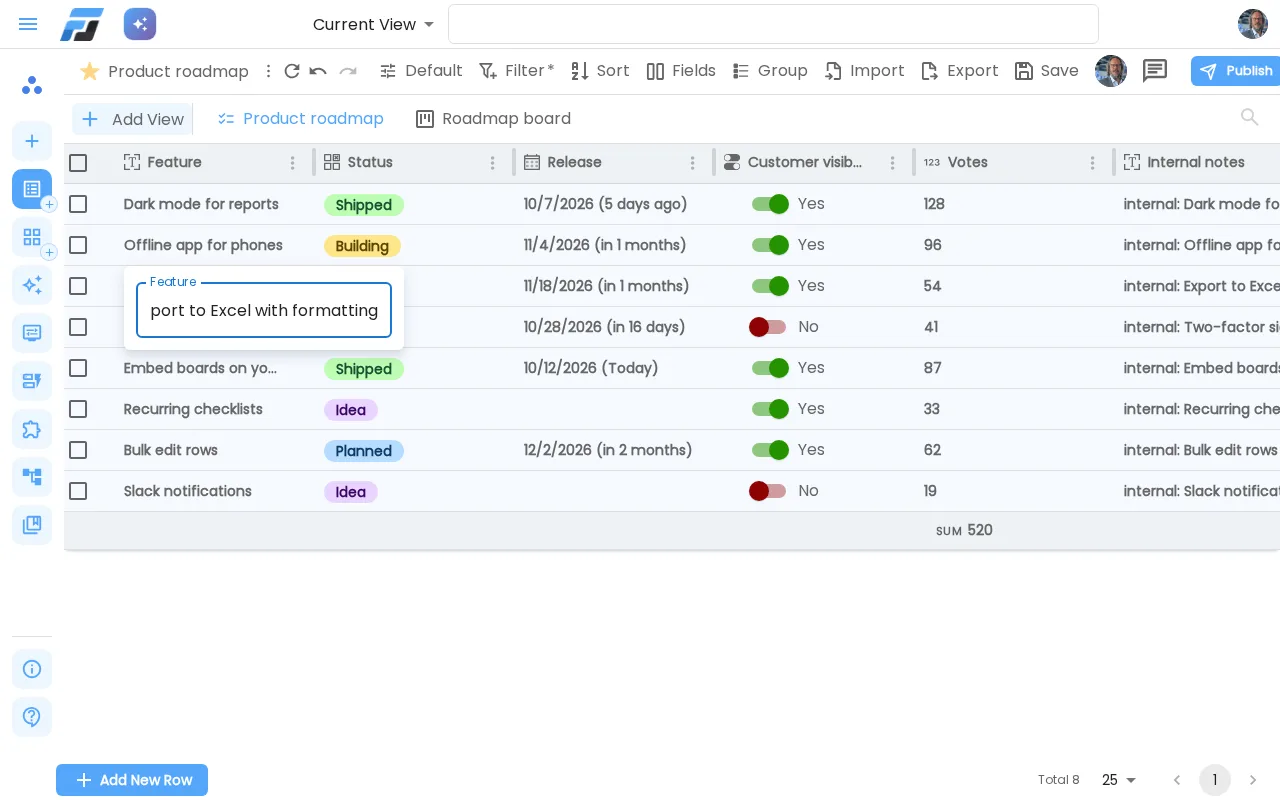
Two small changes that make a big difference in daily use: you can now change values right in the list, and Flexlists tells you quietly when someone else adds rows.
Change values right in the list
Switches work the way you expect. Click a Yes/No switch in a list and it flips. That's now the default for every Yes/No field, new and existing.
For other fields you choose. Open the field's settings and tick Edit in list/view:
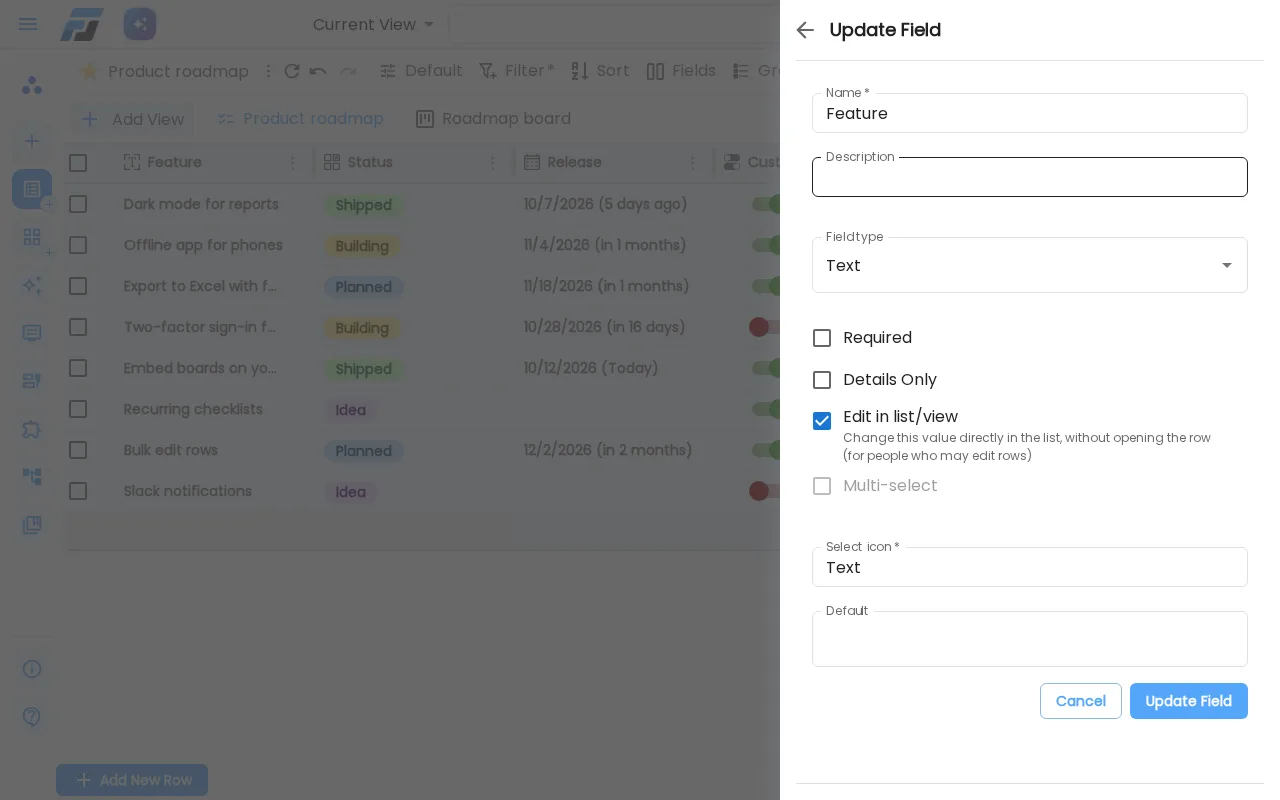
Then you can change the value right where you see it, without opening the row:
- Text, numbers, e-mail, links and phone numbers: click, type, press Enter. Esc cancels.
- Choices: pick from the list, with their colours.
- Dates and times: the usual date picker.
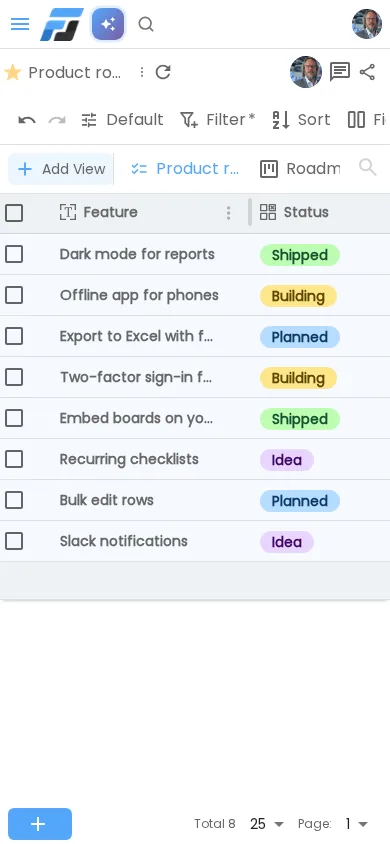
It works the same in the row details: fields with the option can be changed straight away, without pressing Edit first. On Kanban, gallery and checklist cards, Yes/No switches and choices can be changed right on the card.
Only people who may edit rows get these controls. Everyone else sees the list as before. Every change goes into undo (Ctrl+Z) and the row history, and your automations and webhooks see it like any other change.
A red dot when there's something new
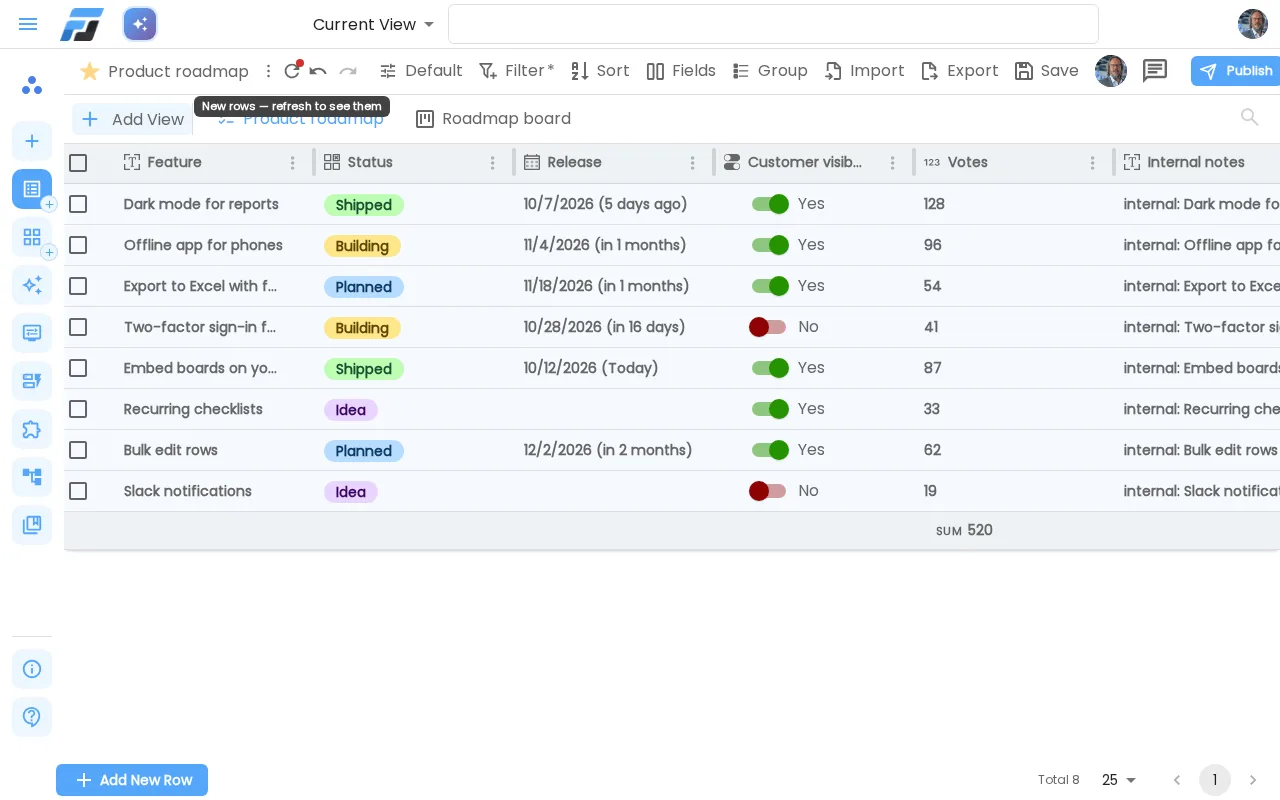
When a colleague, an automation, an import, a form or an API key adds rows to the list you're looking at, a small red dot appears on the refresh icon. Click refresh to see the new rows.
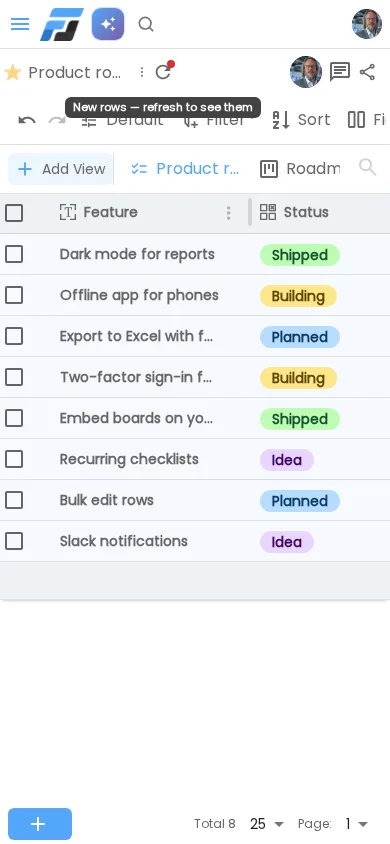
It's designed not to get in your way:
- Your page stays put. Your table doesn't jump or reload while you work.
- Your own rows don't count. Rows you add yourself never light the dot.
- Filters are respected. Rows that fall outside your view's filter are ignored.
- It saves effort. Once the dot is on, Flexlists stops checking. It also pauses while the tab is in the background, and starts again when you refresh.