
Import spreadsheets with a preview — and let AI tidy them up
CSV and Excel imports now show a preview first: the real header row is found, title rows are skipped, the separator is detected, and an AI button suggests fixes.
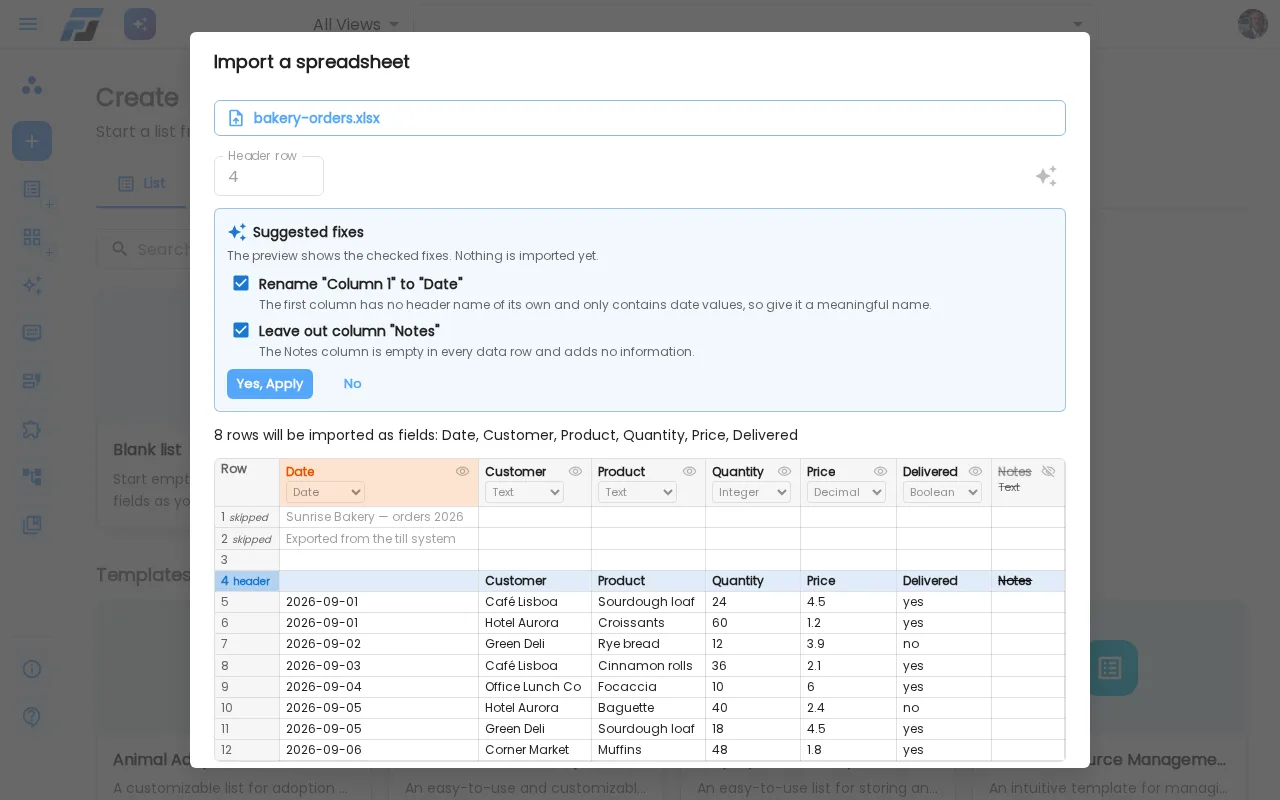
Most spreadsheets aren't a neat table. There's a title at the top, a line that says where the data came from, a blank row, and only then the real column names. Sometimes the first column has no name at all. Importing those used to give you a list full of junk rows. Not anymore: every CSV and Excel import now shows a preview first, and an AI button can tidy the sheet up for you.
See exactly what you'll get
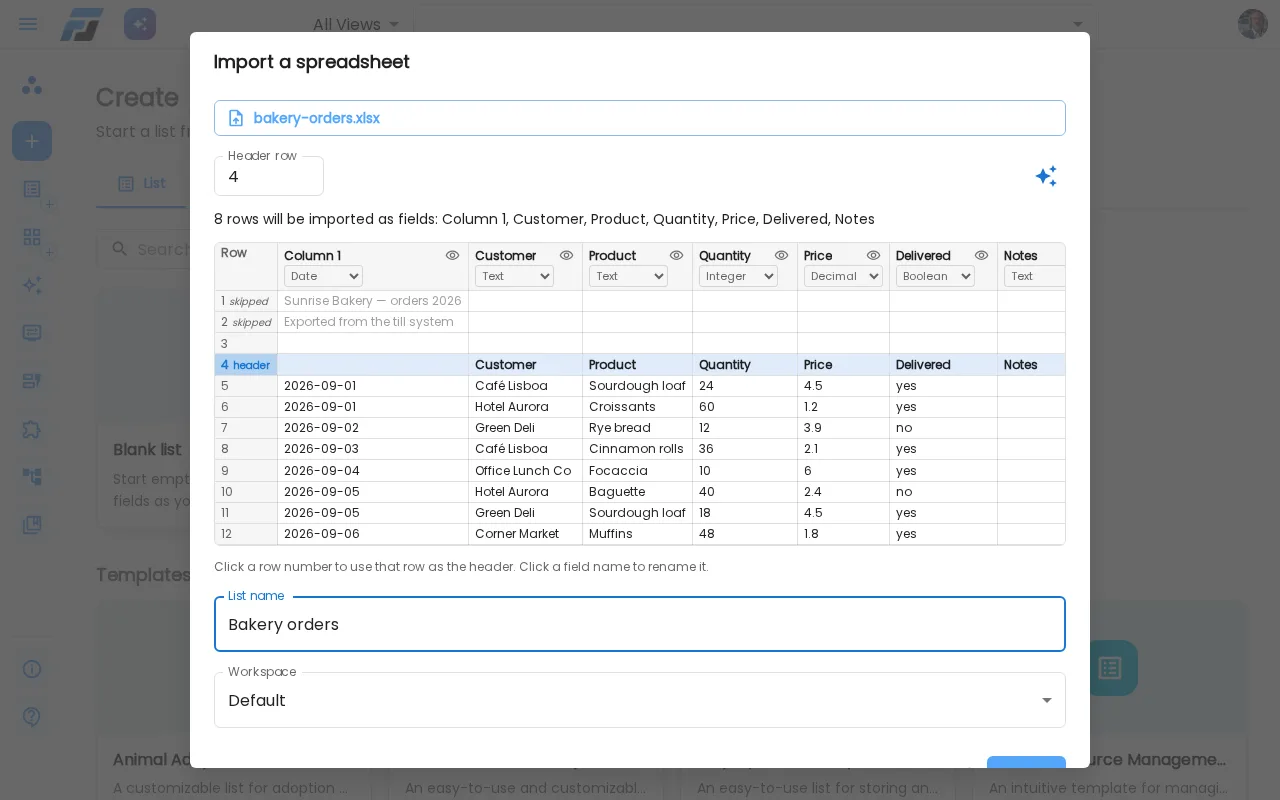
Import a spreadsheet (from Create → Import a spreadsheet, by dropping the file on the Create page, or with Import in any list) and you first see the sheet as it is, row by row:
- Flexlists finds the real header row. Title and note rows above it are greyed out and marked skipped. Not right? Click another row number, or type the row in Header row.
- You see every field and its type before you import: text, number, decimal, date, yes/no.
- Empty column names get a name (Column 1), and duplicate names get a number.
- Excel files with more than one sheet let you pick the sheet.
- What you see is exactly what gets imported, nothing more.
Fix the fields yourself, right in the preview
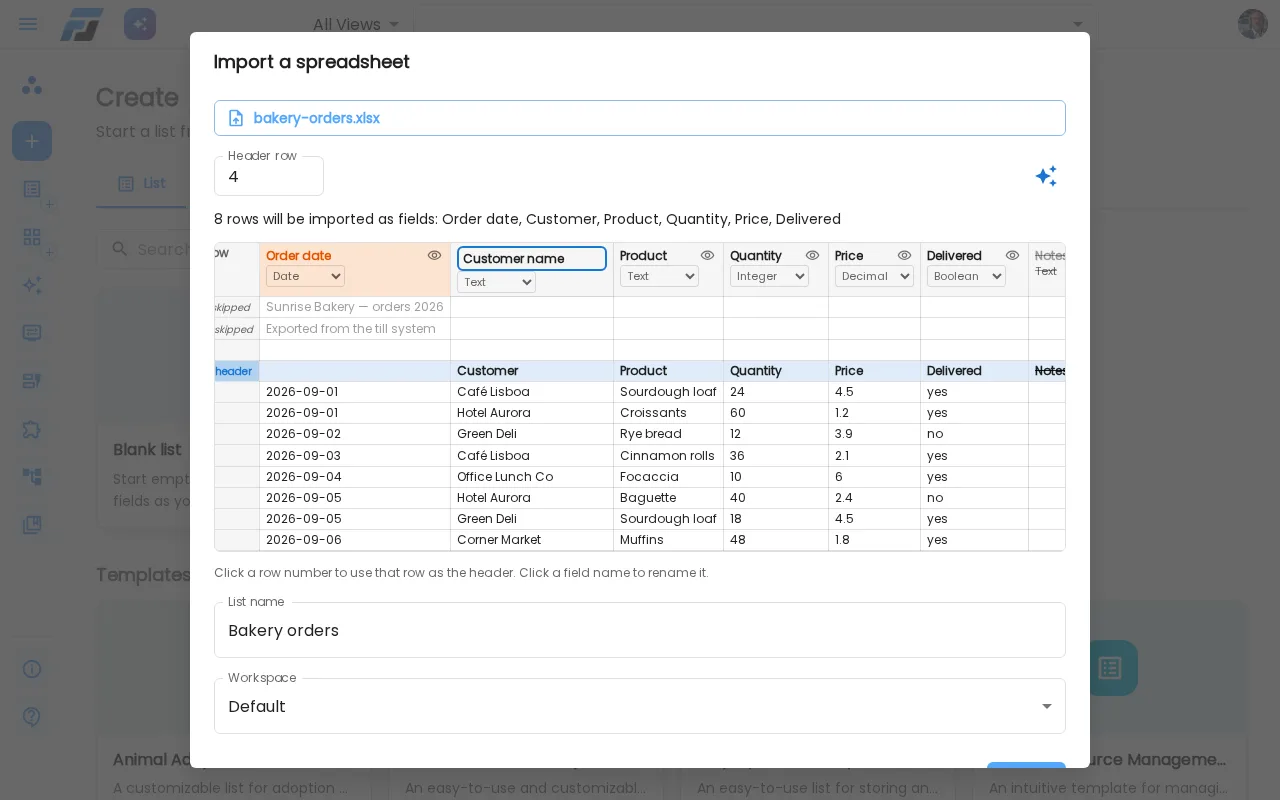
The column headers in the preview can be edited:
- Rename a field: click its name, type, press Enter.
- Choose the type: pick it in the small menu under the name (text, number, decimal, date, yes/no).
- Leave a column out: click the eye icon. The column is struck through and won't be imported.
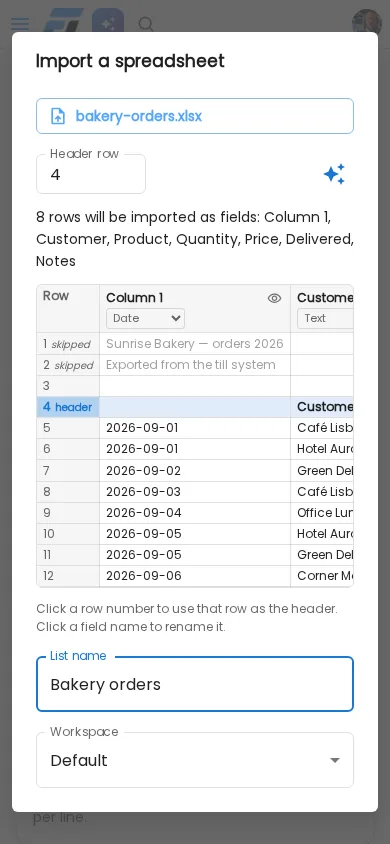
Your changes are highlighted, so you always see what differs from the file. On a phone, tap the name to edit it.
Just drop the file
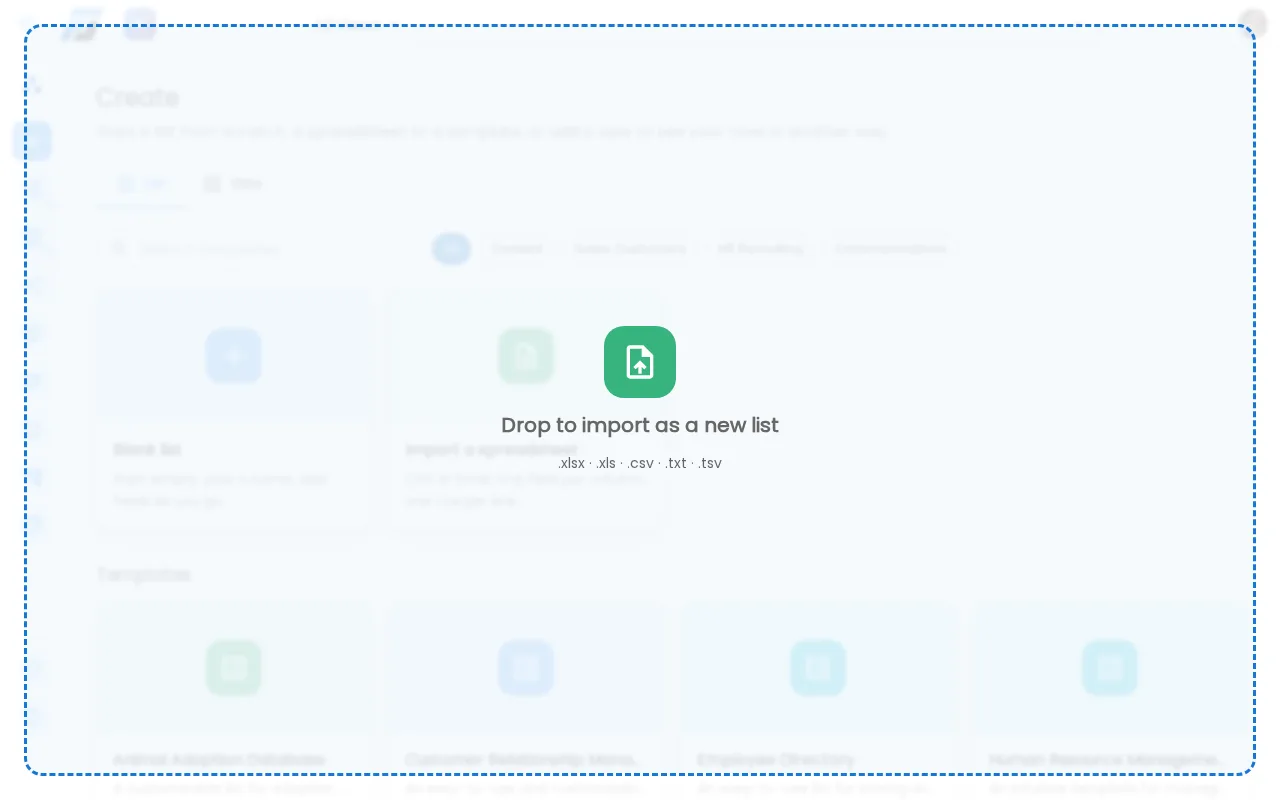
On the Create page you don't even need a button: drag an Excel or CSV file anywhere onto the page and drop it. The import opens with your file already loaded. Besides .xlsx, .xls and .csv, plain-text .txt and .tsv files work too: Flexlists works out the separator.
CSV files: the right separator
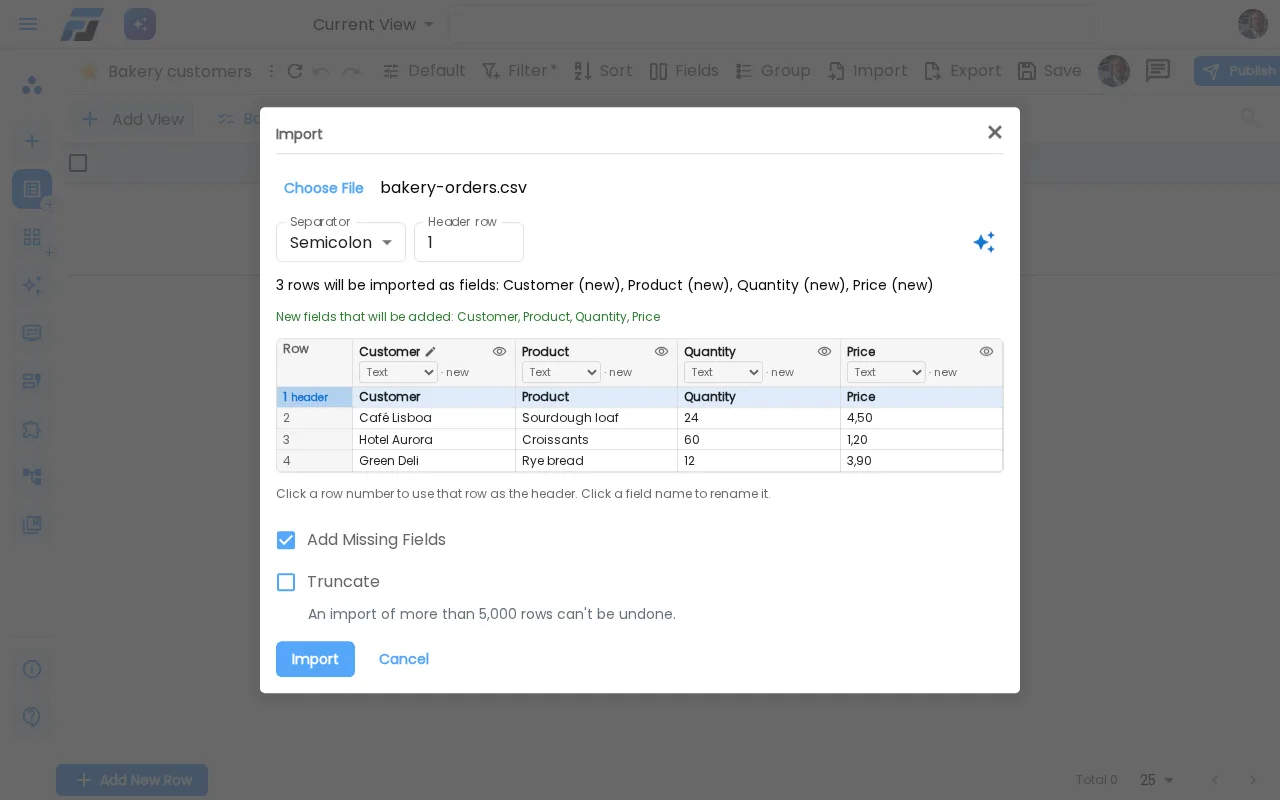
CSV files from European spreadsheets often use semicolons instead of commas. Flexlists now detects the separator (comma, semicolon, tab or pipe) and shows it, and you can change it if you like. When you import into an existing list, the preview marks which columns will become new fields.
The magic button: let AI fix the sheet
Click the ✨ button and the assistant looks at your sheet and suggests fixes:
- name a column that has no header, for example Date for a column full of dates;
- leave out an empty column or rows you don't need;
- change a field type, or pick a different header row or separator.
Each suggestion has a checkbox, and the preview immediately shows the result with the checked fixes applied. Click Yes, apply to keep them or No to go back. Nothing is imported until you click Import. The assistant only sees a small sample of your sheet, never the whole file.