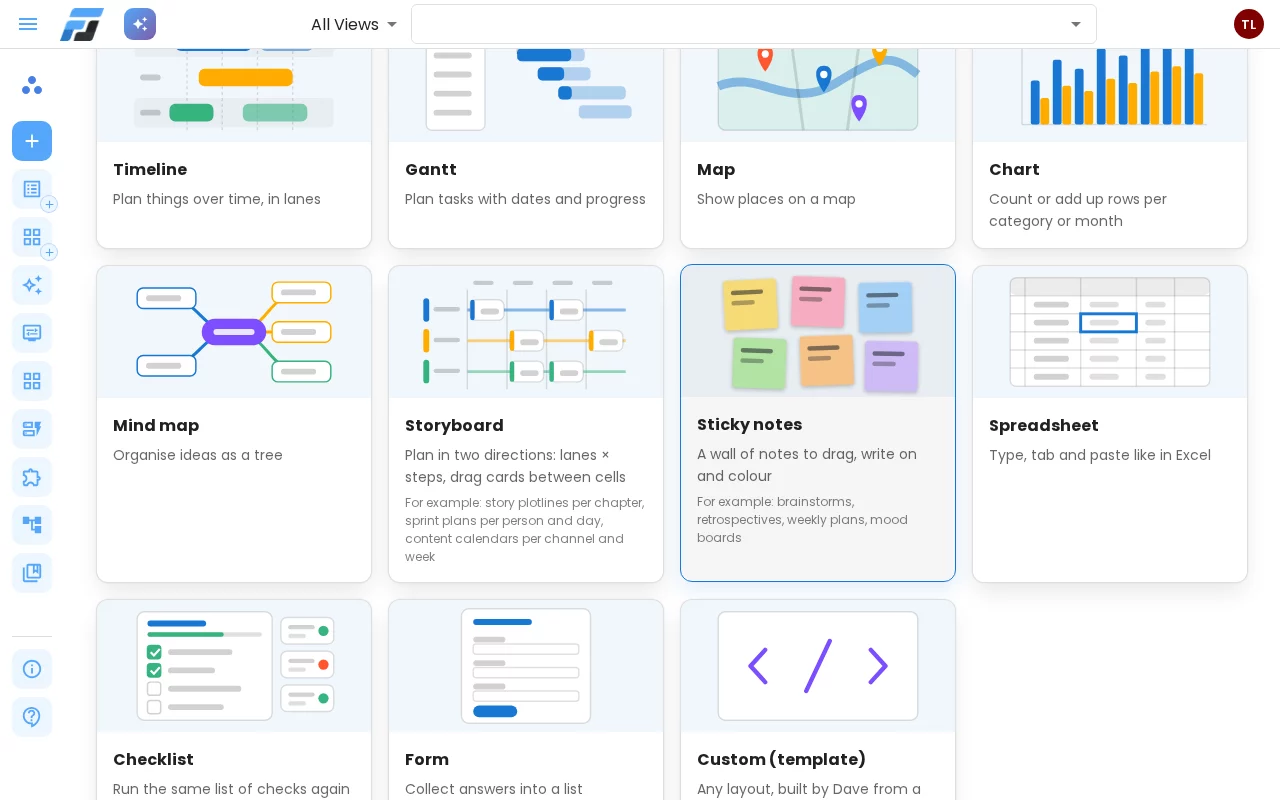
Sticky notes: a wall of ideas where every note is a row
The new Sticky notes view turns any list into a wall of notes: drag them around, write on them in place, colour them, and switch between a free board, a grid and a list — while every note stays a row you can filter, sort and automate.
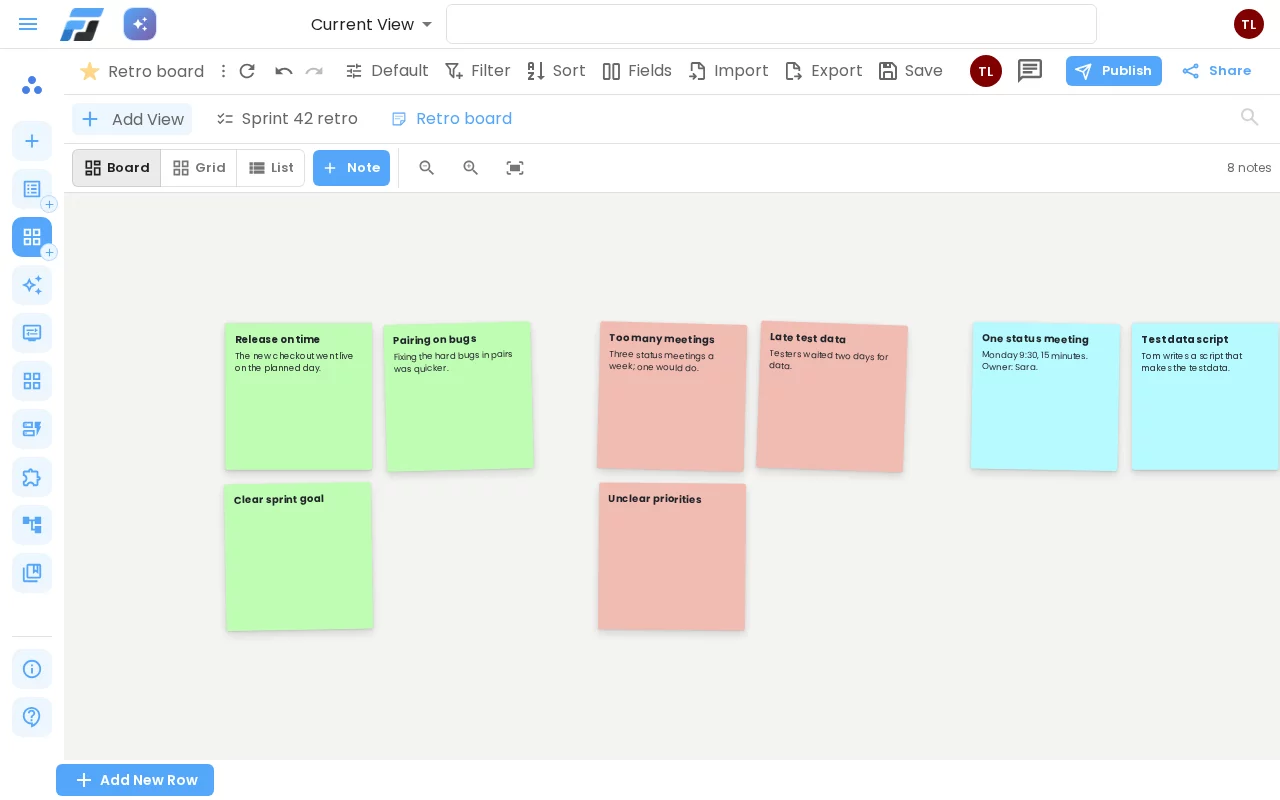
Some thinking doesn't start in rows and columns. A retrospective, a brainstorm or a weekly plan starts as a wall of sticky notes. The new Sticky notes view gives you that wall, and every note on it is a row in your list.
A wall you can move things around on
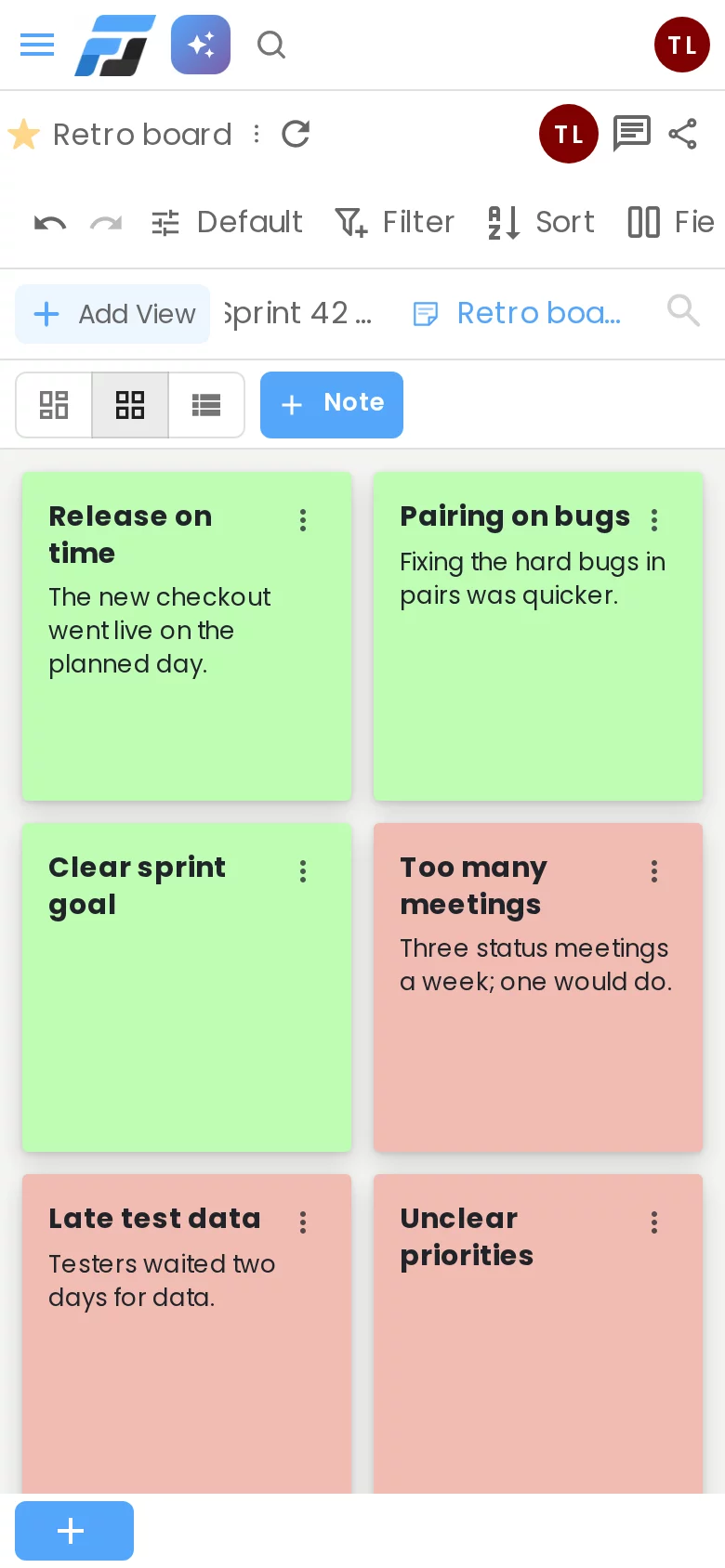
Each row is a note: its title in bold, the text below it, and its colour from a field of your list. On the Board you can put notes anywhere. Drag a note to group it with others, zoom in and out, or press Fit to see the busiest part of the wall.
Write on the note itself
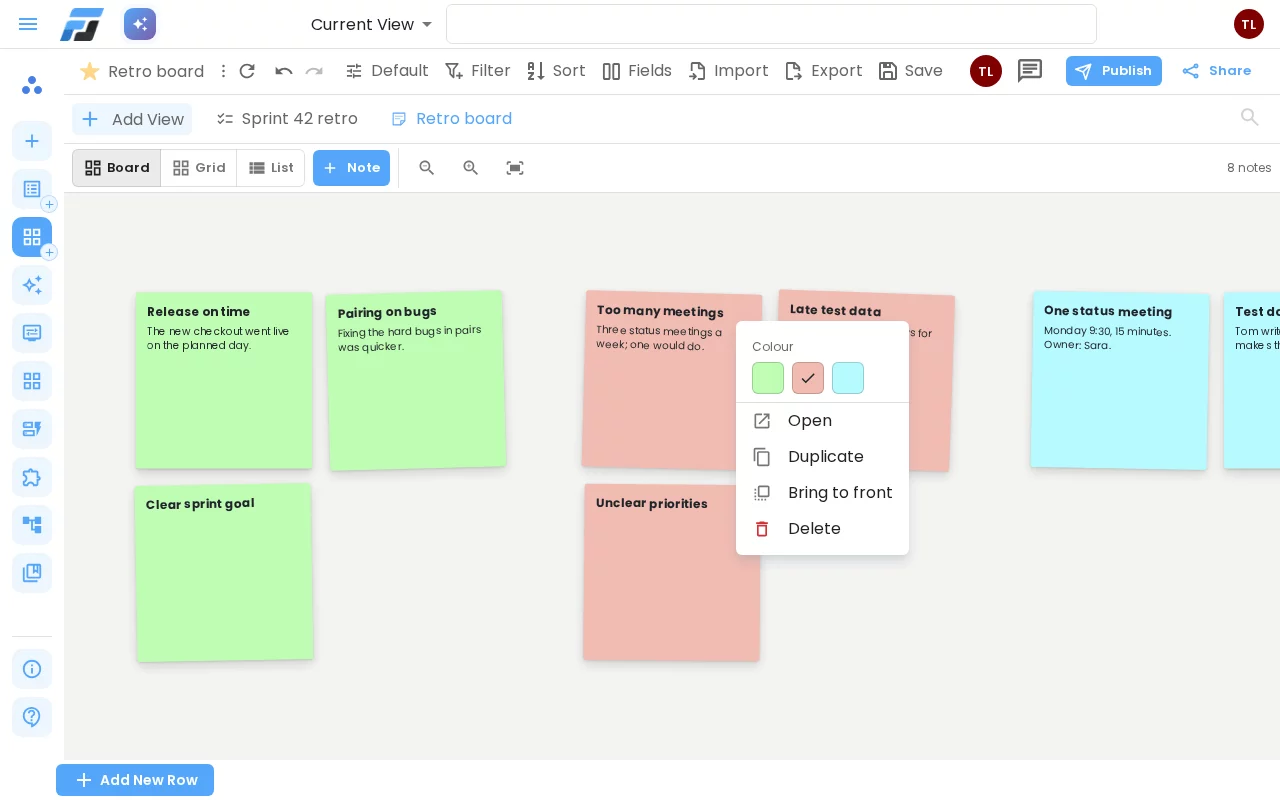
Double-click a note to type on it, and click away to save. Double-click an empty part of the board to put a new note there, or press + Note. Every note has a ⋮ menu where you can change its colour, open the full row, duplicate it, bring it to the front or delete it.
Board, Grid or List
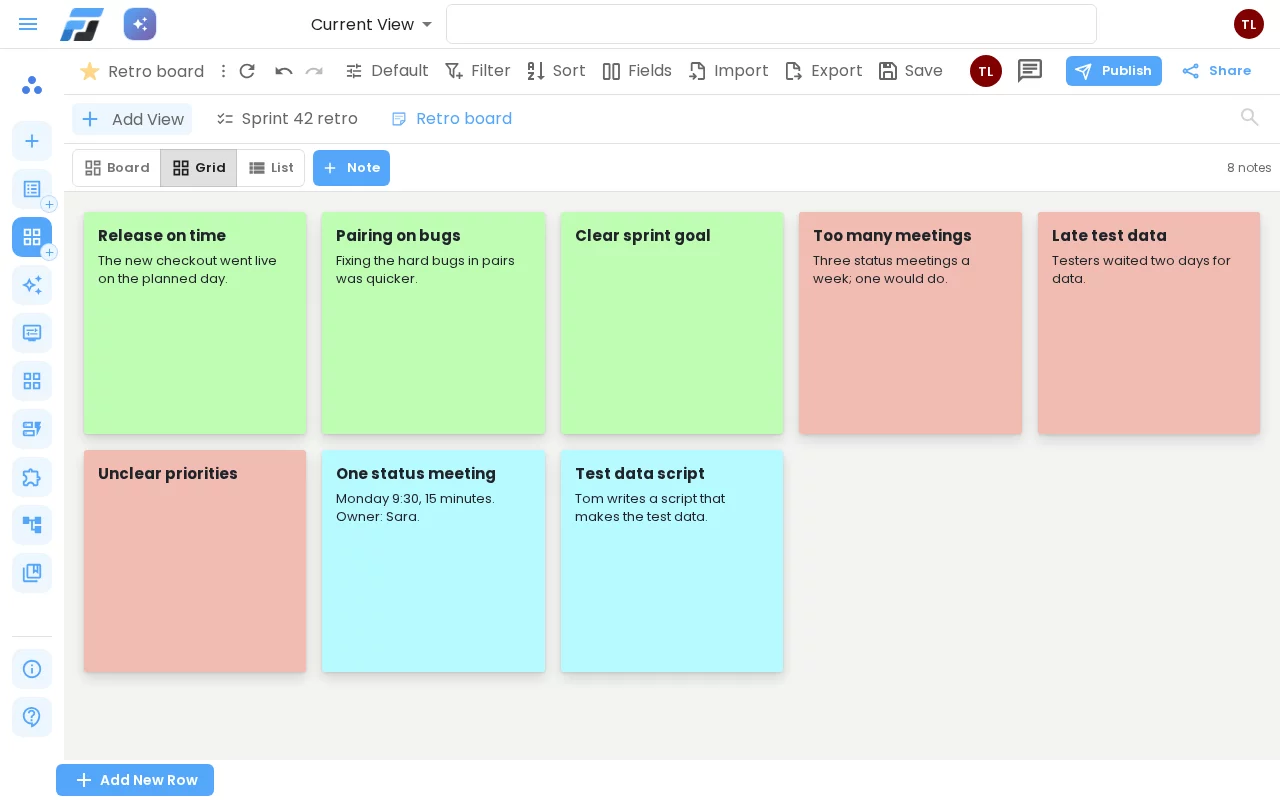
Not every wall needs to be free-form. Grid lines the notes up in neat rows, in the order of the view's sort. List shows one note per line, which makes it easy to read through. Flexlists remembers your choice for each view.
On a phone the view opens in Grid. Tap a note to write on it, and the ⋮ menu opens as a sheet at the bottom of the screen. On the Board, press and hold a note to drag it.
Still a list underneath
Because every note is a row, everything else in Flexlists keeps working:
- Filter, sort and search decide which notes are on the wall, so you can show only the actions or only this week's ideas.
- Undo takes back a change, and the list's history keeps every version.
- Sharing works as in any other view. People who can only read see the wall but can't move or change notes.
- Automations, the API and Dave see ordinary rows, so a new note can start a workflow and Dave can fill a wall for you.
- Positions are saved with the view, or in two number fields of your list (Note X and Note Y) if you want them in the data too.
Start in one click
Open Create, choose View and pick Sticky notes. Use one of your own lists, or choose Create it for me to start with a ready-made retrospective in three colours. An empty wall also offers templates for a brainstorm, a retro and a weekly plan.