
Undo, version history, checklists, folders and a new way to create
Ctrl+Z in every list, versions you can preview and restore, a Checklist view for inspections and routines, folders that travel with sharing, a Create hub with a wizard for every view, and an assistant that builds views for you.
A big day for Flexlists. Three things people have asked us for again and again landed today: undo and redo, version history for every list, and folders to keep your lists and views tidy. On top of that there is a new Checklist view for inspections, audits and any routine you repeat, a completely new way to create lists and views, and an assistant that can now build any view for you. Your files are also safer: everything you upload is now stored encrypted.
Undo and redo
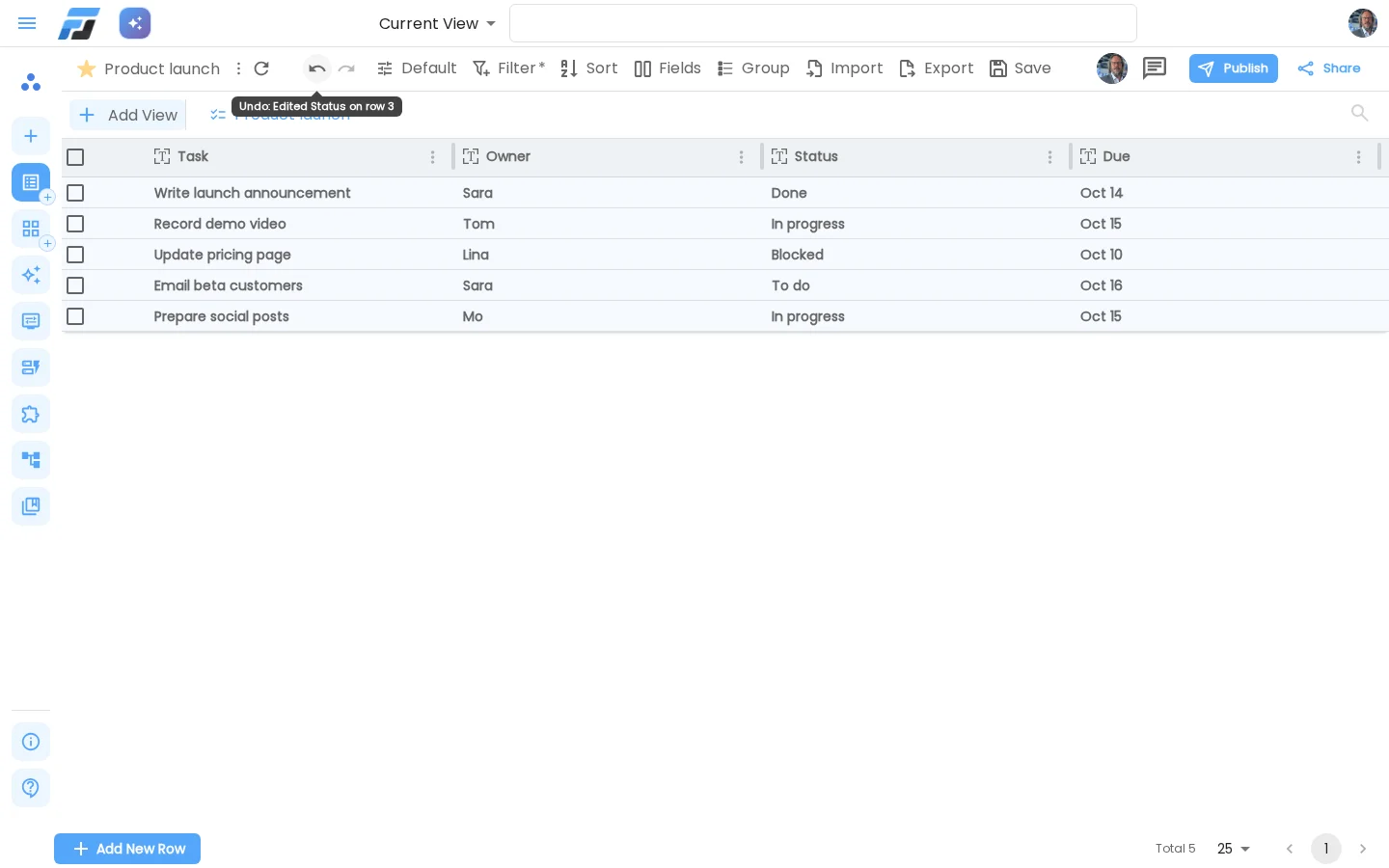
Edited the wrong cell? Press Ctrl+Z (Cmd+Z on a Mac), or click the undo arrow at the top of the list. Ctrl+Shift+Z or Ctrl+Y puts it back. Hover over the arrow and it tells you exactly what it will undo, for example Undo: Edited Status on row 3.
- One action is one step. Paste a block of cells from a spreadsheet, move a card on a Kanban board or save a row with five changed fields: one undo takes it all back.
- Deleted rows come back whole. After a delete you get a small Deleted 2 rows · Undo message. Undo brings the rows back exactly as they were, attachments included.
- It's your undo. In a shared list you only undo your own changes, never a colleague's. If someone changed a cell after you did, undo leaves their work alone and tells you which cells it skipped.
- It works everywhere you edit: the grid, the spreadsheet, Kanban, timeline, mind map and the row panel, on desktop and on your phone.
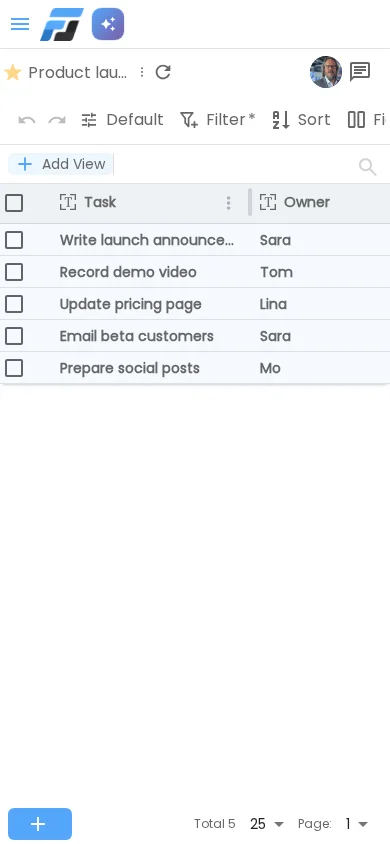
Your last 100 steps on each list are kept for a week.
Version history for every list
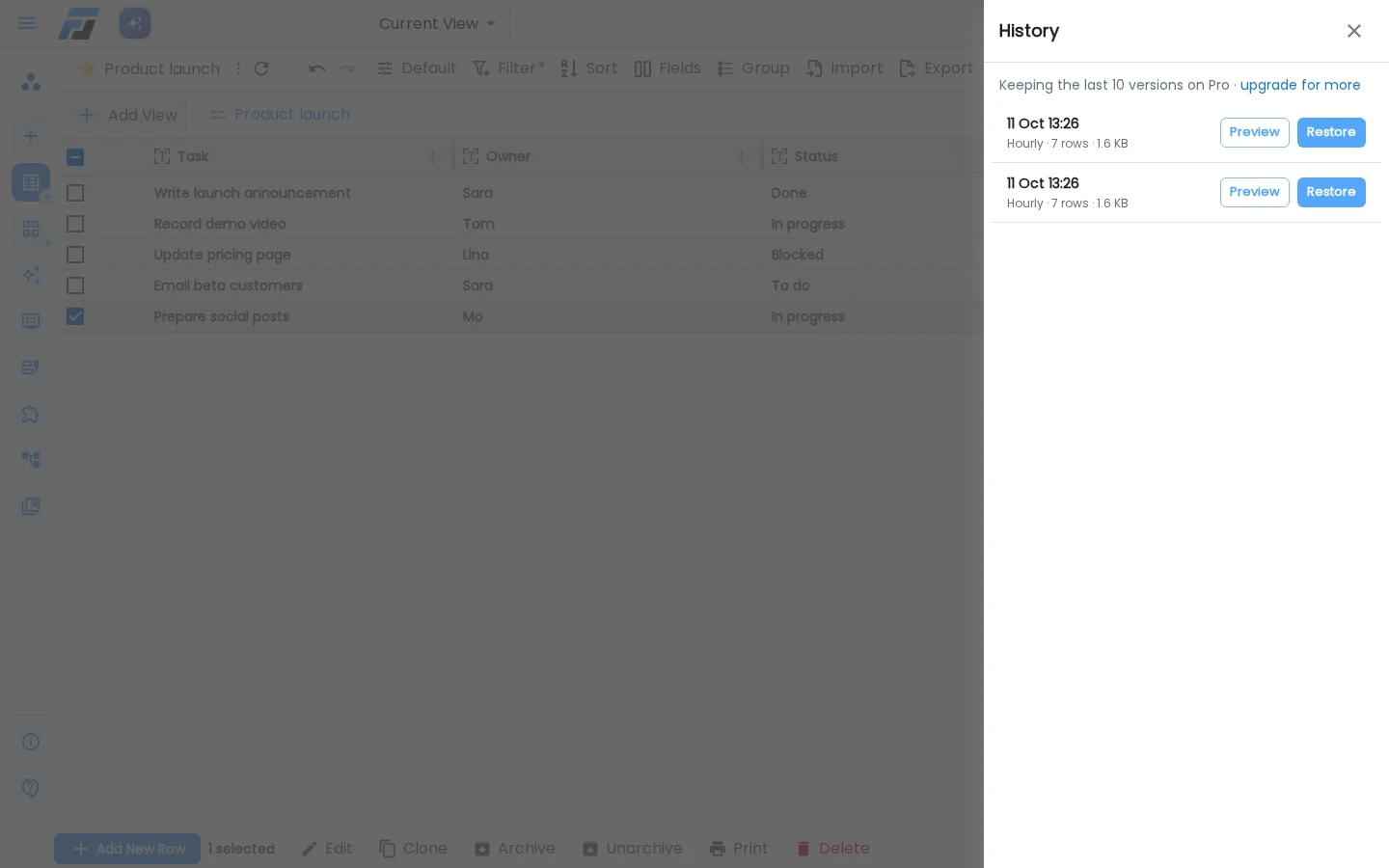
Every list now keeps versions of itself. Once an hour, Flexlists saves a complete copy of each list that changed in that hour. Lists you didn't touch don't get a version, so the history only shows moments when something actually happened.
Before anything big, Flexlists saves a version as well: an import, a bulk delete or bulk edit, changing a field's type, deleting a field. If that version can't be saved, the big change doesn't run.
Open it from the ⋮ menu next to the list name → History:
- Preview opens a version read-only, with search, so you can check what the list looked like before you change anything.
- Restore makes that version the current list again: its rows (with the same row ids), its fields and its links. Flexlists first saves the current state as a version, so a restore can always be undone.
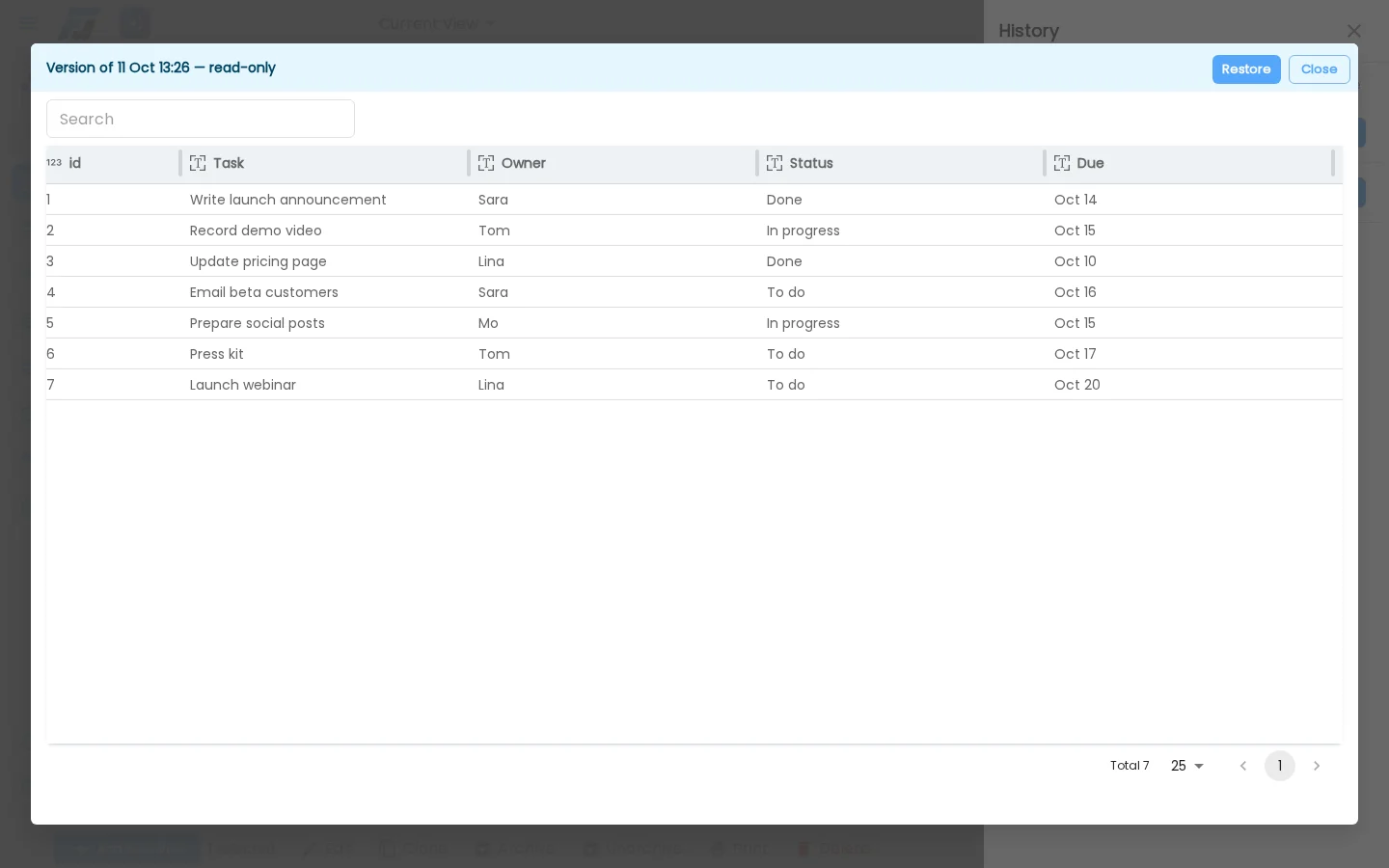
How many versions you keep depends on your plan: the last 3 on Free, 10 on Pro and 25 on Enterprise. History is available to the list's owner and admins, and it works on mobile too.
New: the Checklist view
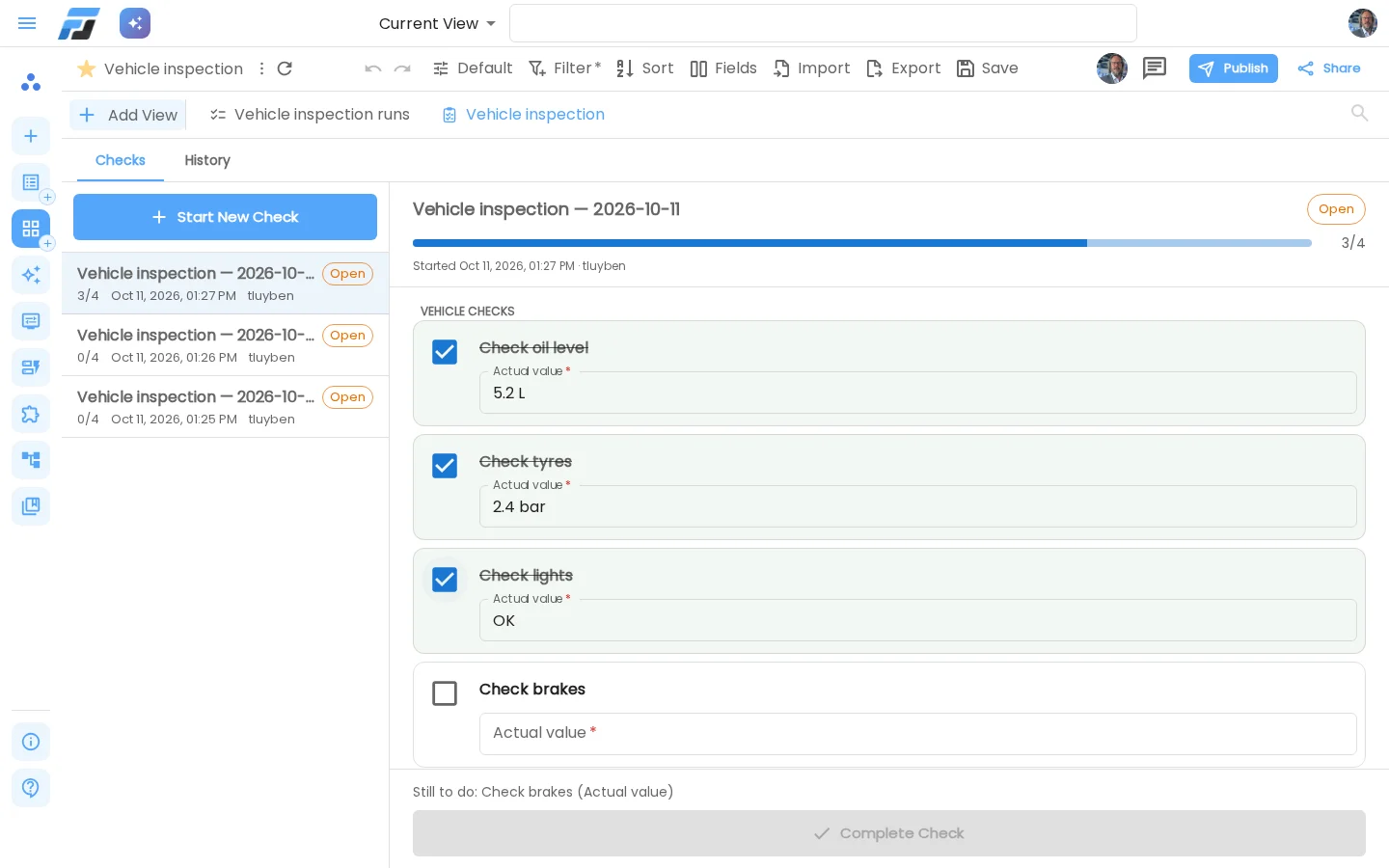
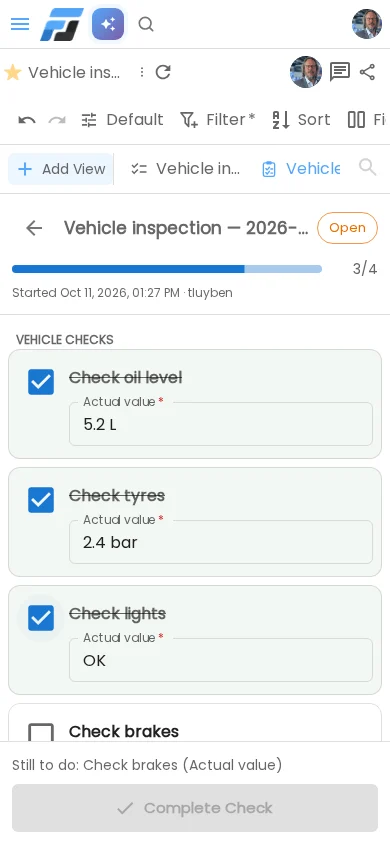
Some work is the same list of checks every time: a vehicle inspection, opening and closing a shop, onboarding a new hire, a safety round. The new Checklist view is made for exactly that.
- Set the checks up once. Each item can belong to a section and have help text, and you choose what to record per check: a value, a yes/no, a note. Answers can be required.
- Start a new check whenever you need one. Every run gets its own copy of the list with a progress bar. Complete Check only becomes available once every required answer is filled in, and Flexlists shows what's still missing.
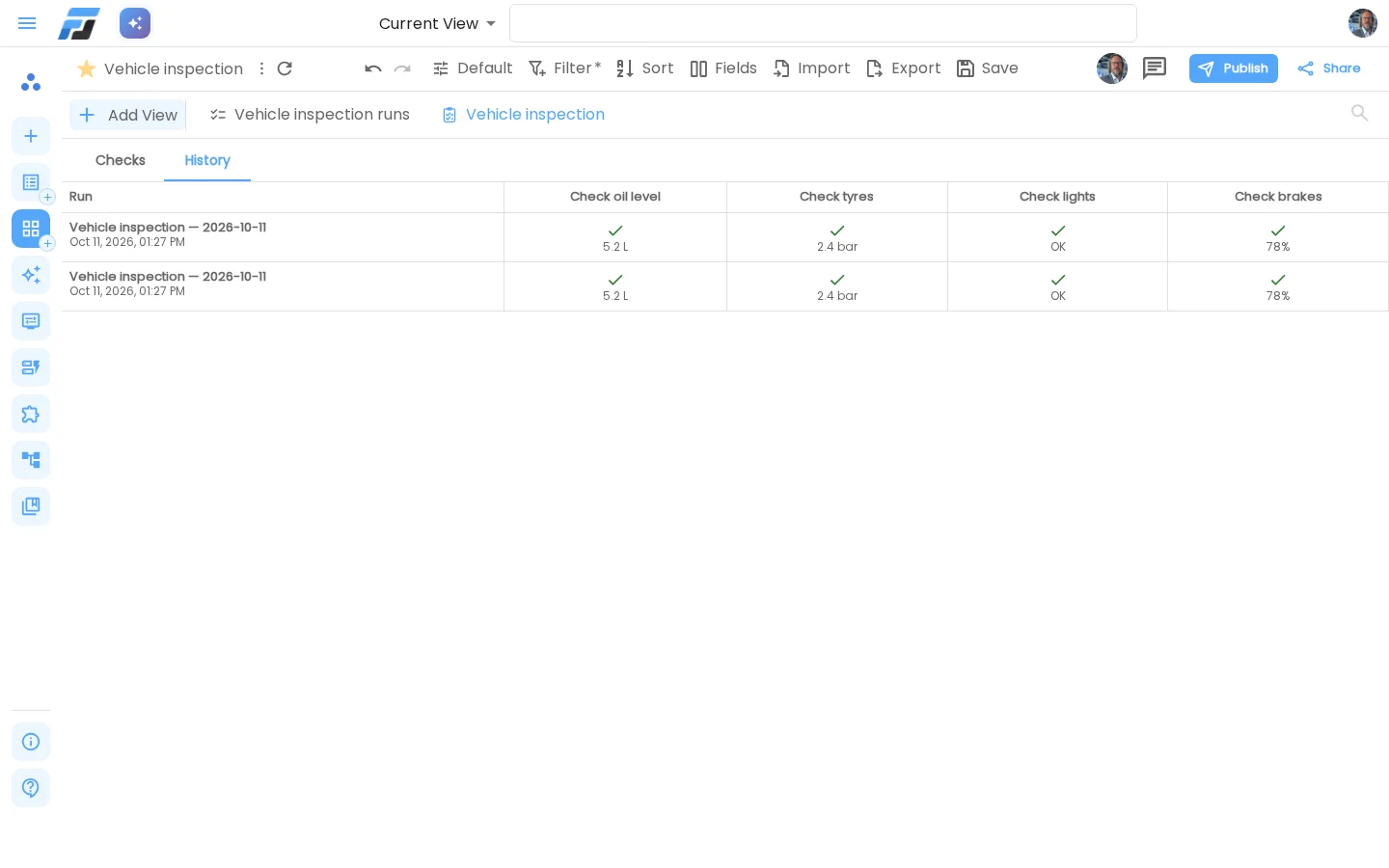
- See every run side by side. The History tab puts all runs in one table, so you see at a glance what was measured, when, and by whom.
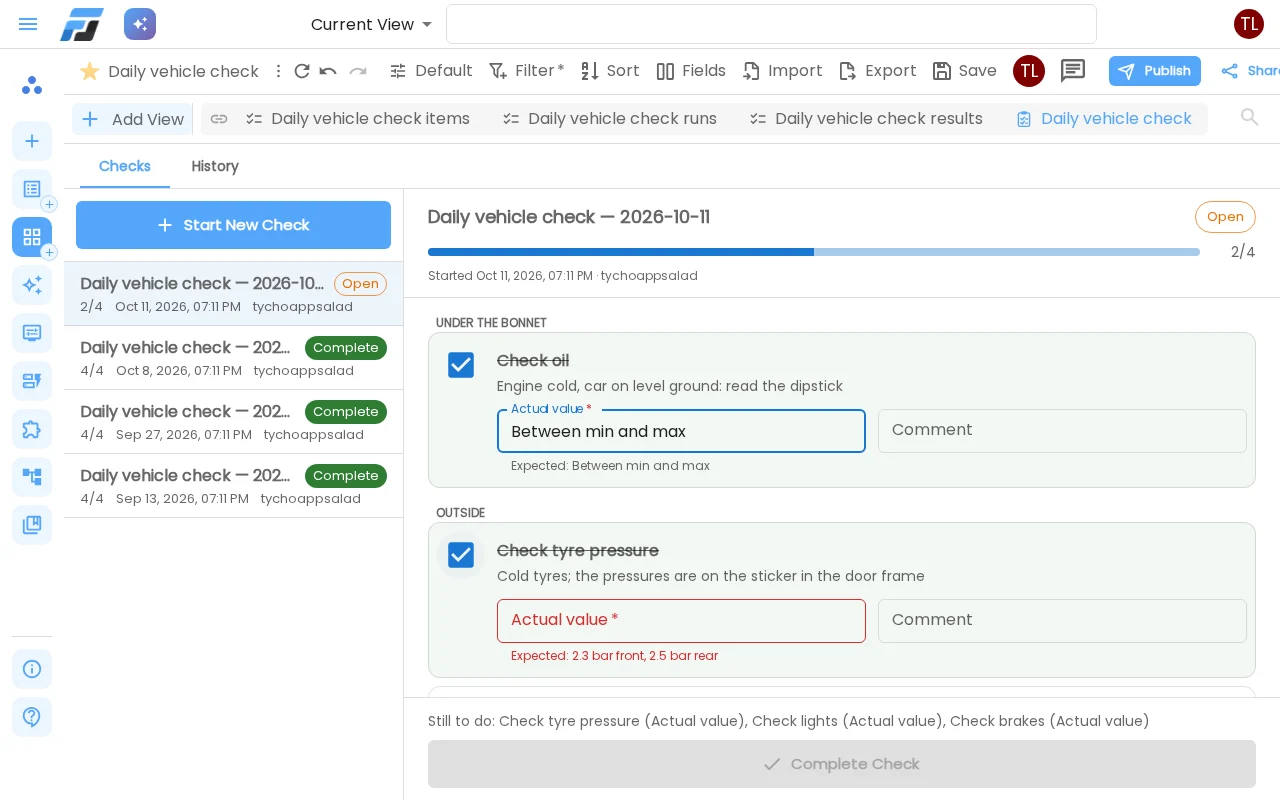
Required means required. Every answer field (an actual value, a yes/no, a note, a photo) comes from a field in your template list. If that field is marked Required in Flexlists, it is required when someone fills in the checklist too. The value in the template is shown next to the answer as the expected value, so whoever does the check knows what good looks like.
Anyone who may add or edit rows can do a check. You don't have to give people access to the template to let them fill in a checklist.
Behind the scenes, a checklist is made of three ordinary Flexlists lists: the items, the runs and the results. So everything you can do with a list (filters, charts, exports, automations, the API) also works on your checks.
All three lists sit right in the view's tab bar (items · runs · results · checklist), so you can jump to the items to add a check and come straight back. The same tabs show up whichever of the three lists you open.
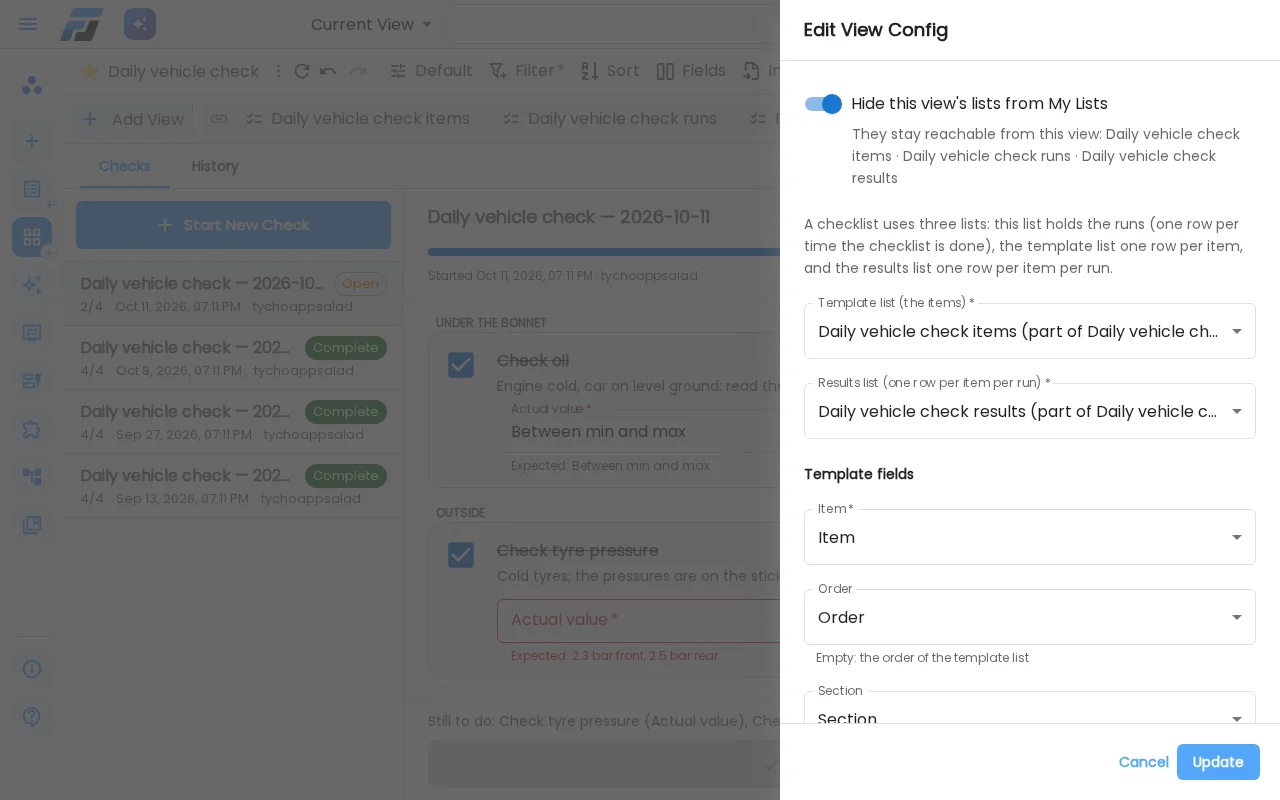
Lists that only exist to power a view don't need to clutter your list overview. When Flexlists creates them for you, they are hidden from My Lists and live inside their view. A switch in the view's settings shows them again whenever you want them in your overview.
You can create a checklist from the Create hub, or simply ask the assistant: "create a vehicle inspection checklist with oil, tyres, lights and brakes; actual value required".
A new way to create lists and views
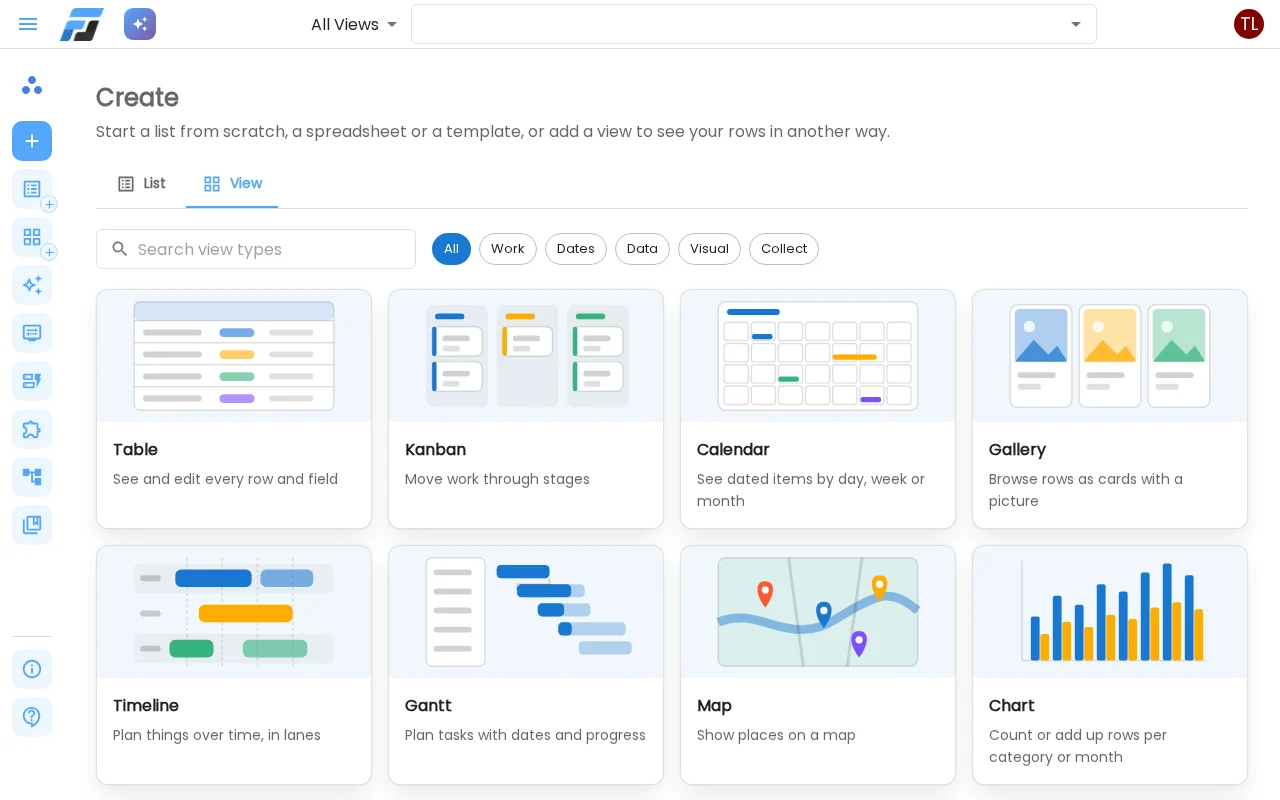
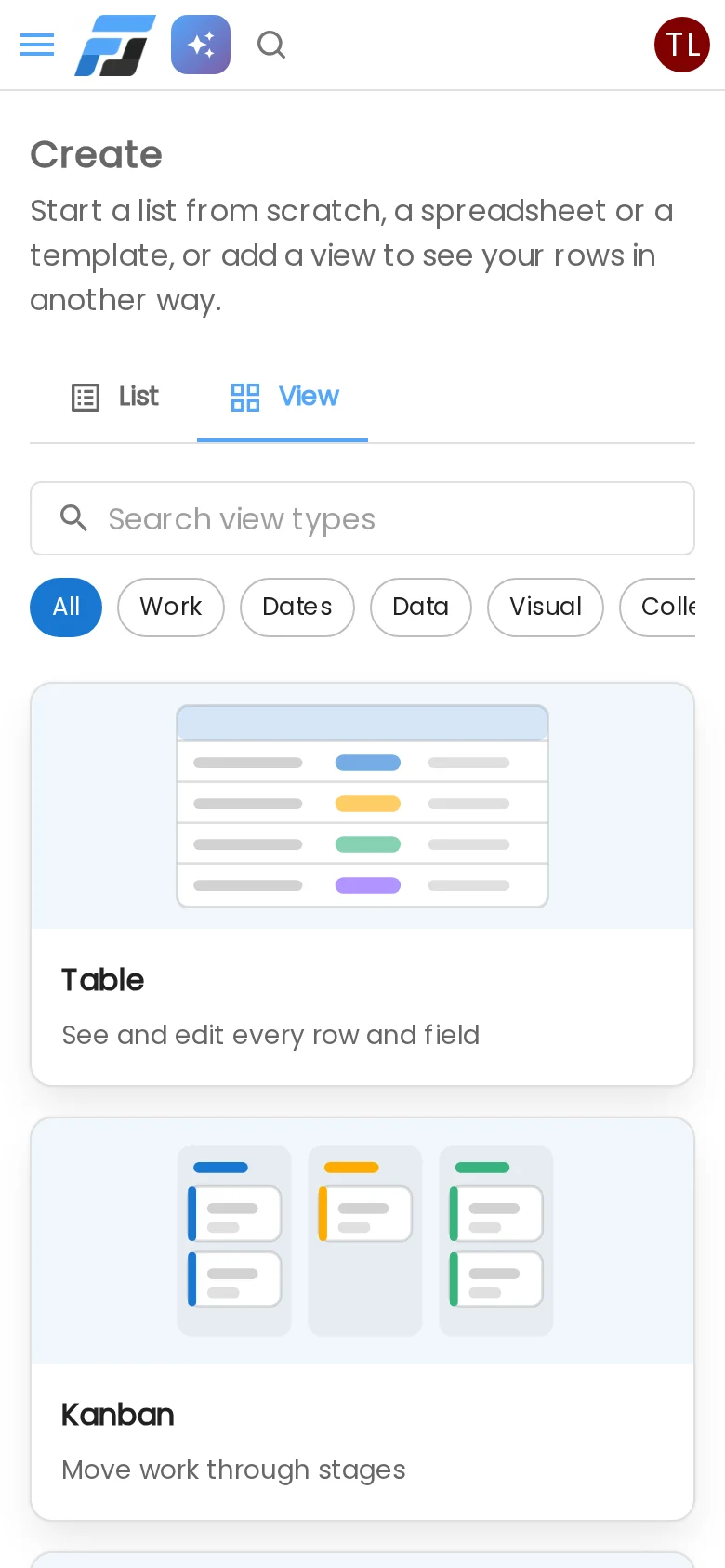
The + at the top of the sidebar now opens one place to create everything, with two tabs.
List. Start from scratch, from a spreadsheet (CSV or Excel), or from a template. Every template card shows what you get: a preview, a short description, its fields and how many example rows it has. Leave Include demo data on and the example rows (photos included) come along, so you can see the list working before you put your own data in.
View. One card per view type (Table, Kanban, Calendar, Gallery, Timeline, Gantt, Map, Chart, Mind map, Spreadsheet, Checklist and more), each with a picture of what it looks like and what it's good for. Below that are ready-made view templates such as a sales pipeline, a content calendar or a project roadmap.
Every view type comes with a short wizard:
- Data. Use one of your lists, or let Flexlists create one for you, complete with realistic example rows and dates around today.
- Fields. Flexlists picks the right fields for you. If a view needs one you don't have yet, say a due date for a calendar, you add it with one click.
- Name. You see exactly what will be created, then you're in your new view.

There is now also a small + on My Lists and on My Views in the sidebar, so a new list or a new view is always one click away.
Folders
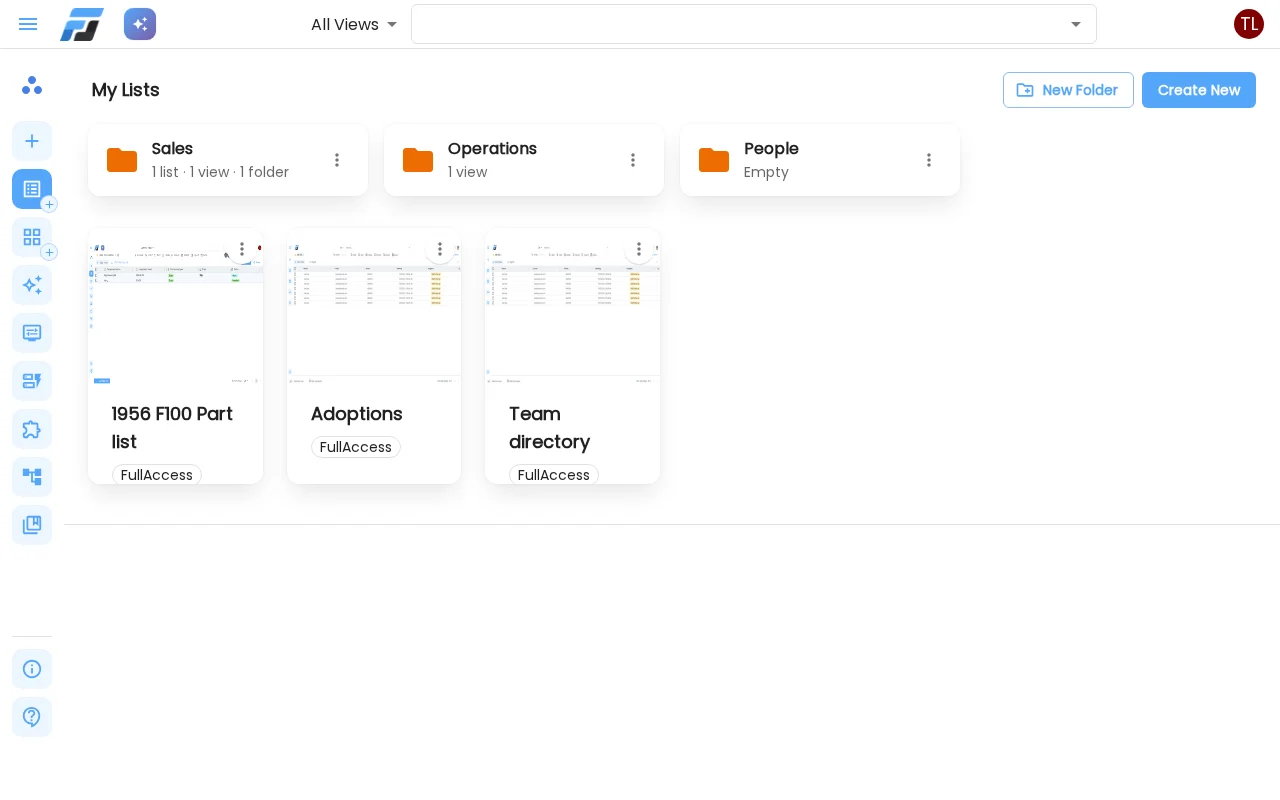
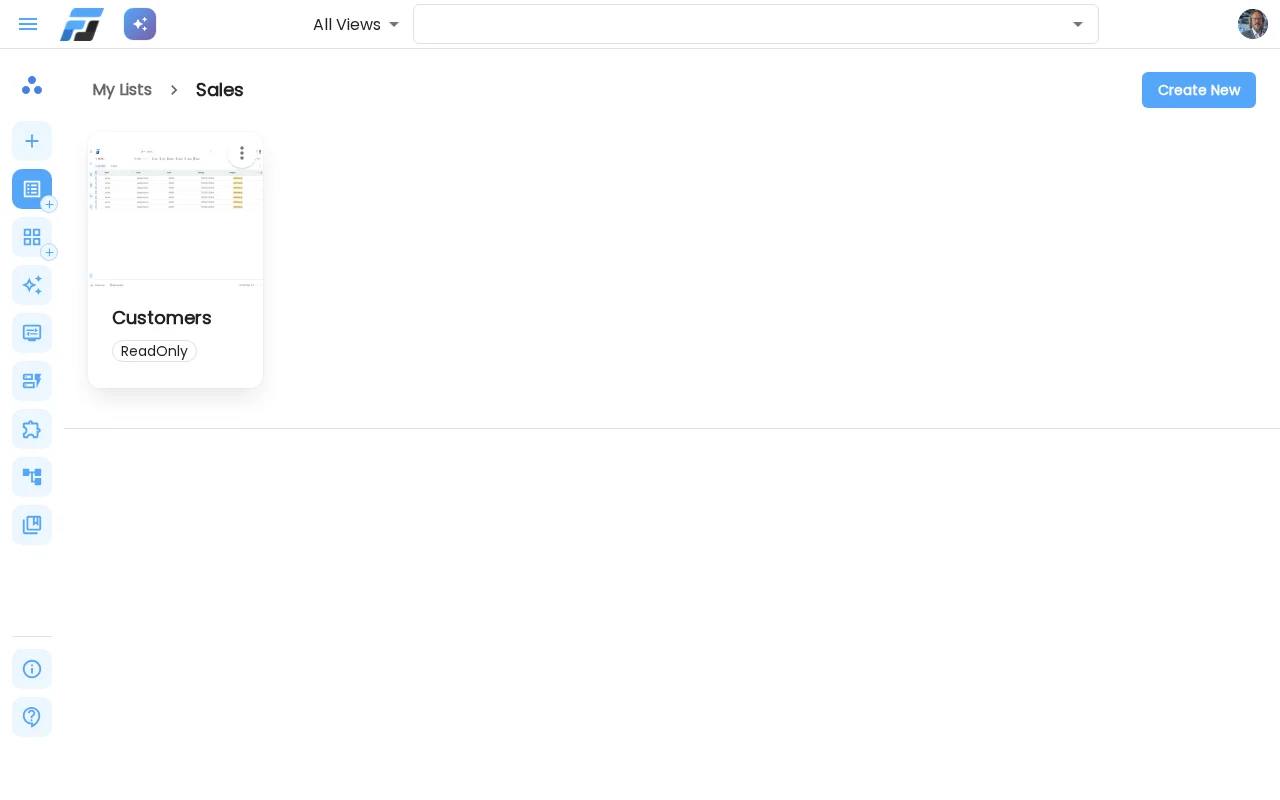
As soon as you have more than a handful of lists, you want some order. My Lists and My Views now have folders: one set of folders for both pages, so a Sales folder holds your sales lists on one page and your sales views on the other.
- Create folders and folders inside folders, and see where you are in the breadcrumb at the top.
- Drag a list or view onto a folder, or use Move to… in its menu (that's how it works on your phone). Moving a list can take its views along.
- Deleting a folder never deletes anything in it. Its contents simply move up one level.
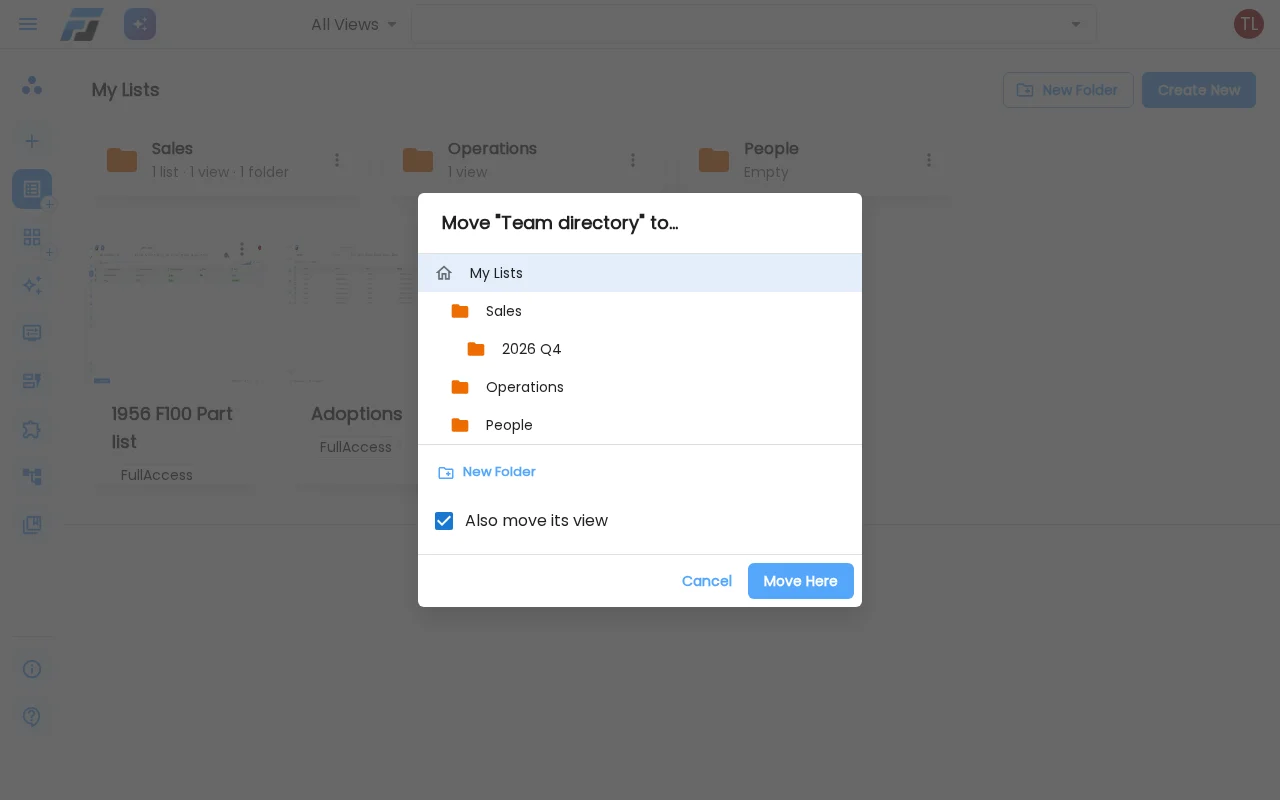
Folders travel with sharing. When you share a list that lives in Sales, the person you share it with finds it in a Sales folder too, so everyone sees the same organisation. They only ever see the lists and views they actually have access to; a folder never gives anyone access by itself. Prefer your own order? Move a shared list into one of your own folders. That only changes your view, and you can always reset it.
The assistant builds views too
The assistant already built lists, forms and automations. Now it knows every view type as well. Ask it for "a kanban of this list by status", "a vehicle inspection checklist with oil, tyres, lights and brakes; actual value required" or "start from the CRM template with demo data", and it builds the view, picks the fields and opens it for you. When a list would work better as a timeline, a calendar or a board, it suggests one. It can link lists to each other and sort your lists and views into folders as well.
Also new today
- Encrypted files. Every file you upload (attachments, images, avatars) is now stored encrypted. Nothing changes in how you use them.
- Copies keep their files. Copying a list with its content, or starting from a template with demo data, now always brings the attachments and photos along.
- Deleting linked lists. A list that links to another list can now always be deleted, even when the list it pointed to is already gone.