
Who can do what in your applications: roles, users, maintainers and solutions
Built-in and custom roles with per-list rights and page access, invites that bring people back to the app after sign-in, maintainers who help you build, solutions that share one set of roles over several apps, and Dave who can invite people and explain who can see what.
Applications in Flexlists are multi-page apps on top of your lists, with their own link and sign-in. As soon as more than one kind of person uses an app, you need to say who may do what: visitors see the public pages, volunteers update the animals, staff see everything. That is now one clear model: roles decide what people may do, users get roles, maintainers help you build, and a solution shares all of that between several apps.
In this post we use the Animal Charity Rescue solution from the gallery: a public Rescue website and a Rescue portal for the team, on one shared set of lists. It comes with a Member role for the team; we added a Volunteer role.
Roles: who may do what
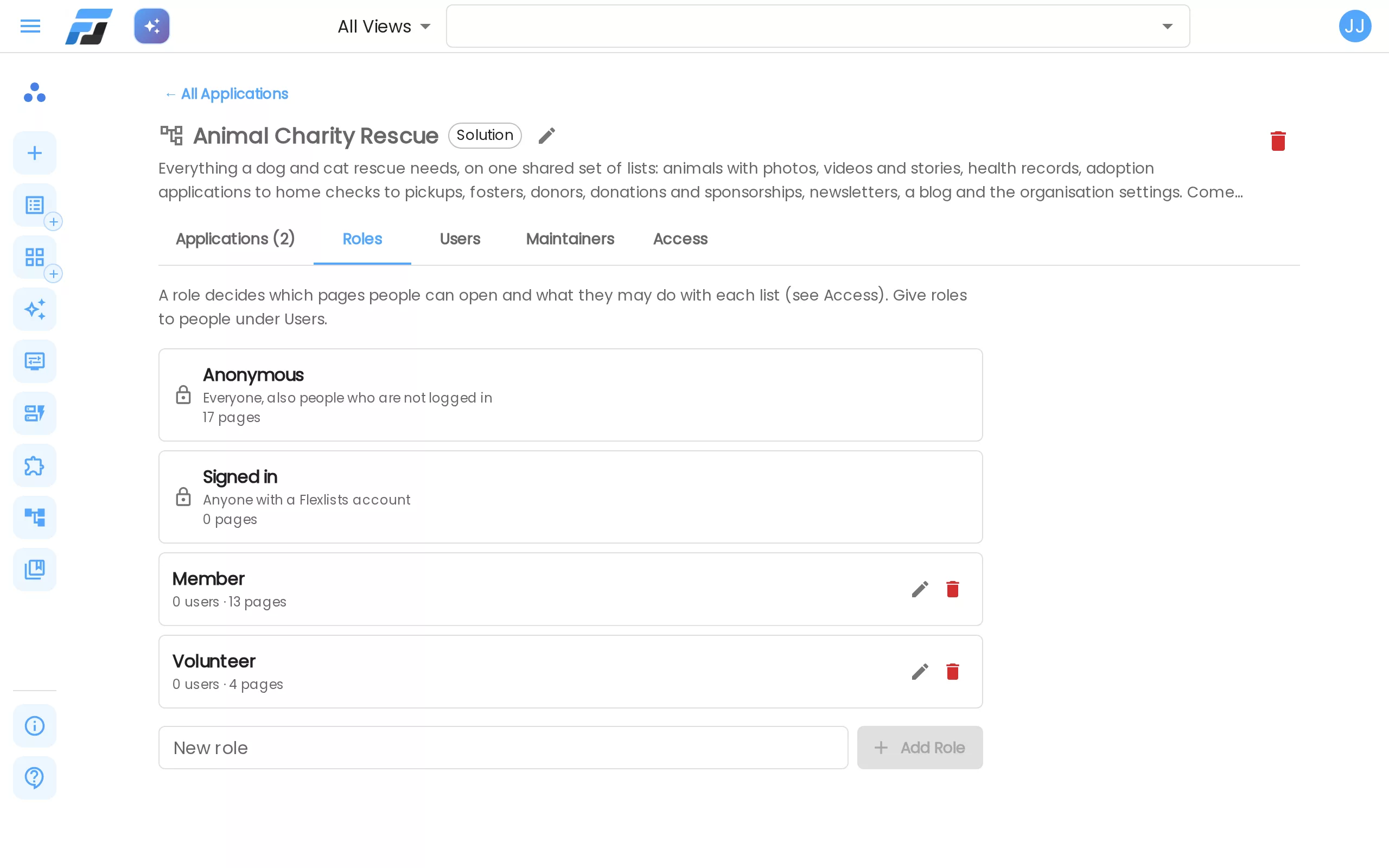
Every application has two built-in roles:
- Anonymous: everybody, also people who are not signed in.
- Signed in: anyone with a Flexlists account.
Next to those you add your own roles, one per kind of person: Staff, Customer, Member, Volunteer. Type a name and press Add Role. Each role shows how many users have it and how many pages it may open. Deleting a role also removes its rights, its pages and its place on people's accounts.
List rights per role
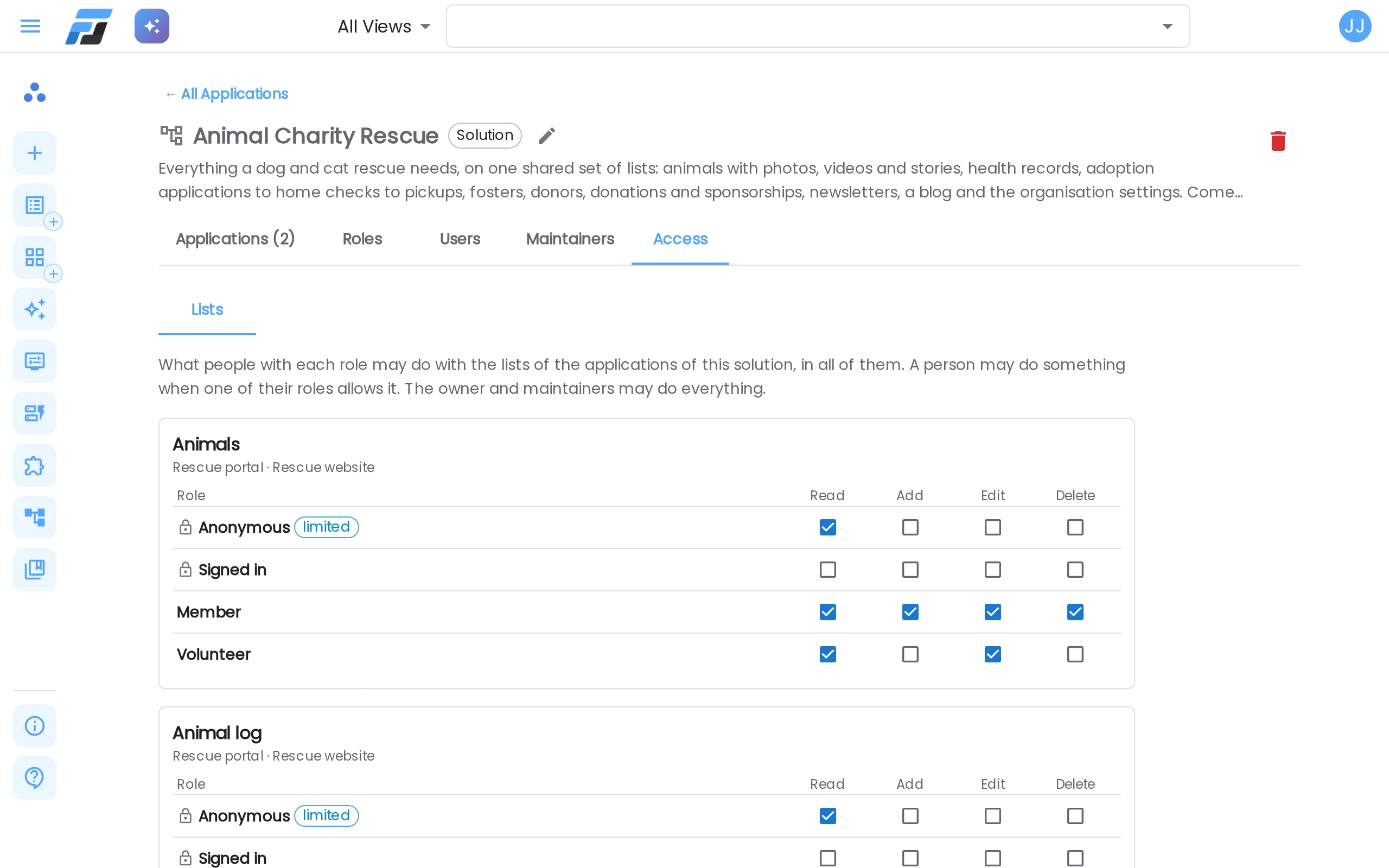
Under Access → Lists every list of the app gets a small table: one row per role, with Read, Add, Edit and Delete. In the rescue, Members may do everything with Animals, and Volunteers may read and edit animals but not add or delete them.
Some rights are narrower than a tick can show. A limited label means the right only covers part of the list: for example, Anonymous only sees the public fields of an animal, and only the updates marked as public. Hover over the label to read the limit in plain words.
A person may do something when at least one of their roles allows it. The owner and maintainers may always do everything. And this is checked on the server for every page and every request, not only hidden in the page.
Which pages each role may open
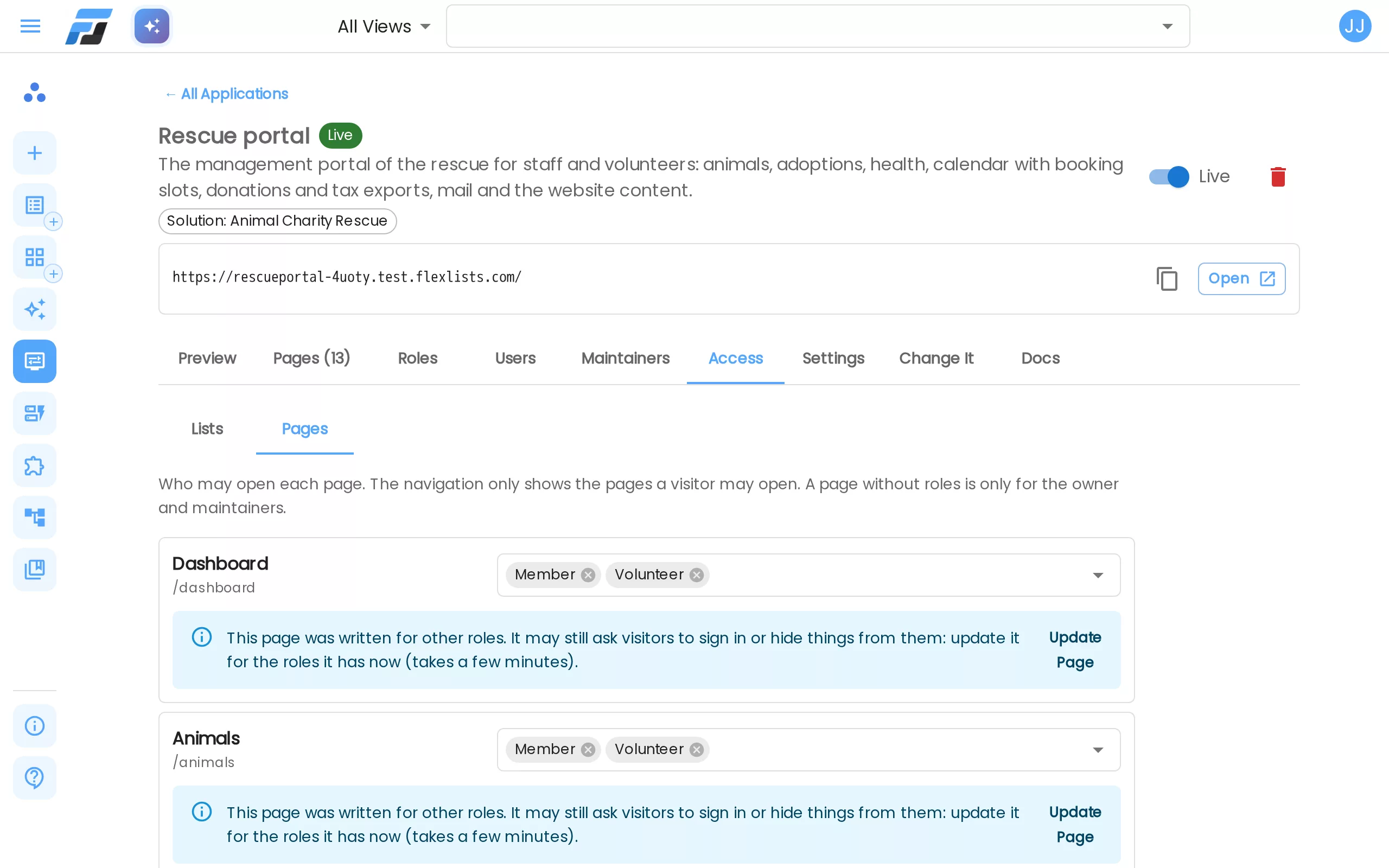
Access → Pages sets who may open each page. The app's navigation only shows the pages a visitor may open. A page without roles is for the owner and maintainers only, which is handy for a page you are still working on.
When you change the roles of a page that was written for other roles, Flexlists tells you: the page may still ask visitors to sign in or hide things from them. Update page rewrites it for the roles it has now.
Users and invites
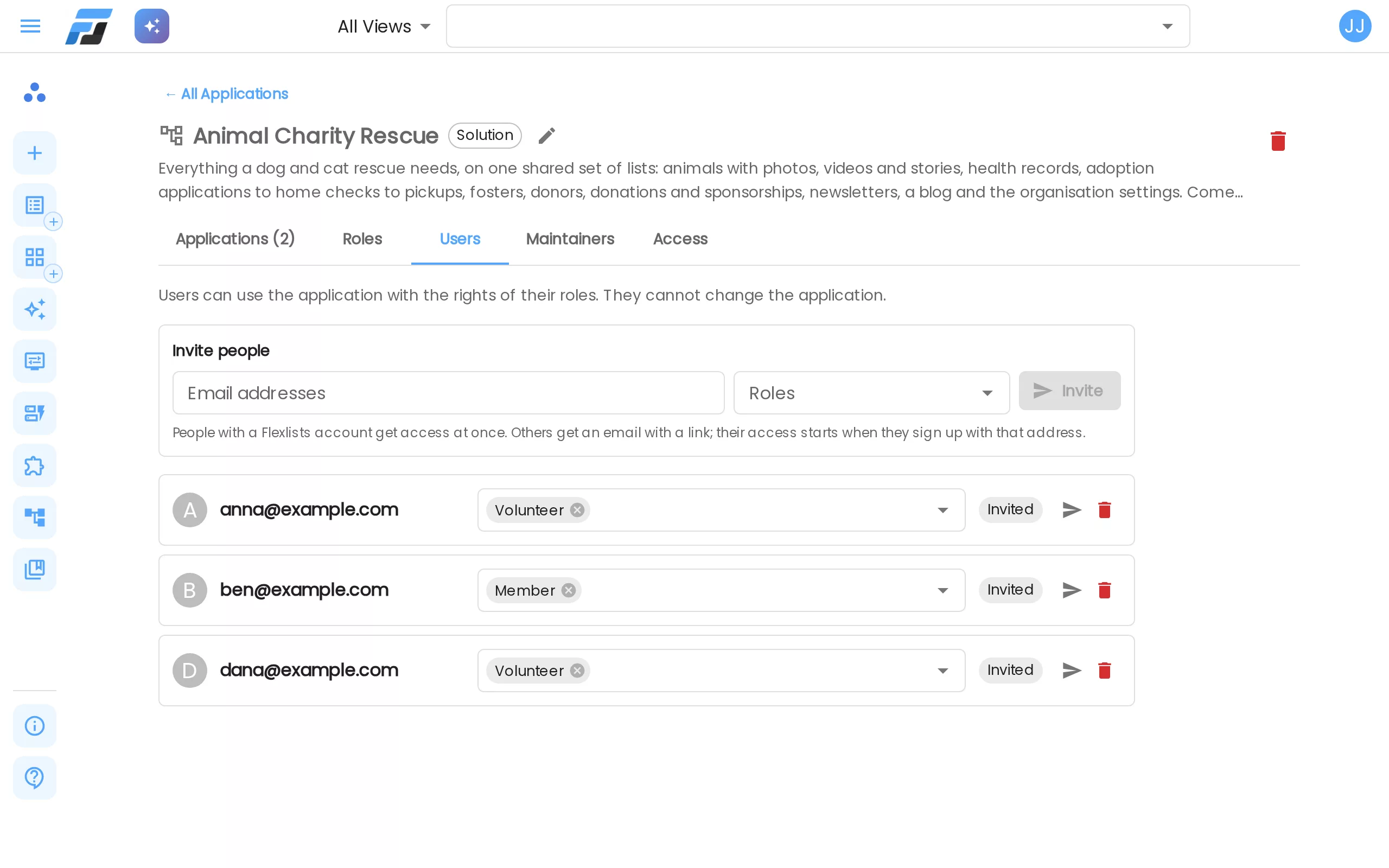
The Users tab is where people get roles. Type one or more email addresses, pick the roles and press Invite:
- People who already have a Flexlists account get access at once, and an email with a link to the app.
- Everyone else gets an email with a link. Their access starts when they sign up with that address.
Each person shows their roles, which you can change right there, and whether they are Invited or Active. You can send an invite again or revoke it. Users use the app with the rights of their roles; they can't change the app itself.
Signing in comes back to the app
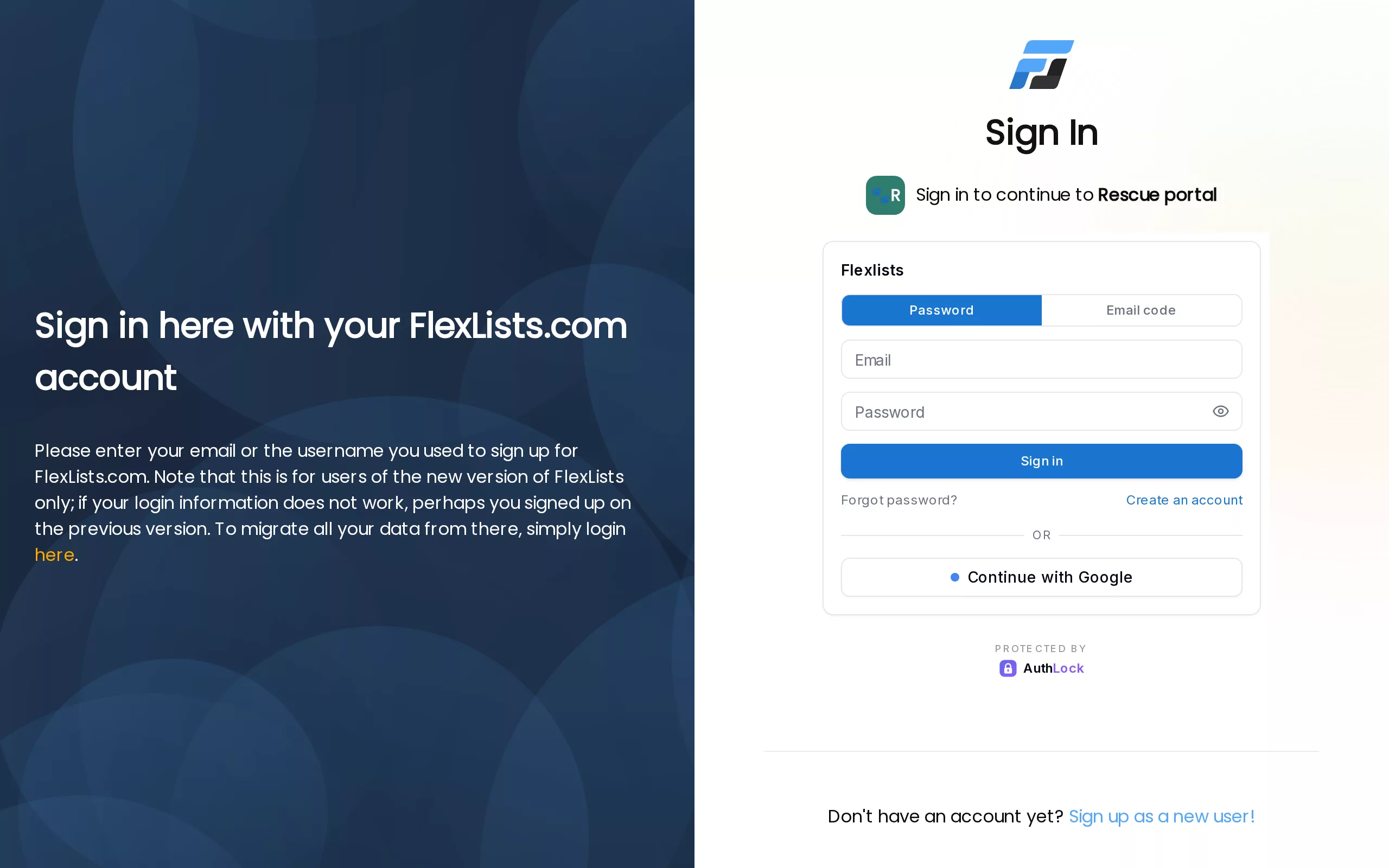
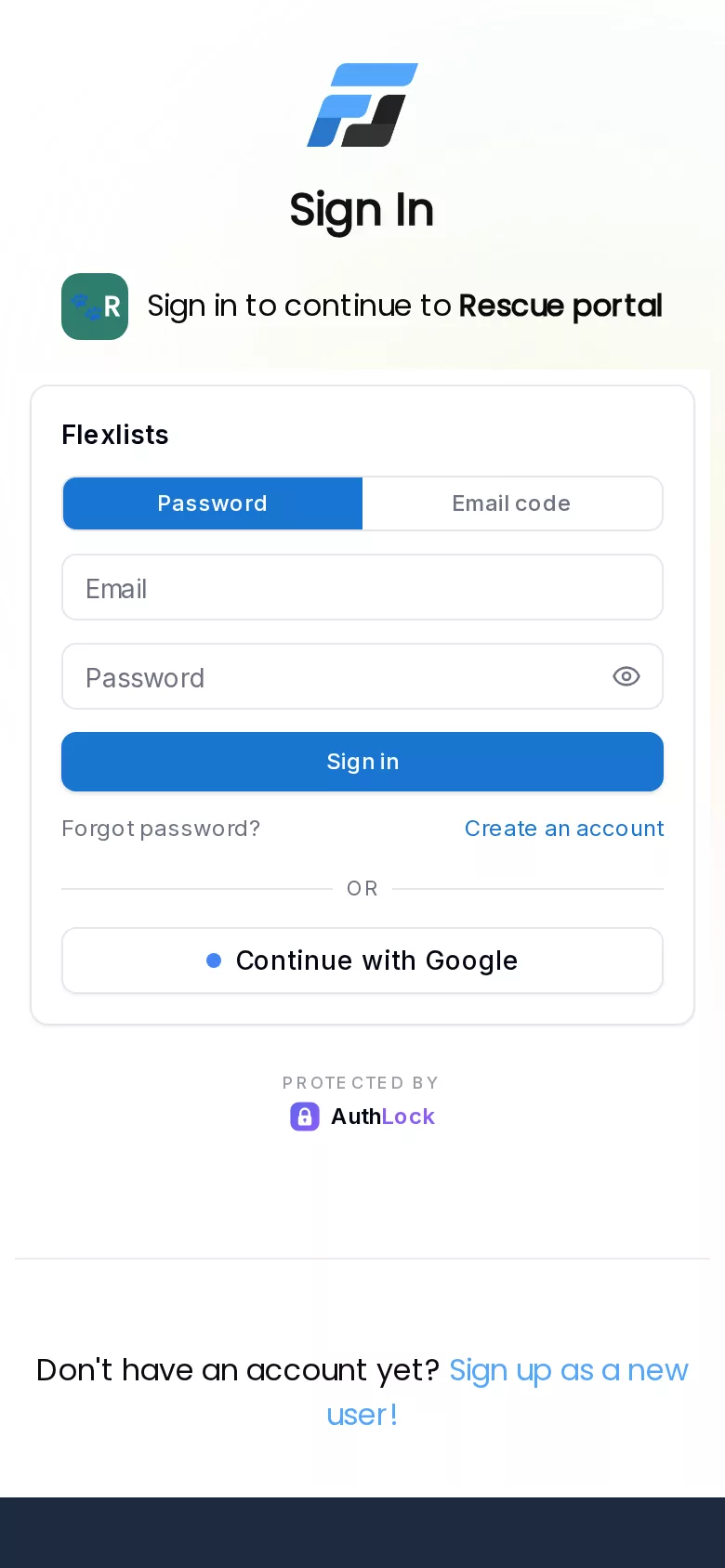
When a signed-out visitor opens a page that needs an account, they go to the Flexlists sign-in, which says which app they are signing in to: Sign in to continue to Rescue portal. They can sign in with a password, an email code or Google, or create an account. Afterwards they land on the exact page they asked for in the app, never in Flexlists itself.
A few details:
- An invite link carries the invite, so the sign-in page says "You were invited to …" and shows the invited address. After signing up, the access is already there on the first page load.
- Someone who is signed in but has no role for a page sees "You don't have access to this page", with their account and a sign-out link that brings them back to the app.
- People stay signed in on the app: an expired session is renewed in the background, as in Flexlists itself.
Maintainers: people who help you build
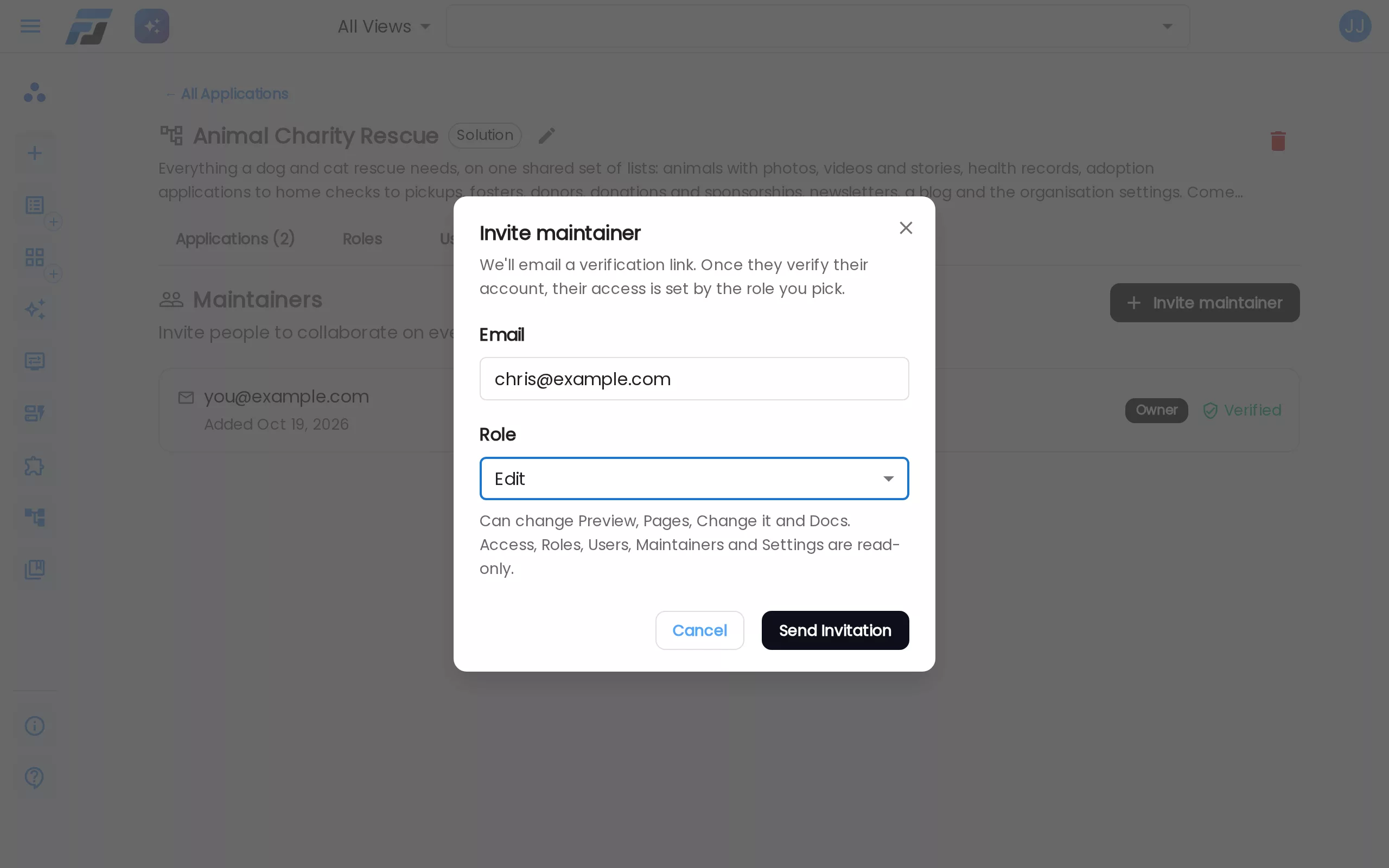
Users use an app. Maintainers help you build and run it. Invite one from the Maintainers tab with an email and a level:
- Admin: every tab, including roles, rights, users, maintainers, settings and domains.
- Edit: pages, "Change it" and docs; Roles, Users, Maintainers, Access and Settings are read-only.
- View: everything read-only.
Admin and Edit maintainers also get full access to the app's lists in Flexlists itself, so they can work on the data directly; View maintainers can read them. When a maintainer is removed, the list access the app gave them is taken away again.
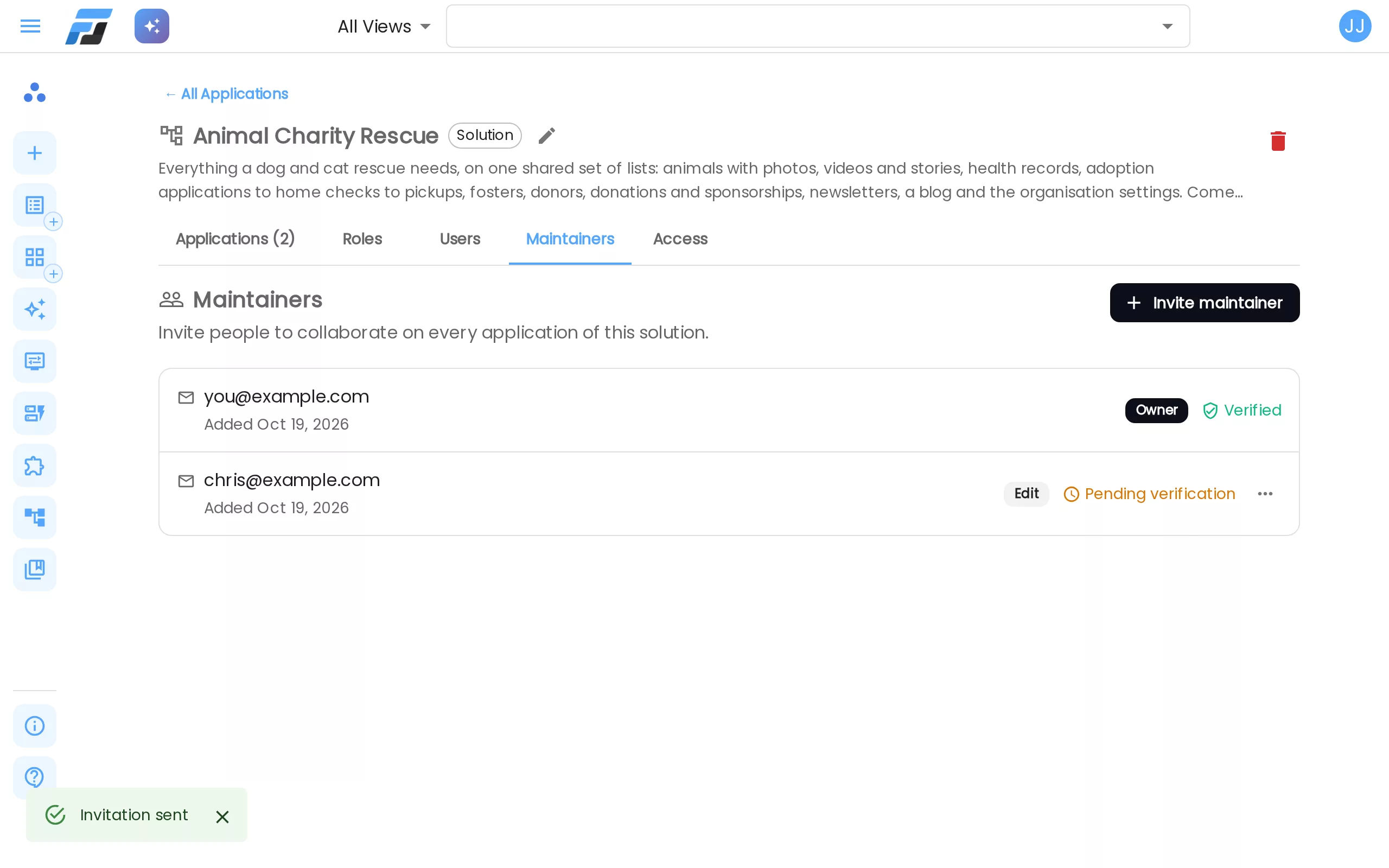
A maintainer invite is always Pending verification until the person opens the link in their email and signs in with that same address. Only then are they a maintainer. The owner is always listed first, and only the owner can delete the app.
Solutions: one set of roles for several apps
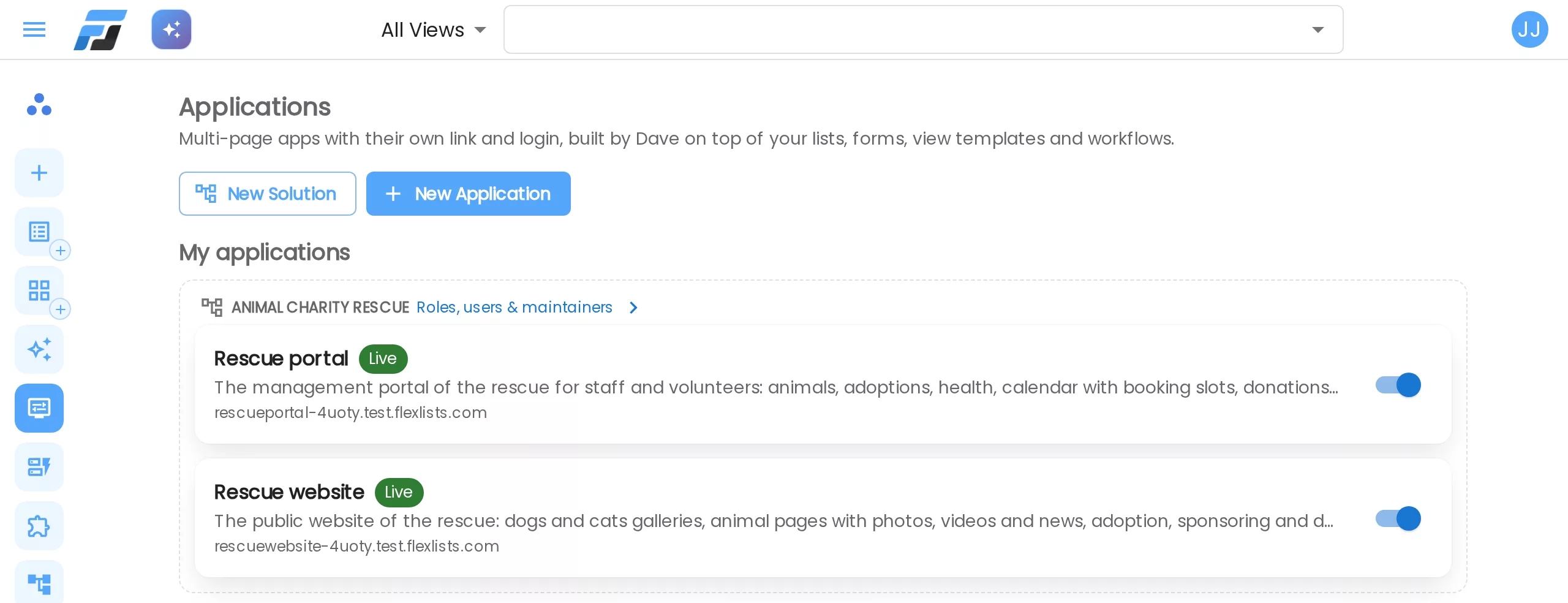
Many real setups are more than one app: a public website and a staff portal on the same lists. A solution groups them, with one set of roles, list rights, users, maintainers and invites for all of its apps. Invite a volunteer once and they have their role in every app of the solution.
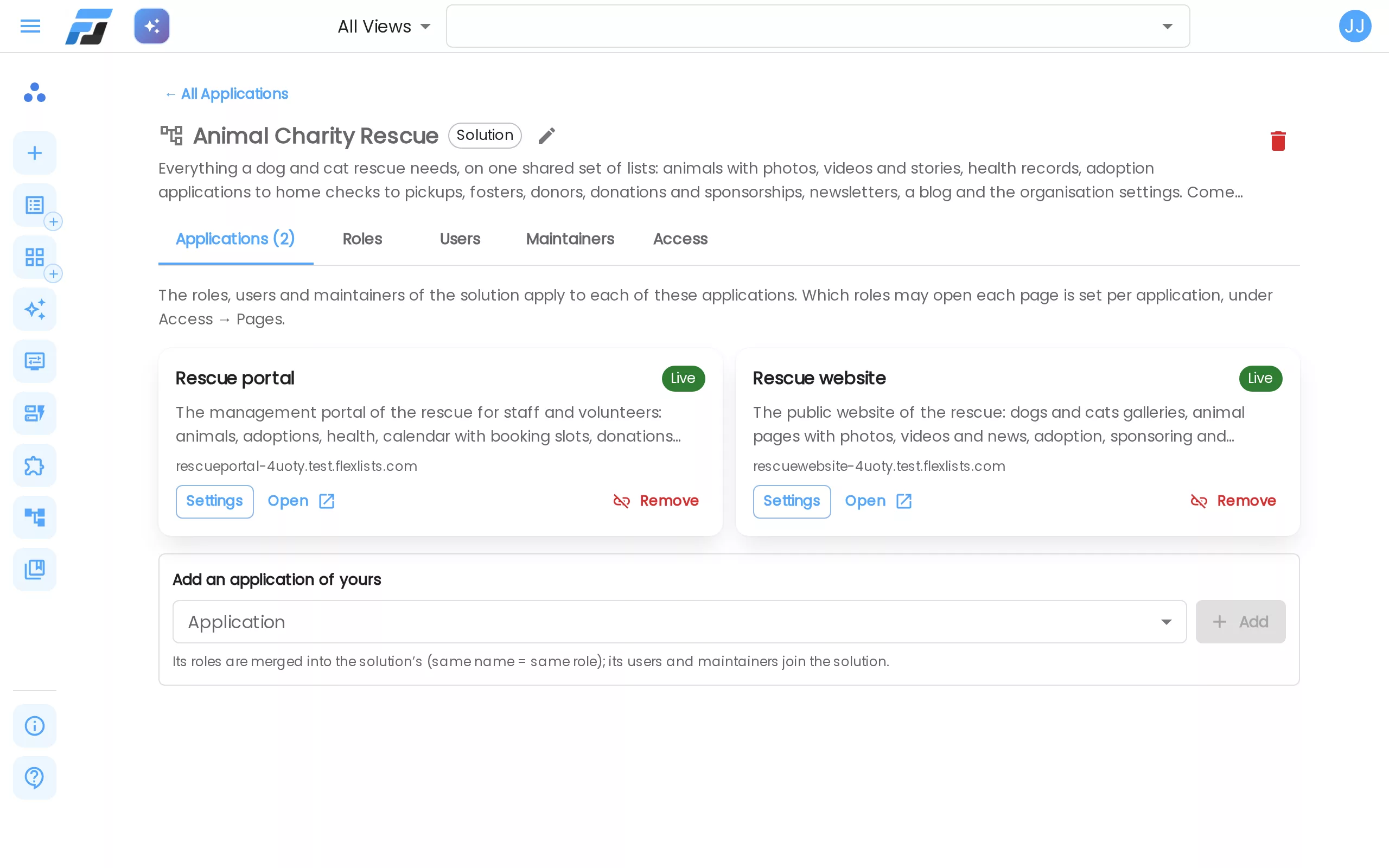
Installing a solution from the gallery creates one for you. You can also press New Solution in Applications and pick apps of your own. The solution's page has the same Roles, Users, Maintainers and Access tabs as an app.
- When an app joins, its roles are merged into the solution's (the same name means the same role) and its users and maintainers join the solution.
- Which roles may open each page is still set per app, under the app's Access → Pages. In the app, the other access tabs say "Managed by the solution" and link to it.
- When you remove an app from a solution, it gets a copy of the solution's roles back.
- People you invite see the solution's apps under Shared with me, grouped under the solution.
Gallery templates come with sensible roles too: public pages for Anonymous, and anything that changes or deletes data goes to a role of its own, like Member or Admin. A template never brings its own users, maintainers or invites; you invite your own people.
Ask Dave
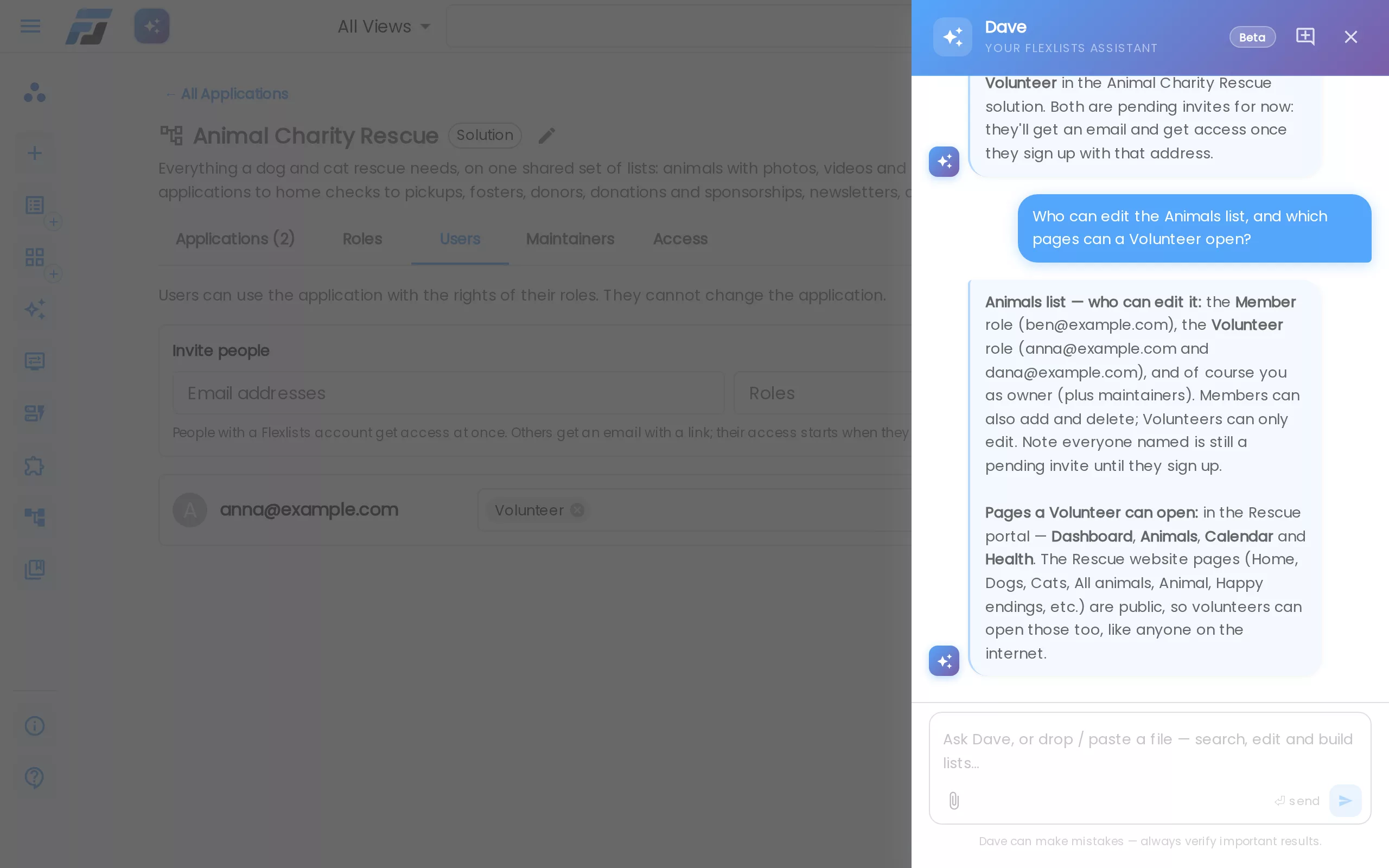
Dave knows about roles too. Open him on an app or a solution and ask:
- "Invite ben@example.com as Member and dana@example.com as Volunteer"
- "Who can edit the Animals list, and which pages can a Volunteer open?"
- "Why can't Anna edit Animals?"
- "Make a role Driver that can read Adoptions"
He uses the same rules as the tabs: only the owner and maintainers can ask, changes need an Admin maintainer or the owner, and removing people or deleting a role asks you to confirm first. In a solution he changes the solution's roles and tells you so.
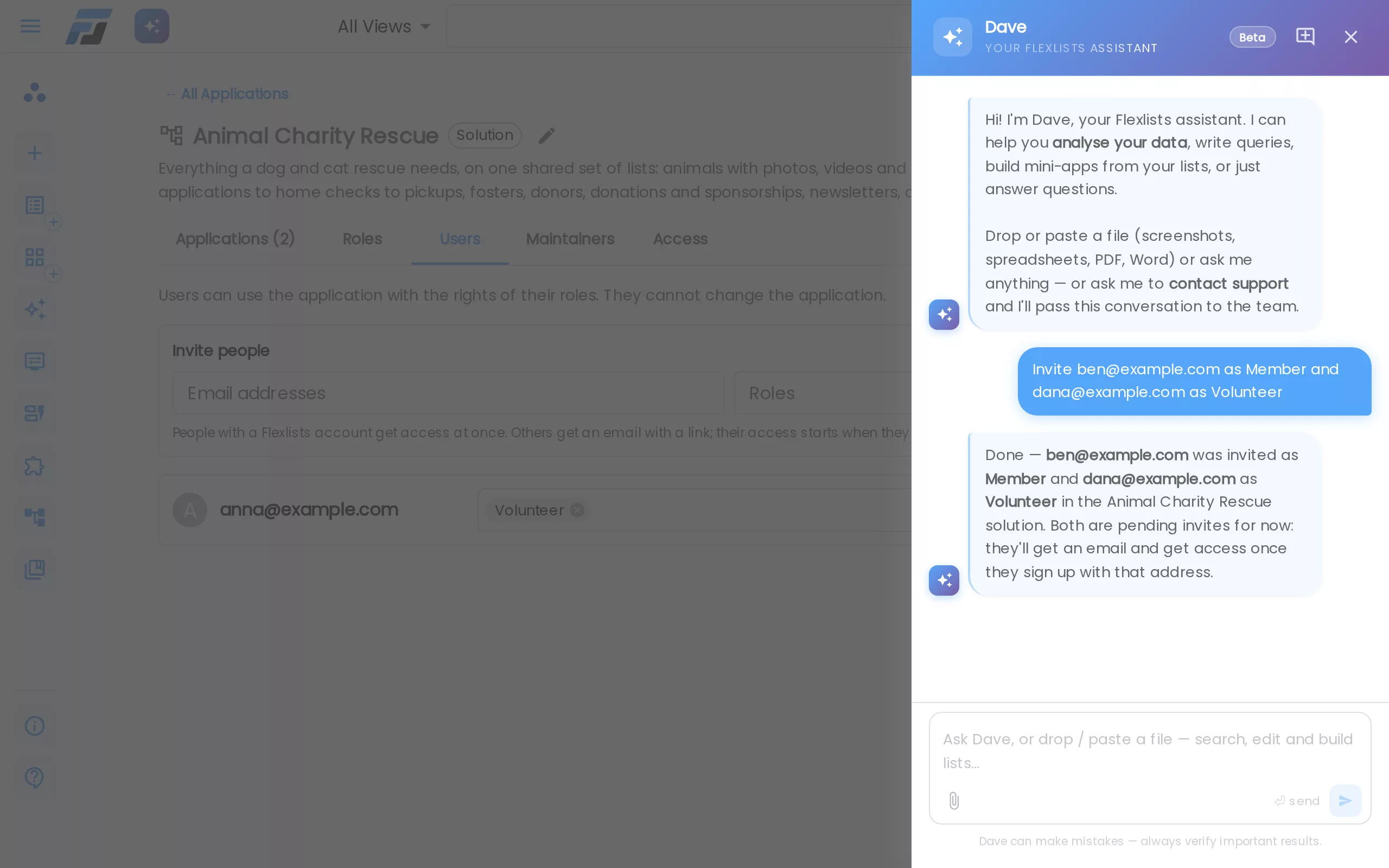
When you describe a new app ("customers sign in and see their own orders, admins see all"), Dave plans the roles with it, including rules like "only your own rows". When you later ask him to change the app, he keeps the roles and rights you set by hand unless you ask him to change access. To see how a page looks for a role before you publish it, use View as role, see Build your apps your way.
Try it
Open Applications, pick an app (or install the Animal Charity Rescue solution from the gallery), and look at Roles, Users, Maintainers and Access. Or just ask Dave who can see what.