
Link your lists: two-way links, rollups, counts and lookups
Lists can now link to each other from both sides, add up and count through those links with Rollup, Count and Lookup fields you can sort, filter and total, and bring in a whole Airtable or Baserow base with its links in place.
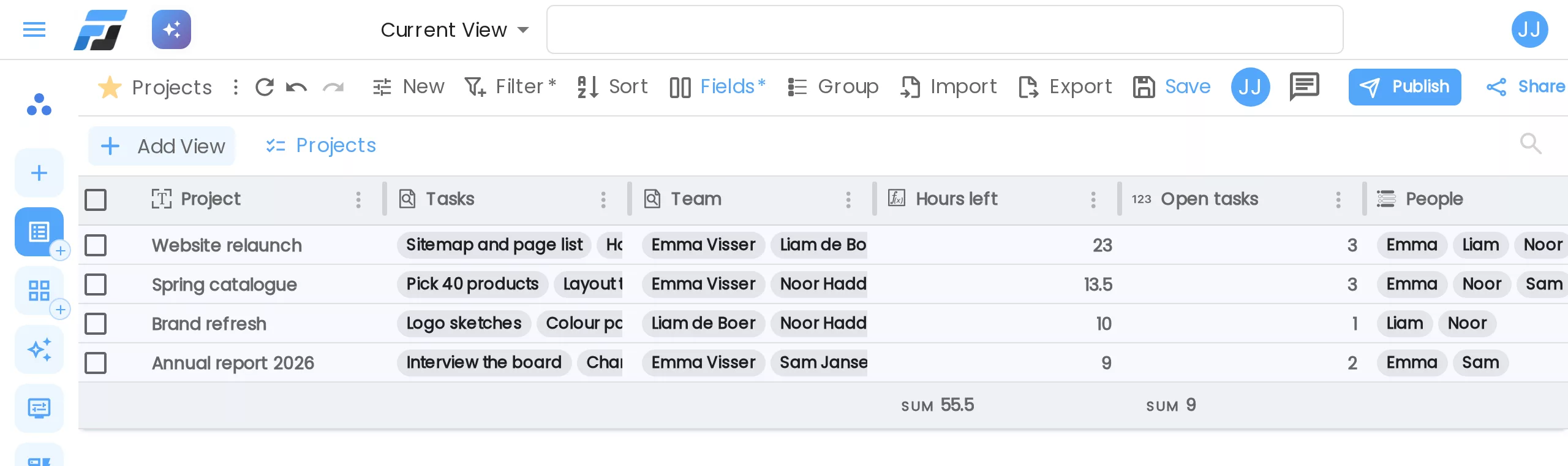
Most real work spreads over more than one list. A project has tasks, a customer has orders, a team member works on several projects. Until now Flexlists could look things up in another list, but it only went one way and couldn't add anything up. This week lists can really link to each other: one link that works from both sides, totals and counts through that link, and imports that bring over a whole Airtable or Baserow base with its links in place.
Link to another list
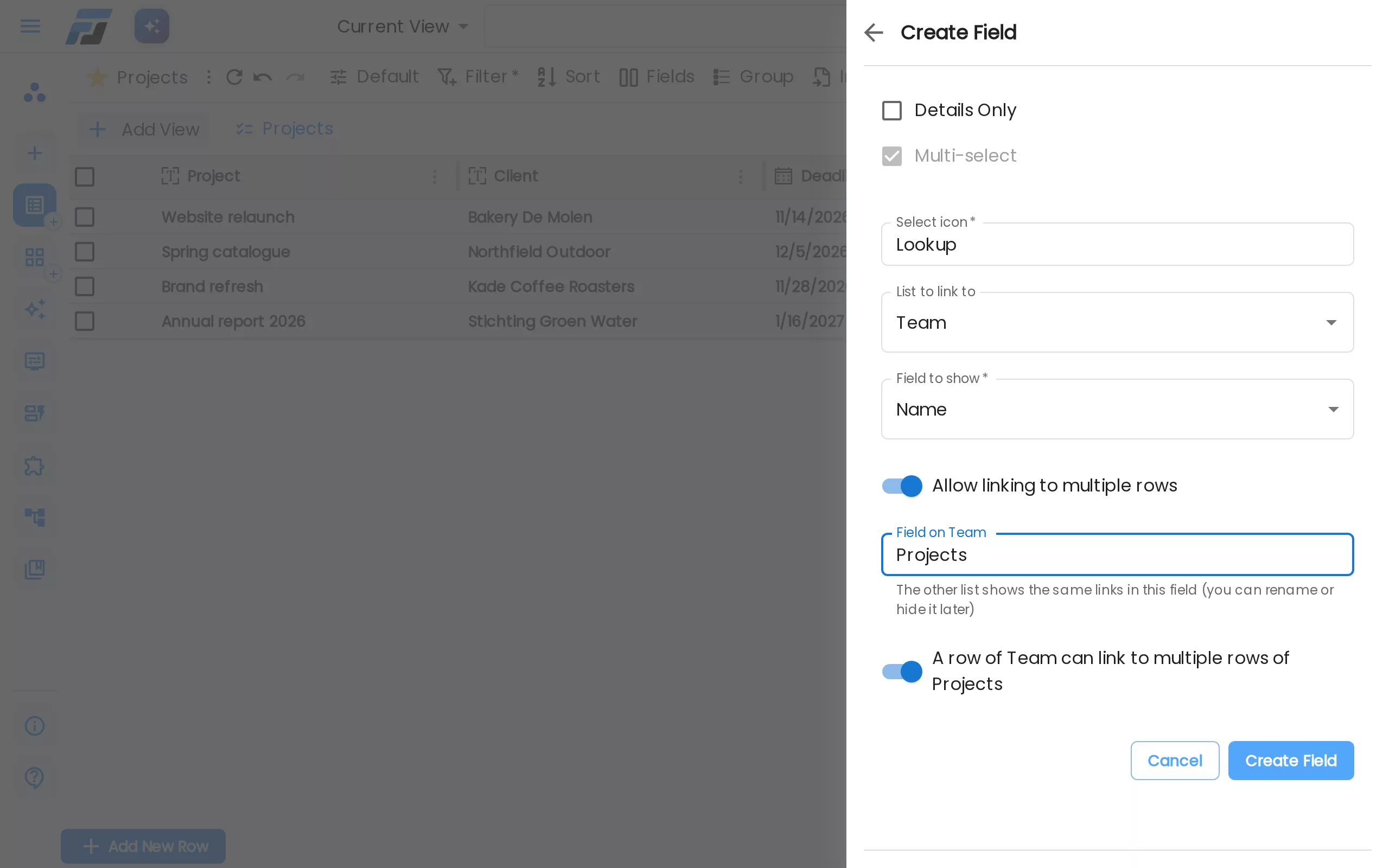
Add a field and pick Link to another list. Choose the list to link to and the field to show in the chips (usually the name). Then decide how many rows can be linked:
- Allow linking to multiple rows: can a project have several team members, or just one?
- A row of Team can link to multiple rows of Projects: the same question from the other side.
Together these give you every kind of relation: one to one, one to many and many to many. If a side allows only one link and you link a row that is already linked somewhere else, it moves over to the new row.
Both sides, automatically
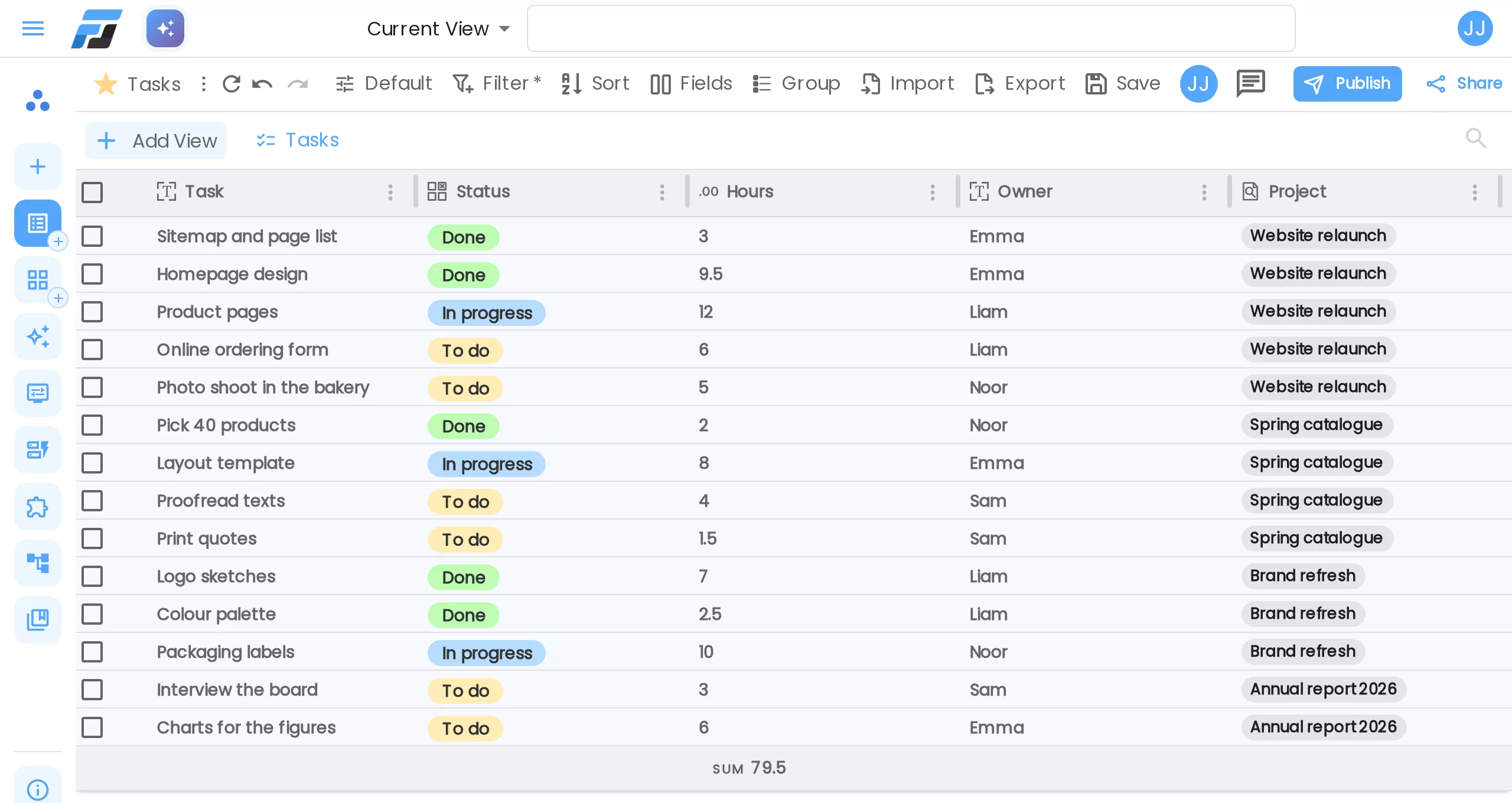
A link always works from both sides. When we added a Tasks link on the Projects list, the Tasks list got a Project field straight away, showing the same links. Change a link on either side and the other side follows. The other field is a normal field: rename it, hide it in a view, or pick another field to show.
Undo works on both sides too. Deleting a link field asks first, because it removes both sides, and the list history keeps a copy of both lists.
Picking rows
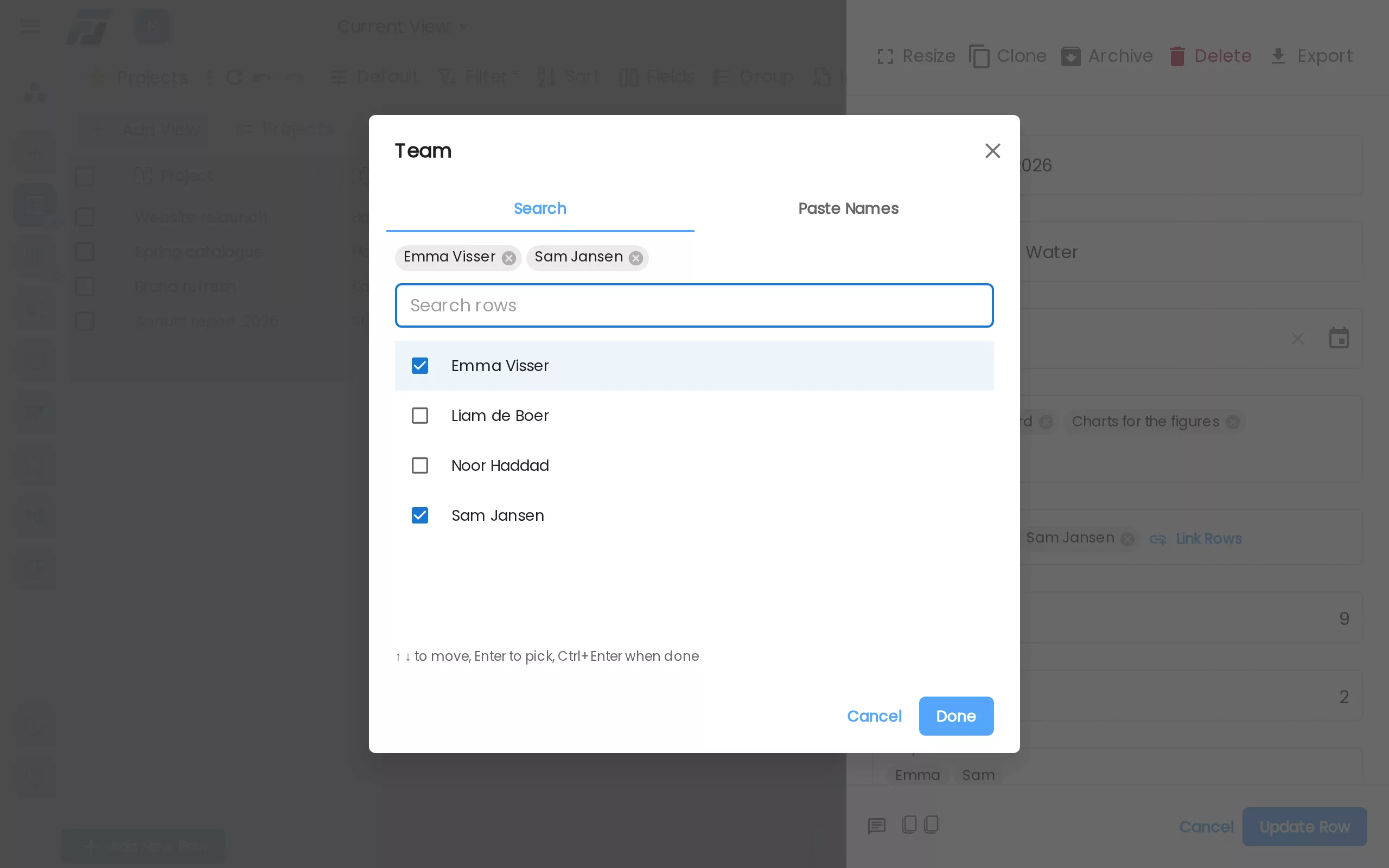
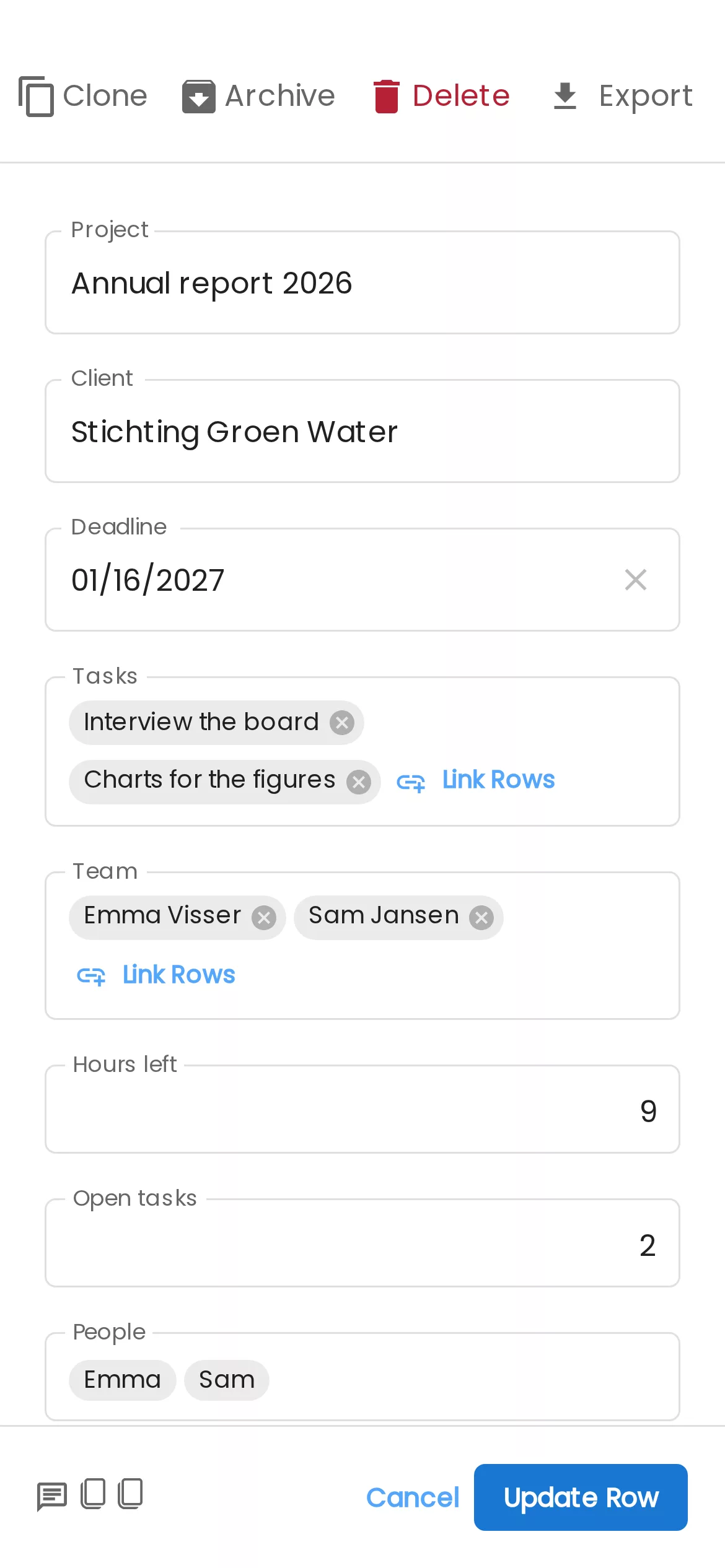
In a row, click Link rows to open the picker. Type to search the other list, tick rows, and press Done. It also works from the keyboard: arrows to move, Enter to pick, Ctrl+Enter when you are done.
- Type a name that isn't there yet and choose Create "…" to add that row to the other list and link it straight away.
- Paste names links many rows at once: paste a column from a spreadsheet, one name per line. Names that match nothing are listed so you can check them, never silently dropped.
On a phone the picker opens full screen, and the row shows its links as chips.
Filter on links
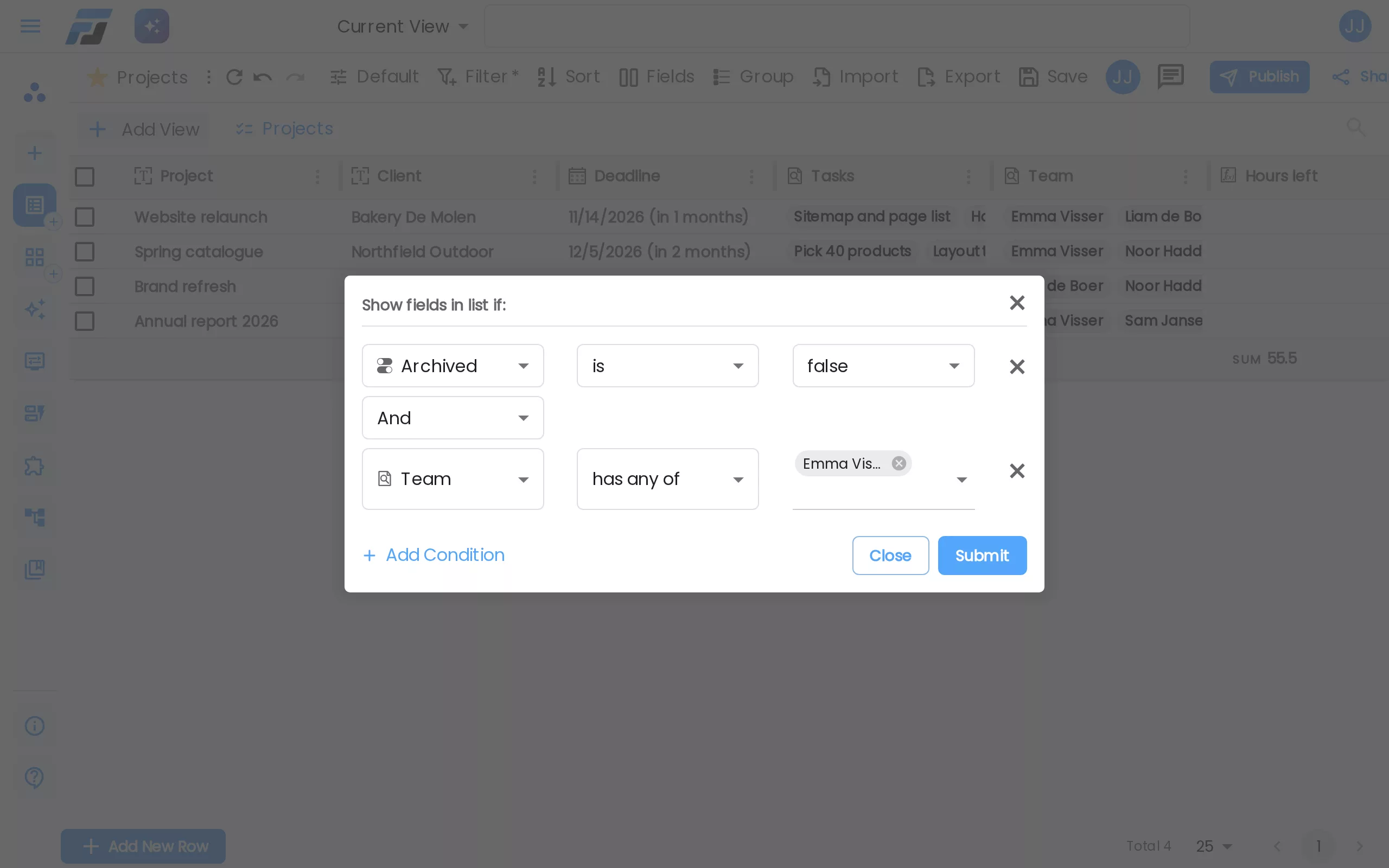
Link fields have their own filters: has any of, has all of, has none of, is empty and is not empty. You pick the rows by name, so "Team has any of Emma Visser" shows every project Emma works on. They stay fast on large lists.
Rollup, Count and Lookup through a link
Three new field types read the rows behind a link:
- Rollup runs a function over a field of the linked rows: SUM, AVG, MIN, MAX, the COUNT variants, EARLIEST and LATEST for dates, AND / OR / XOR for yes-no values, and ARRAYJOIN, CONCAT, ARRAYUNIQUE or ARRAYCOMPACT to combine values.
- Count counts the linked rows.
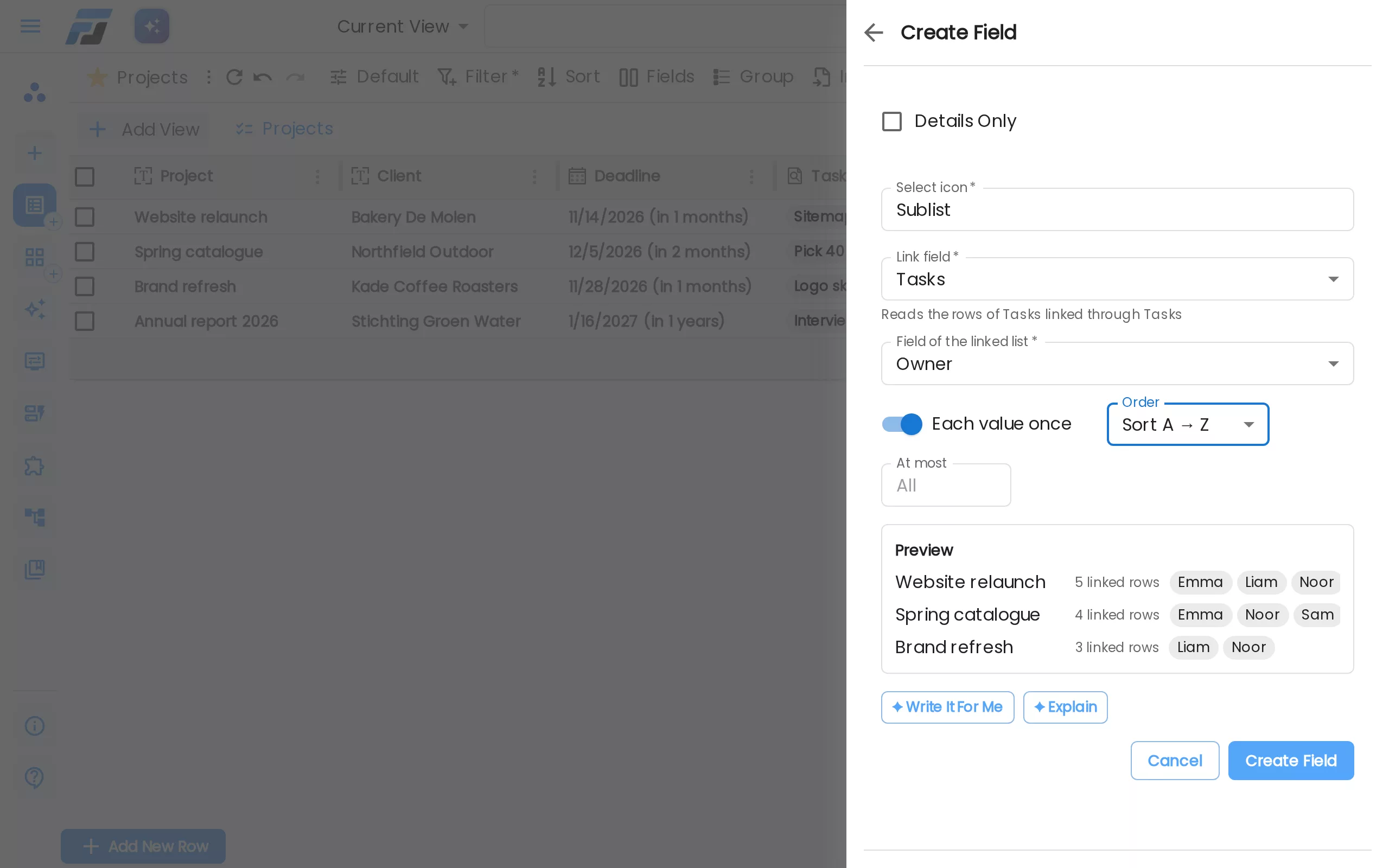
- Lookup through a link shows the values of a field of the linked rows. You can show each value once, sort them and set a maximum.
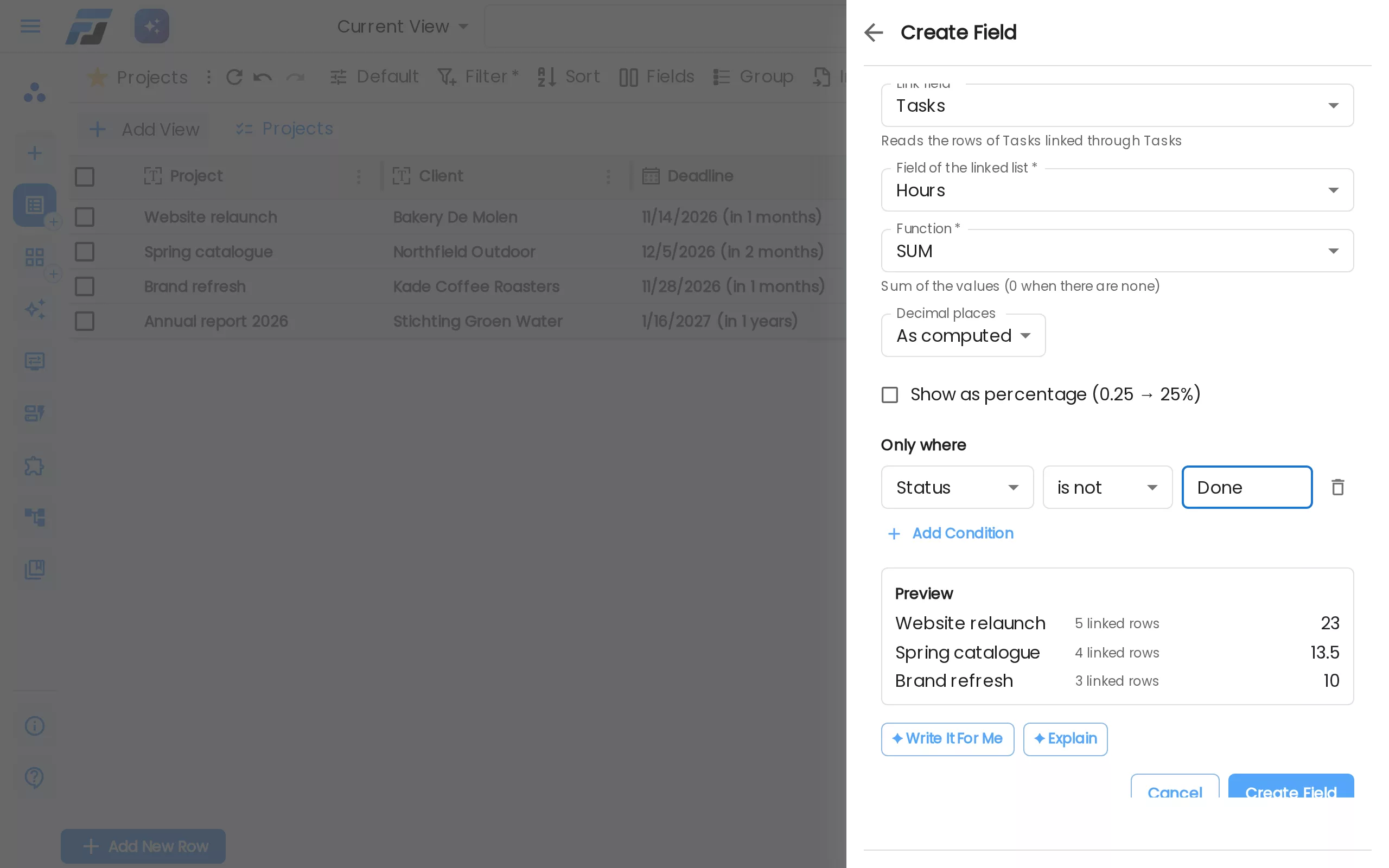
Rollup and Count can be limited with Only where. Our "Hours left" field adds up the hours of the tasks whose status is not Done, and "Open tasks" counts them. The preview shows the result on three of your rows while you build the field, so you can see straight away if it is right. ✦ Write it for me lets you describe the field in your own words, and ✦ Explain describes an existing one.
Values you can sort, filter and total
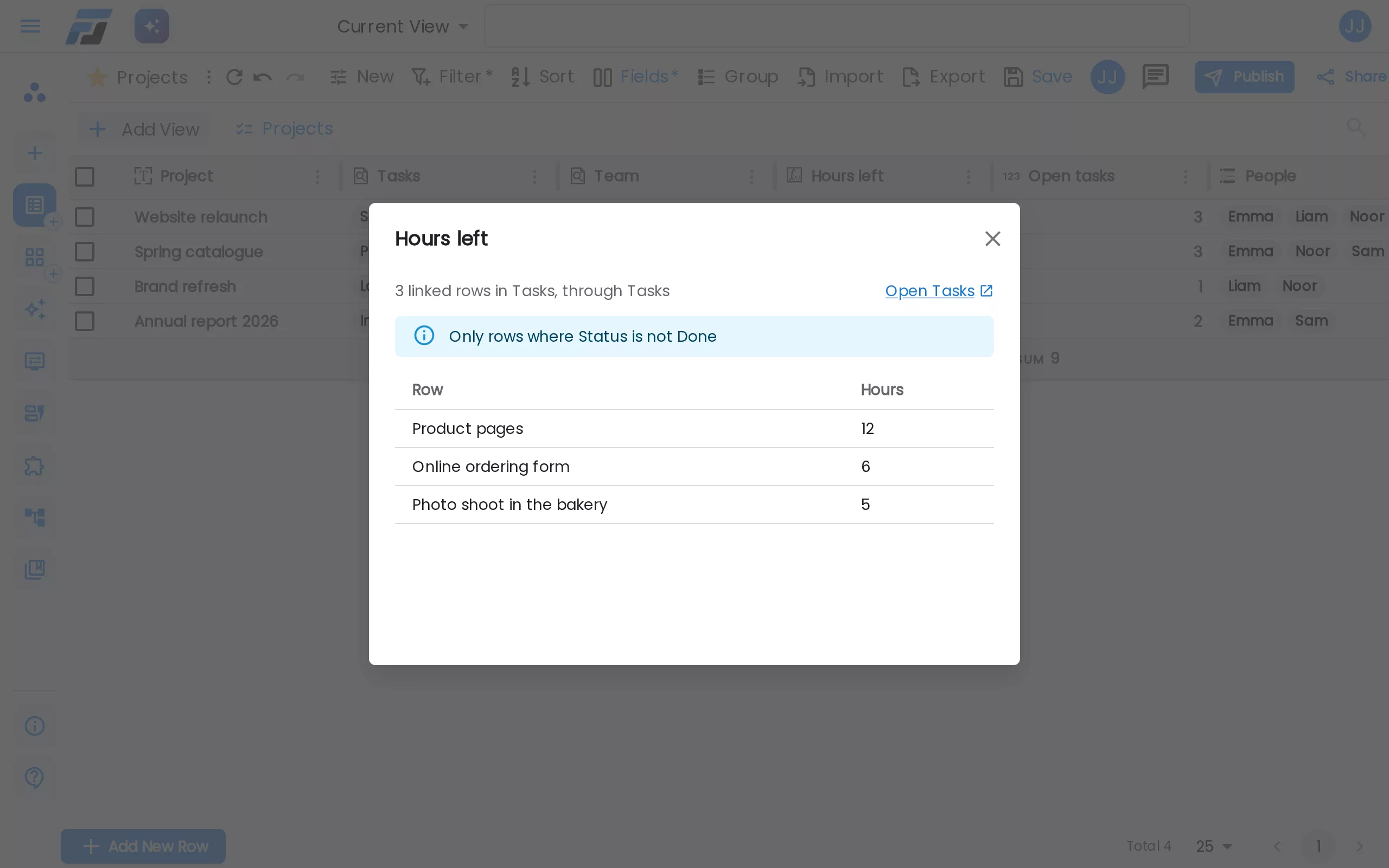
The results are stored like any other value, so you can sort, filter and group on them, and the column total adds them up. In our projects list that is 55.5 hours left over 9 open tasks. They show up in exports, the API, forms, widgets, cards and the app as well, and they are read-only everywhere.
- Always current. Mark a task Done and its project's hours and open tasks change right away. We tried it: "Website relaunch" went from 23 hours and 3 open tasks to 11 and 2.
- See where a number comes from. Click a Rollup, Count or Lookup value to see the linked rows behind it and what each one adds, with any Only where condition spelled out.
- Big changes. When a change touches a lot of rows, the work carries on in the background. The column shows "calculating…" until it is done, and the view reloads by itself.
- No loops. A field can't depend on itself. If you try, Flexlists won't save it and shows the chain, for example "This would make a loop: Projects.Score → Tasks.Score → Projects.Score".
Formulas see linked rows too
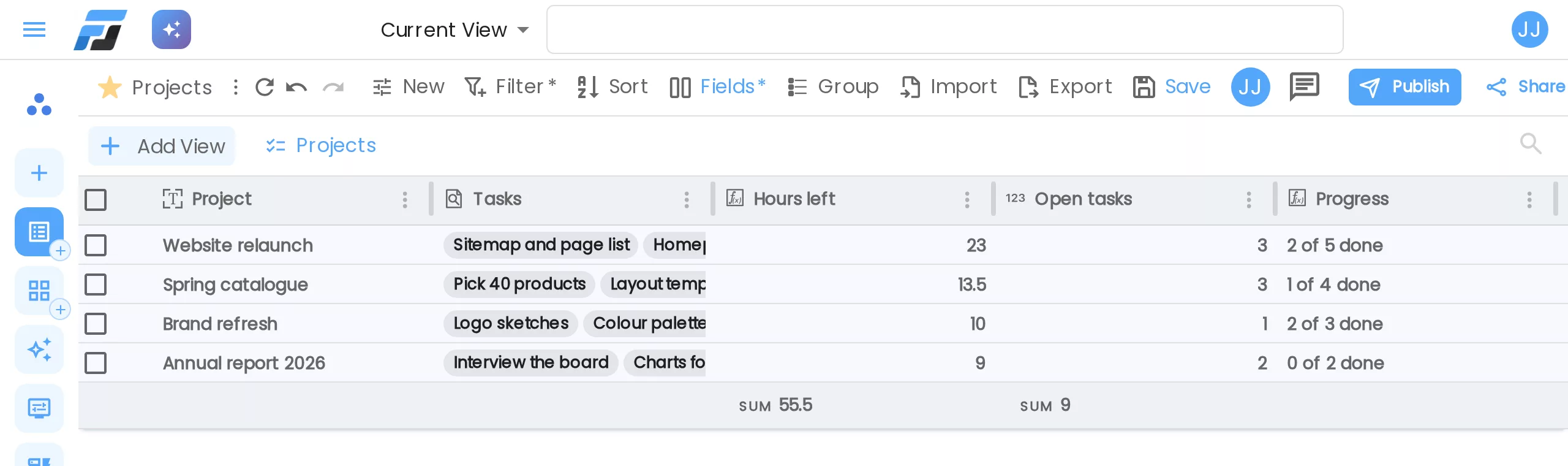
A formula can work through a link as well. {Tasks} gives the linked rows, and inside FILTER, MAP or SORT, item.Status reads a field of each linked row:
COUNTA(FILTER({Tasks}, item.Status = "Open"))counts the open tasks;SUM(MAP({Tasks}, item.Hours))adds up their hours.
The Progress column above is one formula: COUNTA(FILTER({Tasks}, item.Status = "Done")) & " of " & COUNTA({Tasks}) & " done". Formulas can also use rollups, and rollups can read formulas. Our post on formulas covers this in more depth.
Bring your Airtable or Baserow base
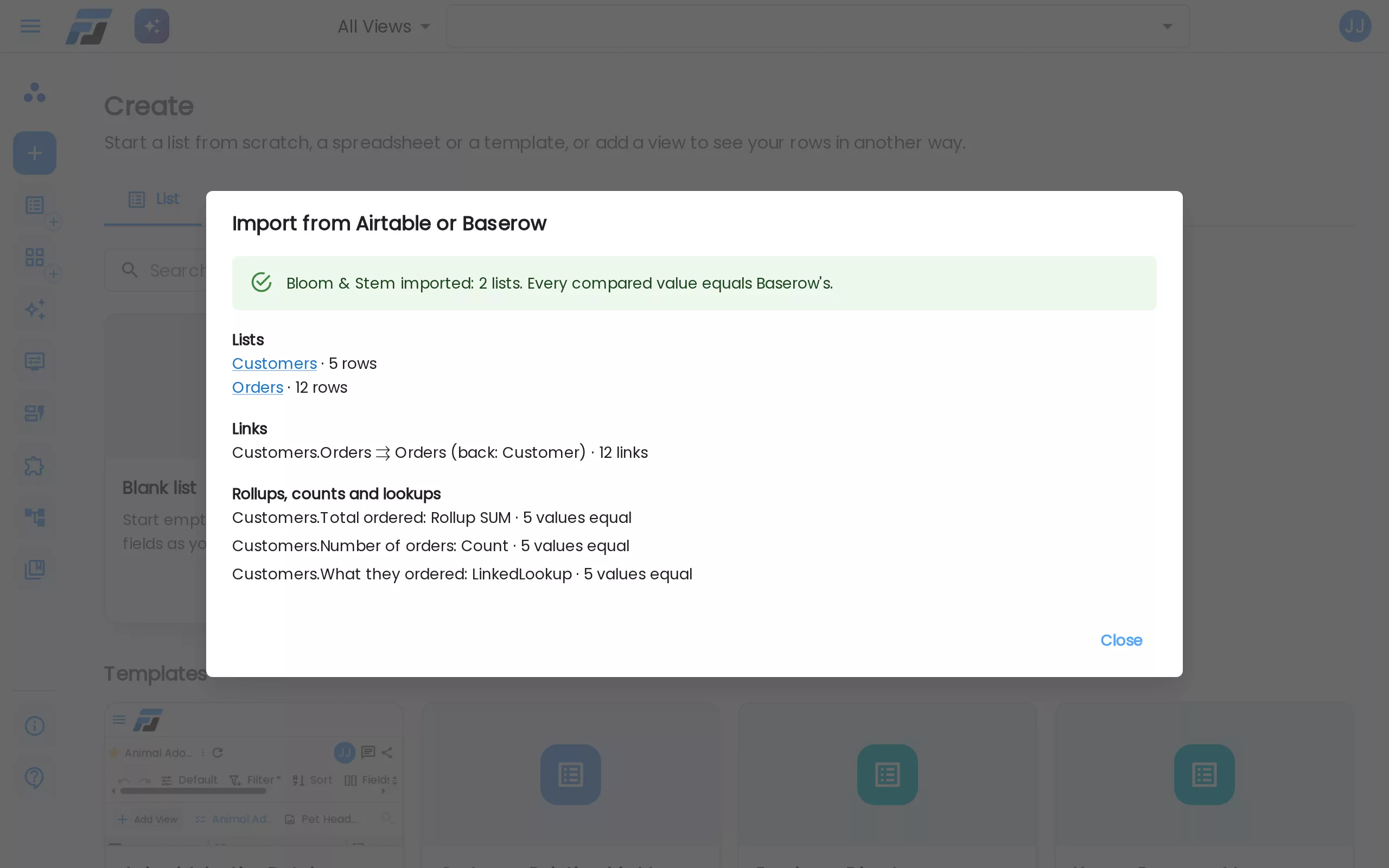
In Create, choose Import from Airtable or Baserow.
- Airtable: paste a personal access token (with the scopes
data.records:readandschema.bases:read) and the base id or URL. The token is only used for this import and is not stored. - Baserow: upload the export of a workspace or database (the .zip, or its export.json).
Every table becomes a list. Linked records become links, with both sides in place, and rollups, counts and lookups become Flexlists fields. Formulas are taken over when Flexlists can calculate them the same way; otherwise their values are kept and the report says so. Flexlists then checks every calculated value against the values in the base. When we imported a small flower shop base from a Baserow export, the report said: "Every compared value equals Baserow's." It also lists the links and anything that needs a second look.
Try it
Open a list, add a field and pick Link to another list, then add a Rollup, Count or Lookup through it. Or go to Create and bring in your Airtable or Baserow base. The help page Linking lists (in the docs menu) has the details. Everything above is live on flexlists.com today.